Managing Variables
You can adjust the attributes and behaviour of system variables on the dataserver to make your Jasper system better serve your particular application.
Renaming variables
You can assign names that are meaningful in a given application. For instance, you can put the name of a room in a variable's name. Changing variable names does not affect the proper functioning of your Jasper system.
To change the name of a variable, follow these steps.
-
Sign in to Jasper as an administrator.
-
Open the Data menu and choose Configuration under the Variables heading.
The Variables Configuration page appears.
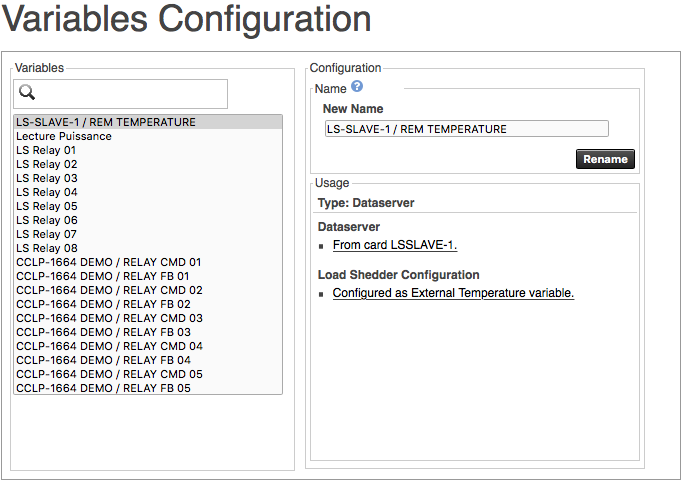
Variables list
Click the name of a variable whose name you want to change. You can also type part of the name of a variable next to the magnifying glass icon to find the desired variable more quickly.
New Name
The selected variable's current name appears here.
You can type a new name for the variable here as well. Before you take this step, review information in the Usage field below to ensure you're changing the right variable's name.
Rename button
Click this button to save the new name to the variable.
Usage
Review the Jasper functions that use the selected variable. Each location features a link to a configuration page where Jasper uses the variable.
Recovering variable values
When a controller is reset, it can lose the values stored in its variables. To prevent issues due to the loss of those values, you can have Jasper rewrite those values repeatedly, after set intervals, regardless of the state of the controller.
To have variable values updated periodically, follow these steps.
-
Sign in to Jasper as an administrator.
-
Open the Data menu and choose Variables Updates under the Variables heading.
The Variables Updates Configuration page appears.
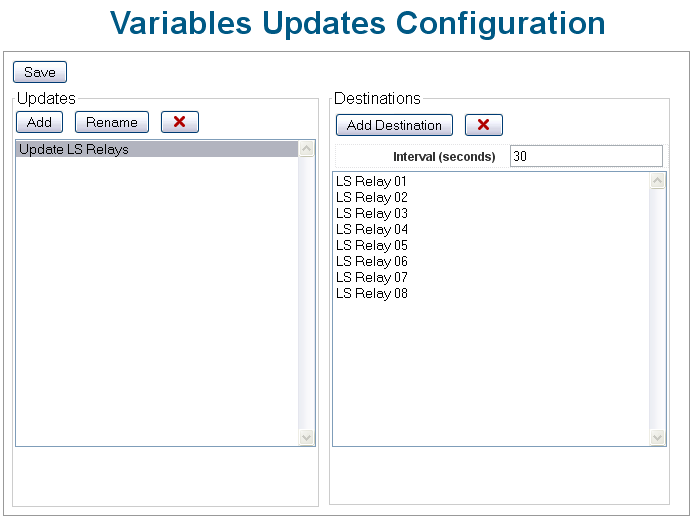
It is split into two parts:
-
Updates
-
Destinations
-
-
Click the Save button to have your changes take effect.
Updates
Add
Click this button to have a text field and OK button appear. Type the name of the group of variables you want to update and click OK. The group name appears in the list below.
Rename
To change the name of a group in the list below, first click the name, then click this button. A text field and OK button appear. Type the new name of the group and click OK. The group appears in the list below with its new name.
Red “X”
To delete a group from the list below, first click the group name, then click this button. The group disappears from the list.
List (left side)
This list contains the groups of variables that Jasper periodically updates. When you click a group name in this list, the variables it contains appear in the list to the right.
Destinations
Add Destinations
To choose variables to perpetually update, first click the relevant variables group in the list to the left, then click this button. A list of all configured variables in Jasper appears. Highlight the variables you want Jasper to update and click Select. The list of variables disappears and your selected variables appear in the main dialog in the list below this button.
Red “X”
To remove a variable from the list to the right, first click the variable, then click this button. The selected variable disappears from the list.
Interval (Seconds)
Type the interval at which Jasper rewrites the variable's value. For example, if you type “30,” Jasper writes the value every 30 seconds to the controller.
List (right side)
Names of variables to which Jasper writes values. This list of variables is included in the group name selected in the list to the left.
Binding variables to enable automation
Note: in this manual, the terms “binding” and “link” are used interchangeably.
You can have variable values automatically trigger processes on your Jasper network. For instance, you can have your HVAC system switch to either “heat” or “cool” depending on the temperature outdoors.
Automation like this calls for several steps. One of these steps is to “bind” a variable's value to the controller responsible for taking that action. In the example given above, you would bind your HVAC system's “on/off” (binary) variable to the “outdoor temperature” (analog) variable.
To create “bindings,” follow these steps.
-
Sign in to Jasper as an administrator.
-
Open the Data menu and choose Binding under the Variables heading.
The Binding page appears.
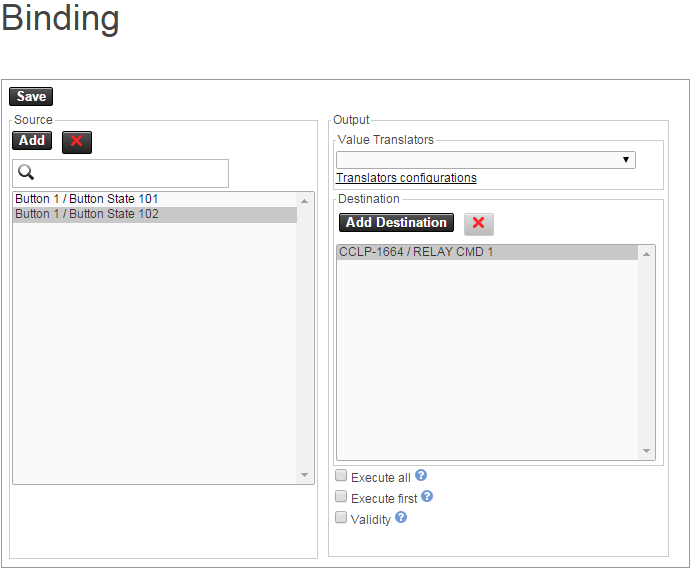
This dialog is split into two halves:
-
Source
-
Output
In the Output section, you choose the variables you want to bind to the source variable you choose in the Source portion of the dialog. You can bind more than one output variable to the same source variable.
-
-
To have your changes take effect, click the Save button.
Binding Source
Add
Click this button to view a list of available variables. Click the variable(s) you want to create bindings for and click Select. Your selection appears in the list below.
Red “X”
To delete a source variable, first click the variable, then click this button. The variable disappears from the list.
Search field
This search feature saves you time when the Source list of variables becomes lengthy. If you know any part of the name of the variable you want to find in the Source list, type that text here. As you type, Jasper culls variables whose names don't match the text from the list.
Source list
This is a list of variables that contain values to be copied to destination variables.
Binding Output
Value Translators drop list
Choose the value translator needed to convert the value of the source variable so it can be read by the destination variables that use it.
Jasper does not update destination values if either:
- the source value does not ordinarily change
- the translator rule does not change the value of the destination variable.
If you need to verify or change the configuration of a value translator, click the “Translators configurations” link. For more information, refer to Value Translators.
Add Destinations
Click this button to display a list of variables that you can add to the binding.
Note: Variable names frequently contain the name of the controllers they affect.
Red “X”
To remove a variable from the Output list, click the variable, then click this button. The selected variable disappears from the list.
Execute all
Check this box to have destination values updated each time Jasper reads source variable values. If you don't check this box, Jasper updates destination values only when source values change.
Execute first
Check this box to have Jasper update destination variables when it first reads source variable. Use this setting to, for instance, avoid applying a dry contact's initial value to its destination variables when Jasper first boots.
If you don't check this box, Jasper updates destination variables when the source variable is updated.
Validity
Jasper checks variable attributes to ensure they are valid. Jasper also stores a validity state attribute for each variable. This can be either “valid” or “(potentially) invalid.” (Different devices have different names for this state.) (Potentially) invalid states can arise when, for example, values aren't properly read or the values are outside the range that the device can read.
If you check this check box, the validity state of the source variable will be transferred to destination variables.
Value Translators
Value translators convert a given value to another format. For example, they can convert:
-
Celsius to Fahrenheit
-
a numerical input to ON or OFF
-
ON / OFF to a percentage or preset temperature
To work with value translators, follow these steps.
-
Sign in to Jasper as an administrator.
-
Open the Data menu and choose Translators under the Variables heading.
The Value Translators page appears.
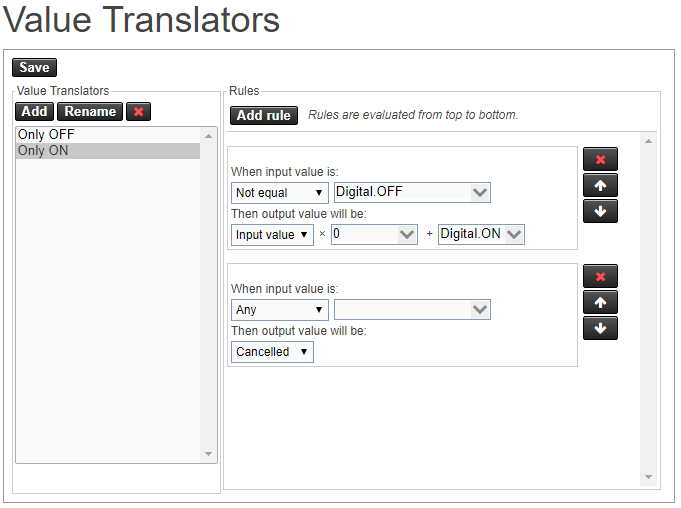
This page is divided into two main sections:
-
Value Translators
-
Rules
You configure the value translator behaviour in the Rules section for the translator you choose in the Value Translators section.
-
-
To have your changes take effect, click the Save button.
Value Translators
Add button
Click this button to type the name of a new value translator. Click OK to have it appear in the list below.
Rename button
Select a value translator from the list below, then click this button to rename it.
Red “X” button
Select a value translator from the list below, then click this button to delete it.
Value Translator list
This list contains existing value translators.
Rules
Add rule button
Click this button to add a rule that:
- triggers the value translator according to a source value.
- creates an output value for the destination variable.
Translators can have more than one rule. You must configure each one you add for it to take effect.
Since Jasper evaluates rules from the top of this list to the bottom, use the up-arrow and down-arrow keys to the right of the rules to put them in the order you want them evaluated.
To delete a rule, click the red “x” button to its right.
When input value is:
Use the drop list and combination drop list/text field to set parameters Jasper uses to determine whether to perform this translation.
Then output value will be:
If you set the drop list to “Input value” Jasper uses it to do the arithmetic you specify in the following two fields.
Consider these examples:
- To convert from Celsius to Fahrenheit, use this formula: C x 1.8 + 32.
- To convert a value to a number, make the “x” number zero (0) and type the desired destination value in the “+” field.
- To convert amperes to watts, multiply amperes x 120 Volts + 0
To prevent the binding from running, set the required input value conditions in the rule and choose “Cancelled”.
Creating and configuring groups of variables
You can group variables for BACnet devices that regularly handle similar commands at the same times. Groups of variables are useful for triggering events using:
-
schedules
-
user interface buttons
Buttons, for example, only allow changes to one variable, so to have a button change multiple variables, those variables must be in a group.
Note: One variable can be part of more than one group.
To work with groups, follow these steps.
-
Sign in to Jasper as an administrator.
-
Open the Data menu and choose Groups under the Variables heading.
The Groups Configuration page appears.
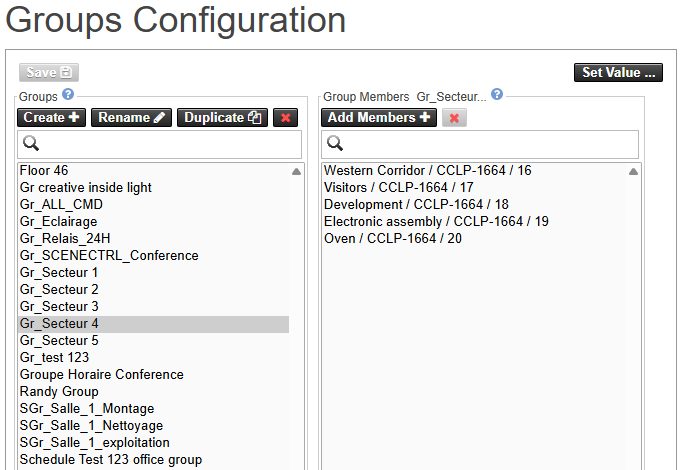
This page is divided into two main sections:
-
Groups
-
Group Members
-
-
To save your changes to the Jasper configuration file, click the Save button.
-
To have your changes take effect, restart Jasper.
Set Value… button
Use this button to send a value to all members of the selected group. If you have just added a group, you need to restart Jasper before you can set the value of the new group of variables.
Groups
Create button
Click this button to type the name of a new group.
Rename button
Select a group from the group list below, then click this button to rename it.
Duplicate button
Select a group from the list below, then click this button to create a copy of it. Jasper suggests a name based on the original group (the original name followed by (copy)). Type a name for the new group and confirm. The new group includes all the members of the original group. To have the new group take effect, restart Jasper.
Red “X” button
Select a group from the list below, then click this button to delete it.
Search field
When you type part of the name of a group you're looking for, Jasper culls the list to include only group names that contain the text you type.
Groups list
This list contains existing groups.
Group members
Add Members button
Click this button to display a list of controllers that you can add to the group. You can add more than one variable at a time by shift-clicking variable names.
Red “X” button
Select a variable from the list below, then click this button to delete it.
Search field
When you type part of the name of a variable you're looking for, Jasper culls the list to include only variable names that contain the text you type.
Group Members list
This list contains all variables that are members of the selected group.
Value mode
This dropdown controls how the group variable gets its value.
-
Command: default behavior. The group value is the last command written to the group.
-
Automatic: the group value and status reflect the real state of its members. When all members are boolean, the value is the logical OR of the members. When all members are numeric, the value is the average of the members. Otherwise, the value is the last command written.
Managing BACnet objects
Use this page to add, configure and delete BACnet objects managed by Jasper.
To manage BACnet objects, follow these steps.
-
Sign in to Jasper as an administrator.
-
Open the Data menu and choose BACnet Objects under the Configuration heading.
The BACnet Objects Configuration page appears.
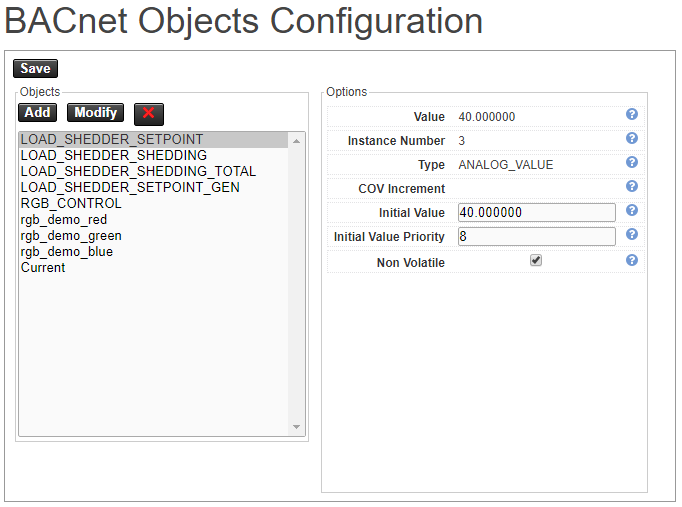
This page is divided into two main sections:
-
Objects
-
Options
-
-
To have your changes take effect, click the Save button.
Objects
Add button
Click this button to add a new object. For each object, you must enter:
- Name: a unique name that other BACnet devices use to recognize this object.
- Instance number: a unique number. This number must be unique for the Type.
- Type: the type of variable the object uses.
- COV (change of value) Increment (only if Type is any of the “analog” choices): If the variable's value changes to a greater extent than the COV increment, the device notifies other devices on the network.
Modify button
Select an object from the object list below, then click this button to modify its attributes. Those attributes are the same as those you configure when you use the Add button (described above).
Red “X” button
Select an object from the list below, then click this button to delete it.
Objects list
This list contains existing objects.
Options
Value
The current value for this object.
Instance number
A unique number. This number is unique for the Type.
Type
This is the type of value the object stores.
COV Increment
If the variable's value changes to a greater extent than the COV (change of value) increment, the device notifies other devices on the network.
Initial Value
This is the value assigned to the object when Jasper starts up.
Initial Value Priority
This is the initial priority assigned to the BACnet object.
Priorities are integers between 1 and 16, with 1 being highest priority.
Non Volatile
If this box is checked, Jasper saves any changes to the value of this object to flash memory and reapplies it when Jasper is restarted.