Configuring the load shedder
Jasper users need to track load shedder activity and may also need to change certain settings.
Note: when referring to the load shedder, the terms “stage” and “step” are used interchangeably.
How the load shedder uses variables
The dataserver refers to several variables during peak consumption management. The dataserver:
-
reads a variable to determine current consumption (in the unit of the power meter, as selected in Power Unit on the Options tab).
-
uses the current load number and a preset setpoint to determine whether to enable or disable load. (You can use a fixed setpoint or a variable that stores a setpoint.)
-
writes to other variables to enable or disable load.
Enabling the load shedder
To enable load shedder features for users, follow these steps.
-
Sign in to Jasper as an administrator.
-
Open the Jasper menu and choose Configuration under the Load Shedder heading.
The Load Shedder Configuration page appears. Information for each tab in this page appears on the following pages:
-
Load Shedder Configuration: Stages tab
-
Load Shedder Configuration: Groups tab
-
Load Shedder Configuration: Options tab
-
Load Shedder Configuration: Setpoints tab
-
Load Shedder Configuration: Demand Response tab
-
-
In the Load Shedder list, select the load shedder to configure.
-
Once you have configured the load shedder, click the Save button.
Selecting, adding, renaming and deleting load shedders

Jasper can run several load shedders at the same time. Each load shedder has its own settings on every tab of the configuration page, and its own BACnet objects and demand response events.
The Load Shedder section, above the tabs, lists the load shedders. Select a load shedder in the list to display and change its settings.
Add
Click Add, enter the name of the new load shedder and click Add in the dialog. The new load shedder is created with an initial configuration and becomes the selected load shedder.
If the existing load shedder has not been named yet, it appears as “Default LoadShedder” in the list. In this case, Jasper first asks you to name it. Click Name in the dialog, then enter a name.

Rename
Select the load shedder, click Rename, enter the new name and click Rename in the dialog. The names of the BACnet objects and value translators of the load shedder are also updated.

Delete
Select the load shedder, click Delete and confirm. Jasper deletes the load shedder with its BACnet objects, value translators and demand response events. This operation cannot be undone.

Load Shedder Configuration: Stages tab
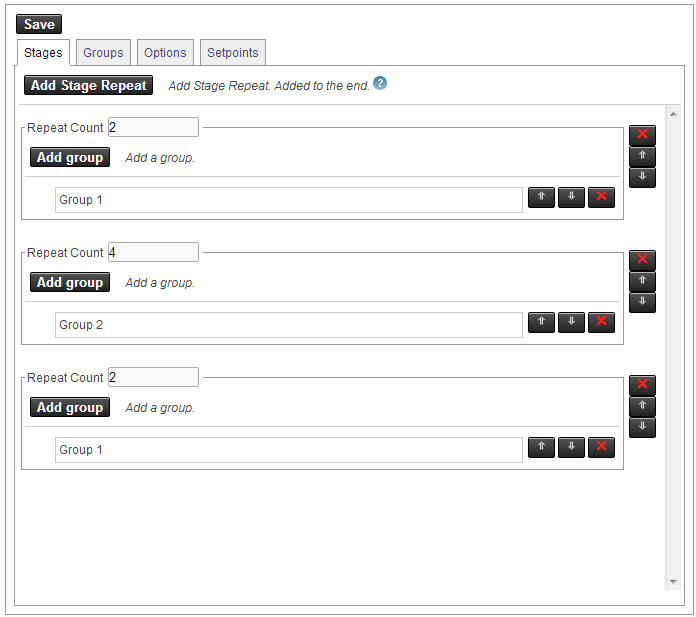
Jasper sheds load one stage at a time. You define each stage by:
-
adding groups to them. (To create groups, use the Groups tab on this page)
-
ordering the groups within stages and ordering the stages.
Add Stage Repeat
Click this button to add a stage to the end of the list.
You can reorder stages in this list using the up and down arrows to the right of the stages.
You can delete a stage by clicking the red “X” to the right of the stage.
Repeat Count
Set the number of members you want Jasper to shed load from in this stage. The default value is 1, which means Jasper will shed load from one member in this stage before it moves on to another stage. You can have Jasper shed load from two or more members in this stage by changing the Repeat Count number. This number must be an integer.
Add Group
Click this button to add a group to a stage. You create groups using the Groups tab on this page. For more information, refer to Load Shedder Configuration: Groups tab below.
You can reorder groups within a stage using the up and down arrows to the right of the groups.
Jasper sheds load from one member of the first group, then one member of the second group, and so forth to the last group. If necessary, it restarts by shedding load from a second member of the first group, and it continues to cycle in this way.
You can delete a group from a stage by clicking the red “X” to the right of the group. This does not delete the group itself.
Load Shedder Configuration: Groups tab
You can apply one set of load shedder settings to several variables if you put those variables in a group.
Use the tools in this dialog to create load shedder groups.
Groups list
Add
Click this button to add a group to the list of groups below the button.
Rename
Click this button to rename the group currently selected in the list below.
Red “X”
Click this button to delete the group currently selected in the list below.
Members tab
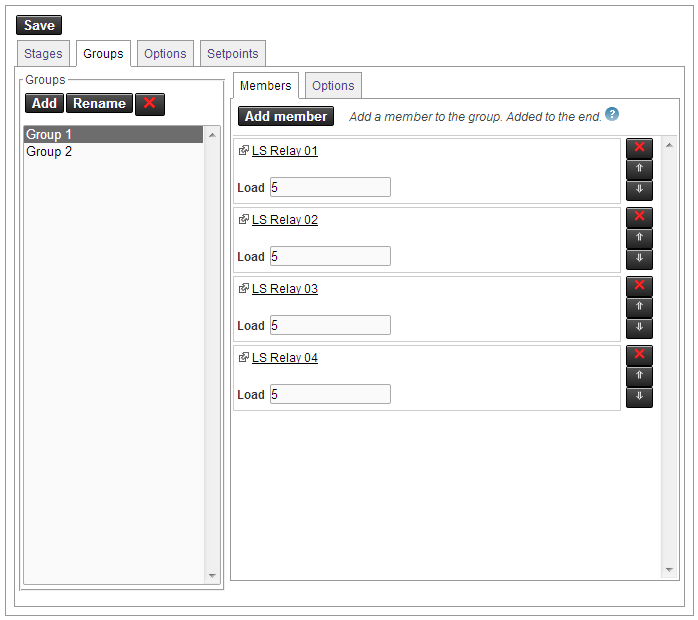
Add member
Click this button to add a variable to the group.
Rearranging members
Use the up and down arrows to the right of the member name to move that member to a different position in the list. The load shedder will shed load from these members in the order they appear in this list. For more information, refer to Load Shedder Configuration: Stages tab.
Replacing members
Click the member name. A list of variables appears. Click the control name and click the Select button. Jasper replaces the original control in this spot with the control you select.
Deleting a member
Click the red “X” to the right of the member name.
Options tab
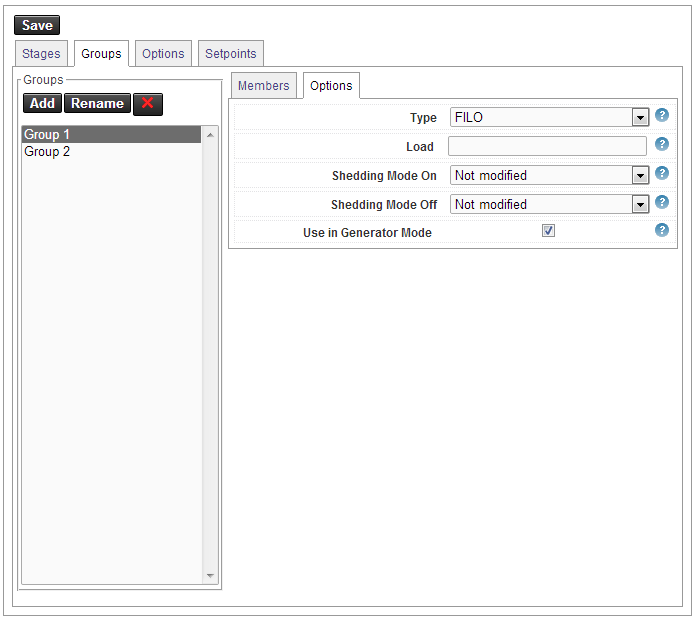
Type
Use this drop list to determine the order in which loads are enabled and disabled.
- FIFO (First In First Out): loads are enabled in the same order they were disabled. You can have them cycle to share electric consumption time equally between group members.
- FILO (First In Last Out): the first load enabled is the last one disabled. You can use this configuration to grant priority to specific loads.
- Proportional: enables control on 0-100% analog loads.
The load shedder considers the load of a whole group to be 100 percent. You can program loads to be shed in, for instance, five steps of 20 per cent each.
You can modulate proportional loads by setting their minimum and maximum power consumption. For instance, you can allow a boiler to shed load down to a minimum of 30 percent. This enables load shedding while keeping building occupants comfortable.
To choose more than one controller, you need to create a group using the instructions in Load Shedder Configuration: Groups tab.
Load
(Optional for FIFO and FILO types) Indicates the default power load for the entire group, in the same unit as the power reading (Power Unit on the Options tab). If left blank, the power load must be provided for each member. If a value is configured for a member, it will be used. When using a Proportional type group, this value indicates the power load at 100%
Cycling (seconds)
(for FIFO groups) The load shedder can shift load from one controller to the next. For instance, if you have four heating controllers, the load shedder shuts down two and Cycling is set to 300 (i.e. five minutes), the load shedder will reactivate the first controller to be shut down and deactivate the next controller in line after five minutes. It will cycle through the controllers so that it manages load while keeping building occupants comfortable.
Minimum
(for Proportional groups) A percentage of total load, written as an integer. Once the load shedder reaches this minimum percentage as it sheds load, it will no longer shed power.
Maximum
(for Proportional groups) A percentage of total load, written as an integer. Once the load shedder reaches this maximum percentage as it restores power, it will no longer add power.
Step Count
(for Proportional groups) The number of steps, expressed as an integer, that the load shedder takes as it modulates proportional loads. For instance, if you want the load shedder to shed in steps of 20 percent of total load, enter the integer “5” in Step Count. (5 x 20% = 100% of total load)
Shedding Mode On
Sets the power reactivation mode for this group.
- Not Modified: uses the value set in the Options tab, explained in Load Shedder Configuration: Options tab.
- By Power: the number of activated steps is calculated according to the power available between the power reading and the setpoint. For example, if the load shedder determines that it can add another 50 kW before it reaches the load setpoint, it will find 50 kW of load among inactive controllers and add that load.
- Single Step: steps are activated one by one. After a controller is reactivated, Jasper checks whether the load has reached the load setpoint before it takes another step towards that setpoint.
Shedding Mode Off
Sets the shedding mode for this group.
- Not Modified: uses the value set in the Options tab, explained in Load Shedder Configuration: Options tab.
- By Power: the number of activated steps is calculated according to the power available between the power reading and the setpoint. For example, if the load shedder determines that it can shed another 50 kW before it reaches the load setpoint, it will find 50 kW of load among active controllers and shed that load.
- Single Step: steps are activated one by one. After a controller is deactivated, Jasper checks whether the load has reached the load setpoint before it takes another step towards that setpoint.
Use in Generator Mode
Select this check box to have Jasper control the group while the building gets power from a generator.
If the option “Setpoint Mode Transition” is off, loads that are not controlled in generator mode stay off while generator mode is active. For more information on this option, refer to Load Shedder Configuration: Options tab.
Load Shedder Configuration: Options tab
You can set parameters used by the load shedder. Many of these values can be found in variables since they fluctuate during the day.
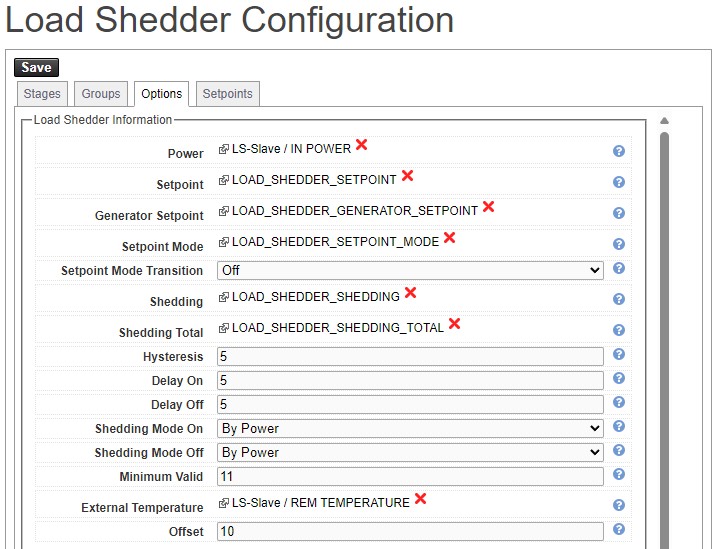
Power
Variable for total system power consumption, read from the building power meter.
Power Unit
Unit used to display the power: watt (W) or kilowatt (kW). Leave blank to display no unit.
This setting only changes the unit shown in the interface. It does not convert any value. Select the unit that matches the Power variable. All other power values (setpoints, Hysteresis, Minimum Valid, group and member loads, Calculated Power Value minimum and maximum) must be entered in this same unit.
Setpoint
Variable for the load shedder setpoint.
Generator Setpoint
Variable for the generator mode load shedder setpoint.
Setpoint Mode
Variable that controls load shedder mode. If value is “0” the load shedder is in normal mode. If it is any other value, it is in generator mode.
Setpoint Mode Transition
This variable controls load shedder behaviour depending on whether the generator is running or not.
There are two options:
- None: the shedding sequence continues with the new setpoint.
- Off: To keep from overloading the generator, all loads turn off as the building transitions to generator power and the system adds load to the generator gradually.
Shedding
This variable stores the current shedding level. You can view the shedding level as “Active Steps” in Jasper - Load Shedder - Display as explained in “Configuring the load shedder” in the Jasper user manual.
The numerator is the number of active loads and the denominator is the total number of loads. For example, if you see “⅜” there are 8 total loads of which 3 are active. The “3” is the Shedding variable's value.
Shedding Total
Variable for the total shedding level. You can see the shedding total as “Active Steps” in Jasper - Load Shedder - Display as explained in “Configuring the load shedder” in the Jasper user manual.
The numerator is the number of active loads and the denominator is the total number of loads. For example, if you see “⅜” there are 8 total loads of which 3 are active. The “8” is the Shedding Total variable's value.
Hysteresis
Lag applied to the setpoint, in the unit selected in Power Unit. For example, if your setpoint is 100 kW and this setting is 5, Jasper waits until consumption reaches 95 kW before reactivating load.
Delay On
Delay (in seconds) between each load activation. For example, if this setting is “15” and Jasper reaches the load shedder setpoint, it waits 15 seconds before adding load. It then waits another fifteen seconds before evaluating the effects of adding load before adding more load. The default value is 15.
Note: Jasper compares the power with the setpoint each time a new power reading is received. The delay starts at the reading that requires a change. When the delay has expired, Jasper acts at the next power reading, and only if that reading still requires the change. The actual delay can therefore be longer than this setting. When the Power variable is polled, saving the configuration sets its poll interval to the lowest value among Delay On, Delay Off and the dataserver polling interval (minimum 1 second).
Delay Off
Delay (in seconds) between each load deactivation. For example, if this setting is “5” and Jasper reaches the load shedder setpoint, it waits 5 seconds before shedding load. It then waits another five seconds before evaluating the effects of load shedding before shedding more load. The default value is 5.
Note: Jasper compares the power with the setpoint each time a new power reading is received. The delay starts at the reading that requires a change. When the delay has expired, Jasper acts at the next power reading, and only if that reading still requires the change. The actual delay can therefore be longer than this setting. When the Power variable is polled, saving the configuration sets its poll interval to the lowest value among Delay On, Delay Off and the dataserver polling interval (minimum 1 second).
Shedding Mode On
There are two options here:
- By Power: the number of steps to be activated is calculated according to the power available between the power reading and the setpoint.
- Single Step: steps are activated one at a time.
This setting may be overridden for specific groups on the Groups tab.
Shedding Mode Off
There are two options here:
- By Power: the number of steps to be deactivated is calculated according to the power available between the power reading and the setpoint.
- Single Step: steps are deactivated one at a time.
This setting may be overridden for specific groups on the Groups tab.
Minimum Valid
Sets the minimum value for a valid power meter reading, in the unit selected in Power Unit. If this reading goes below Minimum Valid, there may be a problem with the power meter. Jasper may not be able to activate load. When the power is below this value, Jasper sheds all load in order to protect the building's electrical system.
External Temperature
Variable for the outside air temperature.
Offset
Allows you to adjust the power value. The offset can be positive or negative.
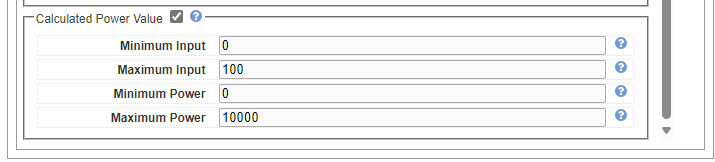
Calculated Power Value
Allows calculating the power value when the BACnet power reading object does not directly represent a power. For example, the BACnet power reading object represents a volt value coming from a current transformer (CT) or a percentage value.
Minimum Input
Defines the minimum value of the BACnet power reading object.
Maximum Input
Defines the maximum value of the BACnet power reading object.
Minimum Power
Defines the minimum power value when the BACnet power reading object value is Minimum Input.
Maximum Power
Defines the maximum power value when the BACnet power reading object value is Maximum Input.
Load Shedder Configuration: Setpoints tab
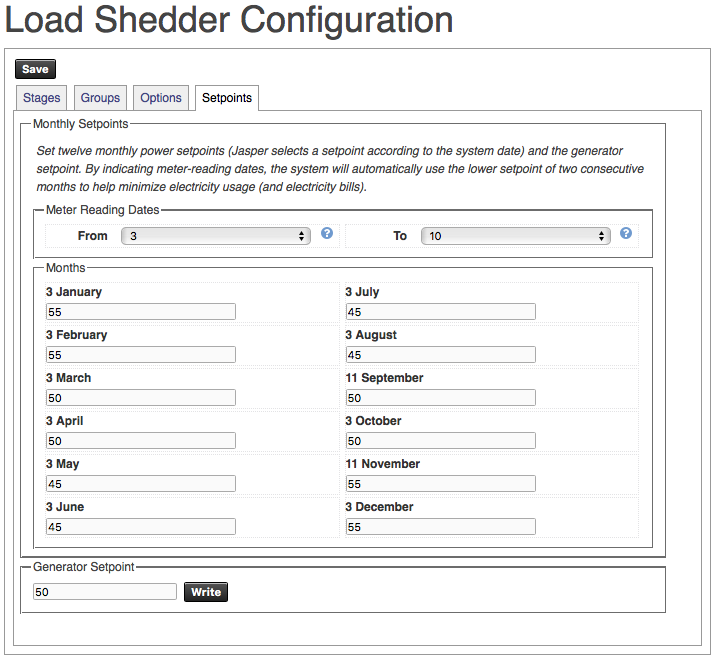
Use the Setpoints tab to set twelve monthly power setpoints (Jasper selects a setpoint according to the system date) and the generator setpoint. By indicating meter-reading dates, the system will automatically use the lower setpoint of two consecutive months to help minimize electricity usage (and electricity bills).
Meter Reading Dates
The dates each month between which meter readings are taken. A range of dates can be found on past electricity invoices. Set these dates to the earliest and the latest dates as indicated on your invoices.
Once you choose these dates, click the Save button to have them take effect.
Months
Type the power setpoint for each month, in the unit selected in Power Unit on the Options tab.
Jasper places a date at which this setpoint takes effect that month.
- If the setpoint is lower than that of the previous month, this date is the one you set in the “From” drop list.
- If the setpoint is higher than that of the previous month, Jasper sets this date as the one after the date you set in the “To” drop list.
Once you choose these setpoints, click the Save button to have them take effect.
Generator setpoint
Type the power setpoint for generator mode.
Once you choose your setpoint, click the Write button to have it take effect.
Load Shedder Configuration: Demand Response tab
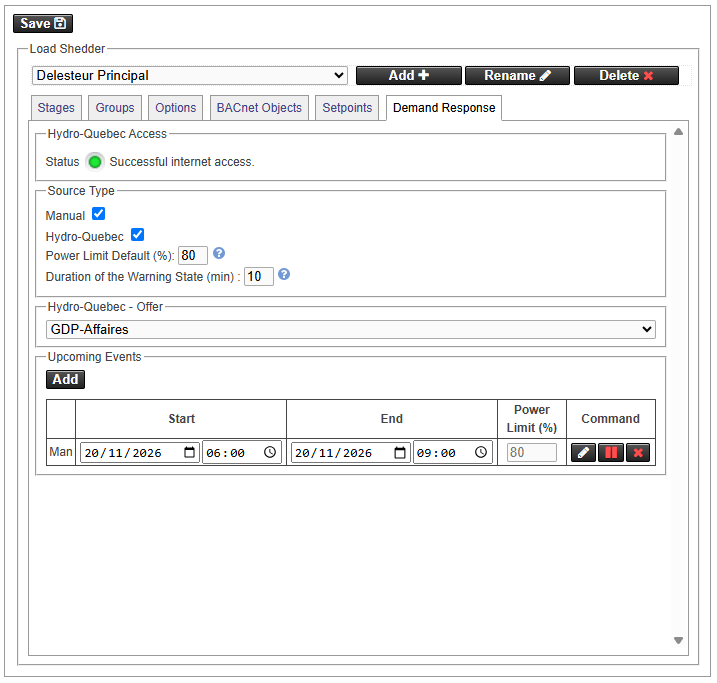
Use the Demand Response tab to lower the load shedder setpoint during peak demand events. Events can be entered manually, received automatically from Hydro-Québec, or both.
Hydro-Quebec Access
This section appears only when the Hydro-Quebec source is selected. The status light shows the result of the last connection to the Hydro-Québec service.
- Green: the message “Successful internet access.” appears.
- Red: a message explains the problem. For example, the DNS resolution failed, no Internet connection was detected, the Hydro-Québec server could not be reached or its response was invalid.
The status is updated each time Jasper retrieves the Hydro-Québec events, once per hour.
Source Type
Both sources can be selected at the same time.
When you clear the Manual or Hydro-Quebec check box, Jasper asks what to do with the events of that source:
- Keep: the source is disabled and its events are kept.
- Delete: the events of that source are deleted.
Manual
Select this check box to enter peak demand events yourself with the Add button in Upcoming Events.
Hydro-Quebec
Select this check box to have Jasper retrieve the peak demand events published by Hydro-Québec for the offer selected in Hydro-Quebec - Offer. A warning message appears when you select it:
- Jasper needs an active Internet connection to retrieve the events.
- The notification email sent by Hydro-Québec remains the primary and official means of communication for peak demand events.
- Keep the Jasper software up to date.
Power Limit Default (%)
Power limit applied during a peak demand event that has no power limit of its own. Value between 1 and 100. For example, with a setpoint of 500 kW and a default power limit of 80, the setpoint used during the event is 400 kW.
Duration of the Warning State (min)
Number of minutes before the start of an event during which the demand response status is in the warning state. Value between 1 and 1440. For example, with a value of 10, the status changes to warning 10 minutes before the event starts.
Hydro-Quebec - Offer
Select the Hydro-Québec offer that matches your electricity rate. Jasper retrieves only the events of this offer. The list of available offers comes from Hydro-Québec and requires Internet access.
Once the configuration is saved, Jasper retrieves the offers and the events at the start of every hour.
Upcoming Events
Lists the events that have not ended yet, sorted by start date.
Each row shows:
- Source: Man for a manual event, HQ for a Hydro-Québec event.
- Start and End: date and time of the event.
- Power Limit (%): power limit of the event. When this field is empty, it shows the Power Limit Default value in grey, and that value applies.
- Command: buttons to modify (pencil), disable or enable (pause or play) and delete (red “X”) the event. A disabled event has a grey background and is ignored by the load shedder.
Add
(Manual source only) Click this button to add an event. Enter the start date and time, the end date and time and, optionally, the power limit (1 to 100). Leave the power limit blank to use Power Limit Default.

Modifying an event
Click the pencil button, or click a field of the event, to change it. For a Hydro-Québec event, only the power limit can be changed. Hydro-Québec events cannot be deleted, but they can be disabled.
Past Events
Lists the events that have ended, most recent first. This section is hidden when there are no past events.
How demand response changes the setpoint
During an active event, Jasper lowers the setpoint:
Effective setpoint = setpoint × power limit / 100
The power limit used is the power limit of the event or, if the event has none, Power Limit Default. If neither is set, the setpoint is not changed.
The Power Limit object, selected on the BACnet Objects tab, can also lower the setpoint. During an event, if its value is not 0 and is lower than the event power limit, it is used instead. When no events are active, a Power Limit value other than 0 always applies.
Jasper writes the result to these BACnet objects:
- Effective Setpoint: setpoint actually used by the load shedder.
- Effective Power Limit: power limit (%) actually applied.
- Demand response status (multistate): 1 = no event, 2 = event in progress, 3 = warning (an event starts within Duration of the Warning State).
When an event starts, Jasper raises the alarm “Demand Response event active”, with the event start, end and power limit. The alarm becomes inactive when the event ends.