Managing Loggers
Jasper logs activity from both its own components and those on the BACnet network it works with.
Configuring Loggers
You can enable data logging in one or more output formats. The three file formats available are:
-
SQLite (database)
-
a single tab-separated values (TSV) file
-
multiple tab-separated values (TSV) files
To configure loggers, follow these steps.
-
Sign in to Jasper as an administrator.
-
Open the Loggers menu and choose Configuration under the Trending heading.
The Loggers Configuration page appears.

You can activate more than one log output format. However, if you want to minimize disk space usage, use only one file type.
-
If you use SQLite, Jasper automatically clears old data from storage. For more information, refer to Maintaining loggers.
-
For the latter two options, use the destination folder /home/ftp. This folder may offer more space for files and is accessible via FTP.
-
-
Once you complete your configuration settings, click Save.
Configuring log filters
You can use this page to create, rename, and delete log filters. Filters serve to group variables that you want to log as a group. For instance, you can arrange filters for:
-
temperature sensors that cause their readings to be logged either every ten minutes or whenever the temperature changes by one degree, whichever happens sooner.
-
power meters that cause their readings to be logged either every five minutes or after every 25 kW, whichever happens sooner.
To have variable readings logged, you must create filters. If you have no filters, Jasper does not log any readings.
To configure log filters, follow these steps.
-
Sign in to Jasper as an administrator.
-
Open the Loggers menu and choose Filters Configuration under the Trending heading.
The Loggers Configuration page appears.
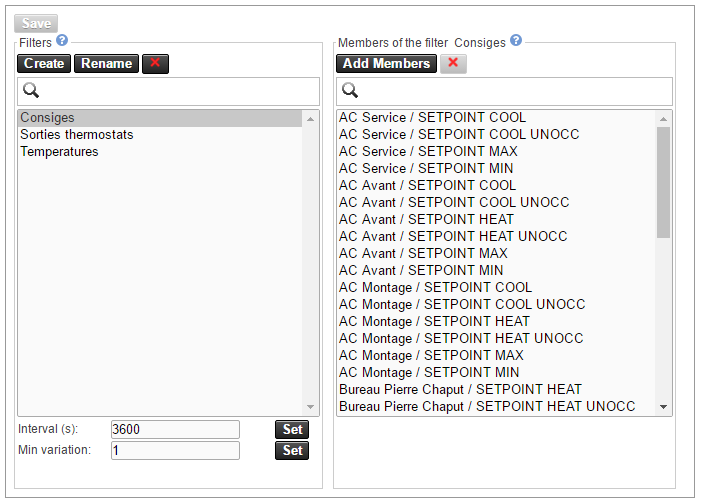
In this dialog:
-
the "Filters" section lists filters.
-
the "Members" section lists members of the filter currently selected in the "Filters" section.
-
-
Once you complete your log filter configuration tasks, click Save. You will also be prompted to restart Jasper to have the filters take effect.
Filters section
Create button
Click this button to create a new filter.
Rename button
Click this button to rename the filter that you selected in the list of filters below.
(red “x” button)
Click this button to delete the filter that you have selected in the list of filters below.
(magnifying glass)
To quickly find specific filters in a long list of filters, type the name of the filter you want in this field. Jasper shortens the list so it contains only filters that contain the search text.
(list)
Currently available filters.
Interval(s)
Type the minimum time interval, in seconds, for the logger to record the variables that are members of the filter, then click the Set button.
If you set a Minimum variation (see below) as well as an interval, the value will be written if the variation criterion is met. The next interval recording happens starting from the point of the variation-triggered recording. For example, if:
- interval = 300 s (5 minutes)
- T + 120s (2 minutes) the value meets the min. variation threshold and triggers a recording
the next interval recording occurs at T = 420 s (7 minutes)
Min. variation
Type the variation in the variable's value that will trigger a recording.
All variables captured by this filter must have values that are measured by the same unit of measurement. The most commonly used units of measurement are: degrees Celsius; kilowatts; and percentage.
Do not type the unit of measurement (e.g. kW) in this field. Type only the numerical value for the variation.
Members of the filter (name of filter)
Add members
With a filter selected on the left side of this dialog, click this button to add variables to the filter. A dialog appears from which you can select one or multiple variables to the filter.
(red “x” button)
Click this button to remove variables you select in the list below from the filter.
(magnifying glass)
To quickly find specific members in a long list of members, type the name of the member you want in this field. Jasper shortens the list so it contains only members that contain the search text.
Running reports
You can use the reporting feature to extract data from the logger database. You can view this data on screen and save it to disk.
To run reports in Jasper, refer to “Generating Reports” in the Cristal Controls Jasper User Manual.
Maintaining loggers
You can regain disk space on the Jasper server by managing log data. You can copy or move data to other locations and you can delete data as well. The data you export can prove useful to examine historical performance of devices on your BACnet network. That analysis can reveal issues that you need to deal with.
To maintain loggers, follow these steps.
-
Sign in to Jasper as an administrator.
-
Open the Loggers menu and choose Automatic Database Maintenance under the Trending heading.
The Loggers Maintenance page appears. This page contains four dialogs, one for each function:
-
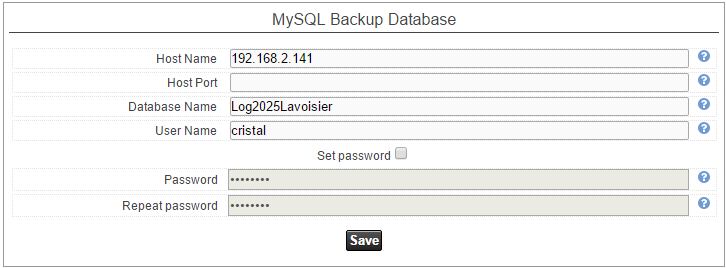
MySQL Backup Database: Use this dialog to designate the MySQL database that hosts your log backups. (Jasper uses SQLite. The MySQL database Jasper users designate commonly resides on another computer.) For more information, refer to MySQL Backup Database.
-
Copy Logs to Backup Database: Use this dialog to make a copy of your logs on your backup database without deleting the copy presently on your main log server. For more information, refer to Copy Logs to Backup Database.
-
Move Logs to Backup Database: Use this dialog to copy logs to your backup database and delete them from your main log server. For more information, refer to Move Logs to Backup Database.
-
Delete Logs from Local Database: Use this dialog to permanently delete log from your main log server. For more information, refer to Delete Logs from Local Database.
-
MySQL Backup Database
Settings entered into this dialog designate the backup for Jasper's MySQL database. This dialog must be completed by the technician who set up the MySQL server.
Copy Logs to Backup Database
Use this dialog to have logs periodically copied to a backup database. To designate a backup database, refer to MySQL Backup Database above.

Frequency
Choices include:
- Hourly
- Daily
- Weekly
- Monthly
- Yearly
Minute
Type a whole number from 0 to 59.
Hour
Type a whole number from 0 to 23
Day
Weekly frequency: type a whole number from 0 to 6 (0 is Sunday)
Monthly frequency: Type a whole number from 1 to 31.
Month
Type a whole number from 1 to 12.
Depending on the choice you make using the Frequency drop list fields below either accept settings or remain unavailable. For instance, if you select Daily from the Frequency drop list, you set the Minute and Hour but the Day and Month fields remain unavailable.
The synchronization software keeps track of data transmitted to avoid copying the same data during the next copy operation.
Move Logs to Backup Database
Use this dialog to have logs periodically:
-
copied to a backup database. To designate a backup database, refer to MySQL Backup Database.
-
removed from Jasper.

This option makes more disk space available on Jasper.
The five options work the same way they do in Copy Logs to Backup Database.
Delete Logs from Local Database
Use this dialog to periodically clear old data from the local Jasper database and make more disk space available in the process.

In addition to the options offered in the preceding two dialogs, this dialog offers a text field called “Max age (days)” text field. For instance, if you want to clear all log data older than a month, type “30” in this field. Jasper deletes that data according to the frequency and time you set using the other five options.
Manually deleting log data
Use this page to delete all references to selected variables from the database log. The disk space used by the variable in the database is not necessarily released. Records created after this deletion operation will reuse that space.
To delete variable data from logs, follow these steps.
-
Sign in to Jasper as an administrator.
-
Open the Loggers menu and choose Manual Database Cleanup under the Trending heading.
The Manual database cleanup page appears.
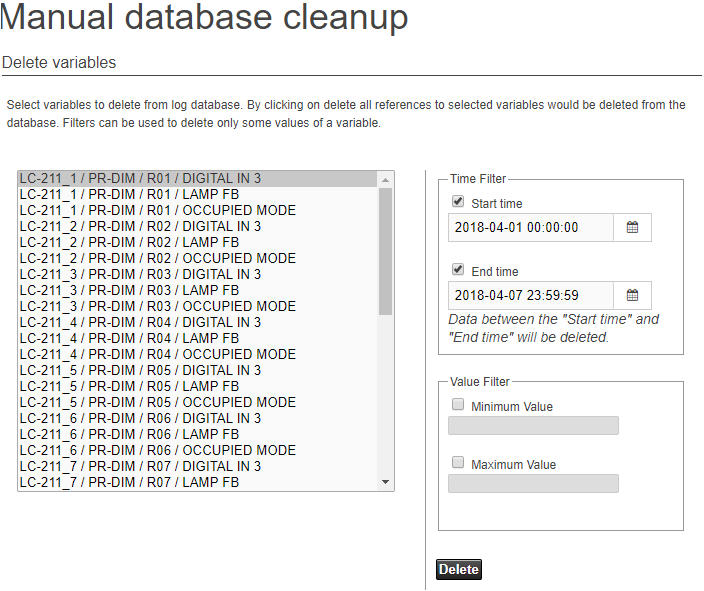
List (left side of page)
Choose one or multiple variables for which you want to delete log data.
Time filter - Start Time
Click this check box and enter a date and time using the calendar icon.
- If you choose an end time as well, Jasper erases data recorded between the start and end times.
- If you do not choose an end time, Jasper erases data recorded before the start time.
Time filter - end time
Click this check box and enter a date and time using the calendar icon.
- If you choose a start time as well, Jasper erases data recorded between the start and end times.
- If you do not choose a start time, Jasper erases data recorded after the end time.
Value filter - minimum value
Click this check box and enter a minimum value. Values are usually percentages, power readings or temperatures. Do not enter the unit of measurement. (e.g. 25 kW would be typed as “25”)
- If you choose a maximum value as well, Jasper erases data where the values fall between these two limits.
- If you do not choose a maximum value, Jasper erases data where the values are smaller than the minimum value.
Value filter - maximum value
Click this check box and enter a maximum value. Values are usually percentages, power readings or temperatures. Do not enter the unit of measurement. (e.g. 25 kW would be typed as “25”)
- If you choose a minimum value as well, Jasper erases data where the values fall between these two limits.
- If you do not choose a minimum value, Jasper erases data where the values are larger than the maximum value.
Configuring the Jasper Portal
The Jasper administrator and other users can be notified if Jasper loses its Internet connection.
Your Jasper system communicates with the Cristal Controls Jasper Portal periodically. If the Jasper Portal loses contact with your Jasper system, the portal emails you (your team) with this news.
To enable email notifications in case Jasper loses its Internet connection, follow these steps.
-
Sign in to Jasper as an administrator.
-
Open the Loggers menu and choose Jasper Portal Configuration under the Alarms heading.
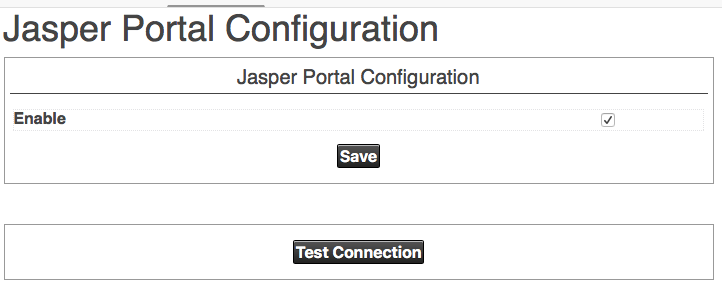
The Jasper Portal Configuration page appears.
-
Click the enable check box and click Save.
-
Call Cristal Controls to create an account on the Jasper Portal and designate the email addresses that are to receive alerts should your Jasper system lose its Internet connection.
You can test your Jasper system's Internet connection by clicking the Update Now button.