Configuring wireless network components (CC-WiXBee)
If you use the CC-WiXBee line of Jasper products, you can configure your system to connect to components wirelessly using low-rate wireless personal area networks (LR-WPANs). This is a cost-effective option for clients who, for example, need to control lights in parking lots. If you won't connect any components wirelessly, you can skip this chapter.
You can differentiate the wired-only from the wireless versions of Jasper by the logo:
| Wired-only |  |
|---|---|
| Wireless |  |
Jasper systems that include wireless components offer wireless menu options in the Jasper and Status menus.
If you have issues with your CC-WiXBee wireless module, refer to Performing wireless network diagnostics and troubleshooting.
Configuring wireless access
To enable wireless access to Jasper, follow these steps.
-
Sign in to Jasper as an administrator.
-
Open the Jasper menu and choose Wireless under the Configuration heading.
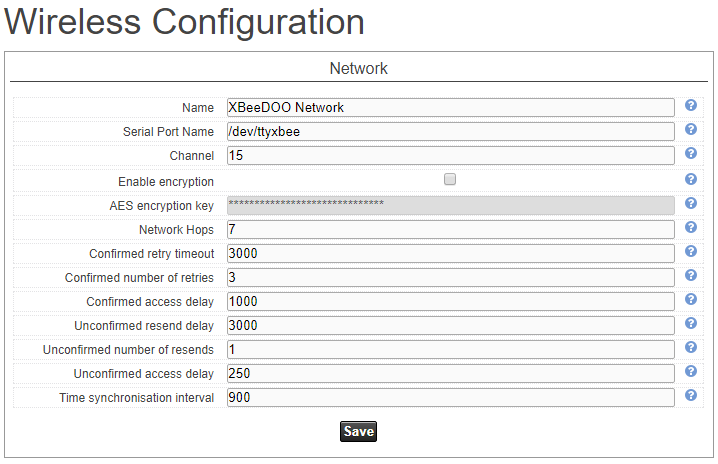
The Wireless Configuration page appears.
-
Once you have configured wireless settings, click the Save button.
Name
Network description. Up to 19 characters.
Serial Port Name
The module serial port.
Channel
Radio channel number. Between 12 and 23.
Enable encryption
Enable or disable 128-bit AES encryption.
AES encryption key
The 128-bit key used for encryption and decryption. 0 - 30 hexadecimal characters. (Default is empty.)
Network Hops
Sets the maximum number of hops expected in a network route. Between 1 and 32. Default value is 7.
Confirmed retry timeout
Confirmed messages retry timeout in milliseconds. Default 3000.
Confirmed number of retries
Confirmed messages number of retries. Default 3.
Confirmed access delay
Pause between two confirmed messages in milliseconds. Default 1000.
Unconfirmed resend delay
Unconfirmed messages repeat delay in milliseconds. Default 1000.
Unconfirmed number of resends
Unconfirmed messages number of repeats. Default 0.
Unconfirmed access delay
Pause between two unconfirmed messages in milliseconds. Default 250.
Time synchronisation interval
Time synchronisation interval in seconds. Default 300.
Note: Channel and Encryption must be the same for all wireless devices.
Configuring the CC-WiXBee wireless module
Determine how Jasper and the WiXBee wireless module communicate. You may need to change this setting:
-
during initial configuration.
-
for software other than Jasper.
This should only be set by a qualified technician. Jasper must be stopped before using this page. For instructions on how to stop Jasper, refer to Starting and stopping Jasper.
To enable the WiXBee wireless module, follow these steps.
-
Sign in to Jasper as an administrator.
-
Open the System menu and choose Wireless.
The Wireless Module Configuration page appears.

For more information on the setting in this dialog, refer to “Transparent and API operating modes” in https://www.digi.com/resources/documentation/digidocs/pdfs/90000991.pdf
-
Once you have configured wireless settings, click the Save button.
API Mode
The default setting for Jasper CC-WiXBee. Use this setting in all production environments.
Transparent Mode
The WiXBee module does not modify data sent through it.
Importing wireless configuration parameters
(Only present on CC-WiXBee model.) This page lets you import wireless configuration settings into Jasper.
This operation replaces all current configuration settings with information in the file containing new configuration parameters. You need to prepare this import using an application such as “DimOnOff App Light” (also known as the DOO App Light app) that generates an XML file.
You can import this file as either:
-
an XML file
-
a ZIP file that contains only the XML file
To import wireless configuration parameters, follow these steps.
-
Sign in to Jasper as an administrator.
-
Open the Data menu and choose Import wireless config under the Cards heading.
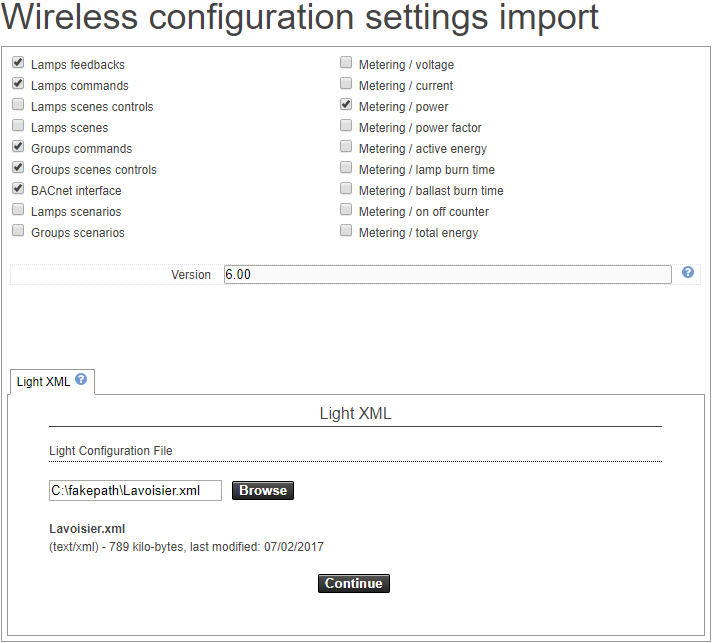
The Import of the wireless configuration page appears.
-
Once you have chosen the wireless settings you want to import, click the Continue button. Jasper updates the system using the parameters you imported.