Managing Users
Before people can use Jasper, they need user IDs that enable them to access and work with the system. You can create those user IDs.
Jasper is not configurable with Windows Authentication.
Understanding user permissions
Different users have different sets of permissions depending on their job responsibilities. The following table outlines the user types and permissions available to you.
Administrator
Administrators have unlimited system rights. In this context, they can add or delete users, and modify their permissions.
View Edit
View edit users can configure Jasper (e.g. they can manage schedules, groups and alarms) but they cannot configure system settings (e.g., IP address and date / time).
View write
View write users can view system status (e.g. level of load shedding and relay states) and send network commands to controllers. They cannot configure Jasper.
View
View users can only view system status (e.g. level of load shedding and relay states).
No Access
No access users are user IDs that are temporarily disabled but not deleted.
Adding, modifying and deleting users
To manage users, follow these steps.
-
Sign in to Jasper as an administrator.
-
Open the System menu and choose Users.
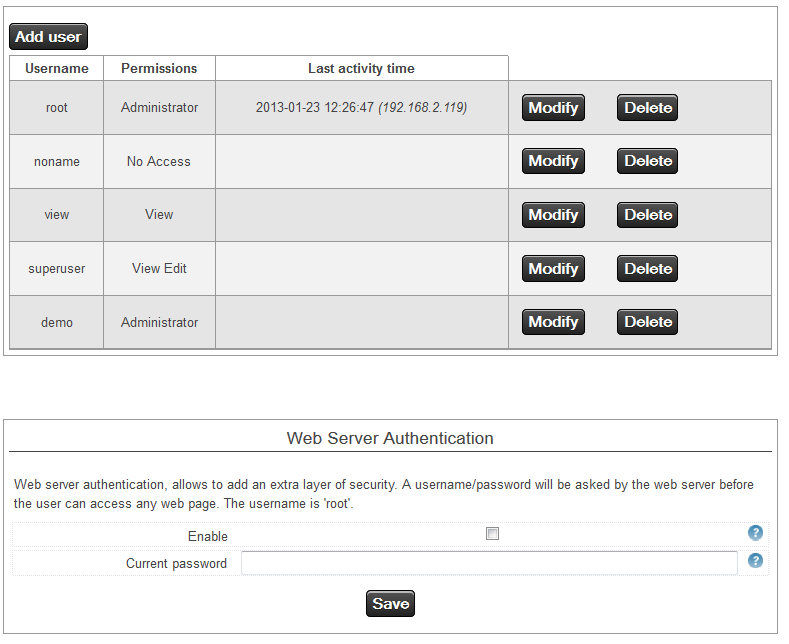
The Users page appears.
Adding a user
To add a user, follow these steps:
-
Complete the process in Adding, modifying and deleting users.
-
Click the Add user button.
The Add user dialog appears.

-
Complete the dialog and click the Save button.
Username
A unique name for the user. You can use letters, numbers, spaces and punctuation for user names. While you can use the same username that people use for Windows, Jasper cannot be used with Windows Authentication.
Permissions
Choose one of the sets of permissions offered in the drop list. For more information, refer to Understanding user permissions.
Enter new password
Type a password for the user. While you can use the same password that people use for Windows, we recommend users have a distinct password for Jasper.
Re-enter new password
Type the same password again to ensure it is spelled correctly.
Auto Log In IP
When connecting to Jasper from this fixed IP address, Jasper logs the user in without requesting a password. When connecting from a different IP address, the user must enter the assigned username and password.
Virtual keyboard
Let the user access a virtual keyboard when using Jasper on touchscreen devices.
Modifying a user's profile
If you need to change a user's settings (or assign a new password), find the user's name in the User list and click the Modify button. A dialog with the user's name in the title bar appears. This dialog works the same way as the “Add user” dialog explained.
Deleting a user ID
To delete a user ID, find it in the Users list and click the Delete x button.
Limiting connection attempts
Within the Users interface, you can prevent brute force attempts to guess a Jasper username and corresponding password by limiting the number of times a user can try to sign in to Jasper.
To set this limit, click the Maximum Connection Attempts link below the user list.
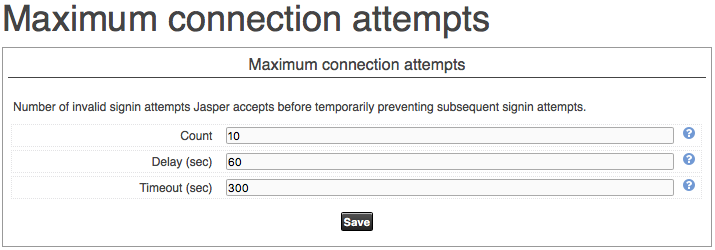
The Maximum connection attempts dialog appears.
Count
The number of invalid connection attempts Jasper accepts from users within the time set in the Delay field (below) before preventing them from trying again for a period of time determined in the Timeout field (below).
To disable this feature, enter “0” in this field.
Delay
If a user tries to sign in to Jasper the number of times set in the Count field (above) within the number of seconds in the Delay field, Jasper will prevent subsequent connection attempts for the period of time set in the Timeout field (below). This measure slows down brute-force attack attempts perpetrated by automated systems, which tend to send attempts more quickly than human beings.
Timeout (seconds)
Time (in seconds) that Jasper refuses connection attempts from the IP address where the Count number of failed attempts originated.
Enabling web server authentication
Note: this feature has been removed from newer versions of Jasper.
You can add an extra layer of security by enabling web server authentication. When enabled, users must first sign in to the web server on which Jasper resides before they can sign in to Jasper itself. This measure helps prevent unauthorized connection attempts when your web server is connected to the Internet.
Web server authentication is turned off by default.
To turn on web server authentication, follow these steps.
-
Sign in to Jasper as an administrator.
-
Open the System menu and choose Users.
The Web Server Authentication page appears.
-
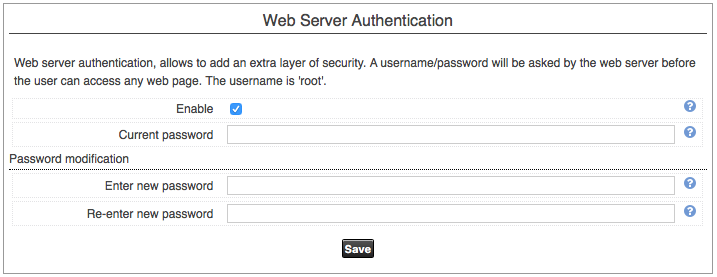
Scroll down to the Web Server Authentication dialog. (If this dialog is missing from this page, your version of Jasper does not feature web server authentication.)
-
Once you complete this dialog, click the Save button.
Enable
Click this check box to enable web server authentication.
Current password
Enter the current password if you need to:
- enable or disable web server authentication
- change the password
The default password is “cristal” when you first install Jasper.
Enter new password
Enter a new password. Jasper does not accept a new password unless you complete the “Current password” field above.
Re-enter new password
Re-enter the new password.