Diagnostics and Troubleshooting
If you have an issue with Jasper or the BACnet system, use the processes in this chapter to diagnose the issue.
Configuring Alarms
Use this page to configure system alarms. Jasper sends an alarm whenever the state of a variable changes to meet criteria you set for that alarm.
Here's a brief explanation of each type of alarm:
Hardware
This type of alarm indicates broken equipment to be repaired by an electrician or networking technician. Such issues can include: faults on relays; ballasts; chain of monitored alarm systems; and loss of communication with devices.
Software
This type of alarm indicates a critical software error that requires the intervention of a technician. These can include: corrupted configuration files; disk writing problems; and unexpected system states.
Security
This type of alarm is usually triggered when a person operates a switch or door contact.
Supervised
The alarm is triggered by readings that are made continuously and have reached a high or low limit.
To configure alarms, follow these steps.
-
Sign in to Jasper as an administrator.
-
Open the Loggers menu and choose Configuration under the Alarms heading.
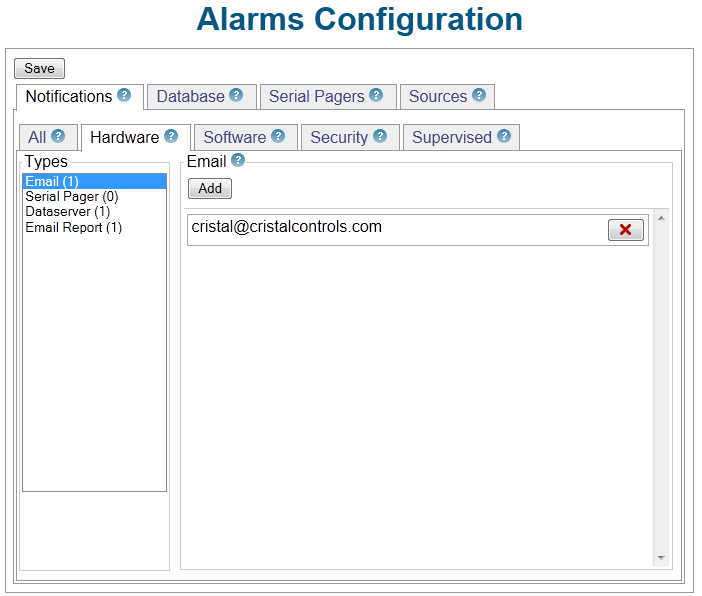
The Alarms Configuration page appears.
-
Once you complete your alarm configuration tasks, click Save to have Jasper recognize your choices.
Notifications tab - All
Types list
A list of notification types you can set. These include
- Email: Have designated personnel receive an email whenever errors occur (for instance, a device returns an error code or Jasper loses contact with a device) or a variable's value meets certain criteria.
- Serial pager
- Dataserver: Have a Jasper variable written to when an alarm is triggered. For example, Jasper can send a “1” to a relay when an alarm occurs and a “0” when all alarms go back to normal.
Jasper displays the number of notification destinations already set for each type in parentheses following the type.
Add button
Click this button to add a notification for the type selected in the Types list.
- Email: enter an email address and click OK.
- Serial pager: configure your serial pagers in the Serial Pagers tab prior to adding them here.
- Dataserver: choose variables for notifications. Once you add variables to this list, you can set the values that represent an alarm state or not using the Modify button for each variable. When an alarm occurs, the system can: send email; send a message to a serial pager, or; change a variable's value.
Email Report
(not available in the All tab)
Have Jasper send periodic emails that list all alarms for the time period since the previous email.
Database tab
Database check box
Select the check box to enable the database that stores alarms.

Serial Pagers tab
Add button
Click this button to configure a serial pager to receive alarms. Once you click this button, the following fields appear. To have your settings take effect, click OK.
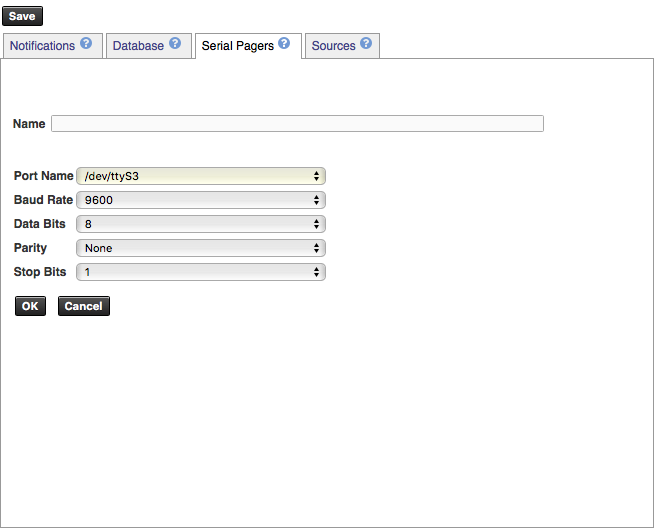
Jasper transmits messages in clear text for the protocol “COMP1”.
Name
Type a name for the serial pager.
Port Name
Choose the serial port that the pager will use from the preconfigured ports in the drop list. Jasper scans the Linux OS to automatically build this list of available ports.
Baud Rate
Set the correct baud rate for your pager according to documentation for the paging transmission system.
Data Bits
Set the correct number of data bits for your pager according to documentation for the paging transmission system.
Parity
Set the correct parity for your pager according to documentation for the paging transmission system.
Stop Bits
Set the correct stop bits for your pager according to documentation for the paging transmission system.
Sources tab - Sources
Add button
Click this button to add variables from your Dataserver to the Sources list below.
(red “x” button)
Click this button to remove selected variables from the Sources list.
Sources list
A list of variables whose values you can set alarms for.
Sources tab - Options
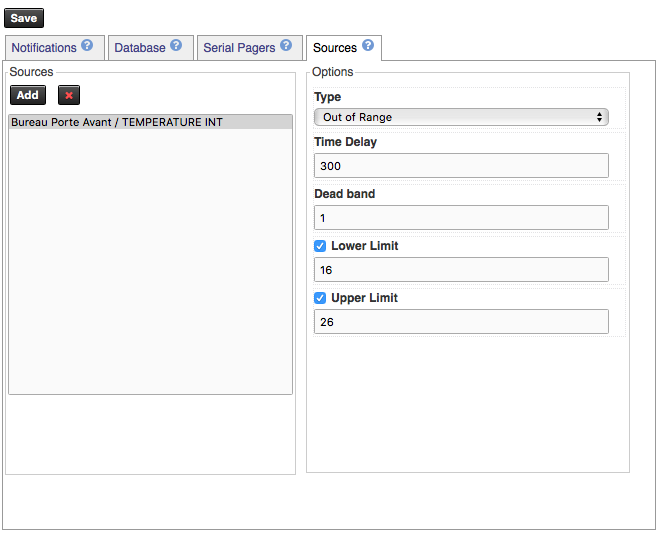
Type
- “Out of Range” lets you set a lower limit, upper limit, or both for the value.
- “Change of Value” lets you set a specific value that triggers an alarm. For instance, a binary variable that ordinarily has a value of 0 can trigger an alarm if the value changes to 1.
Note: options below this drop list change depending on the type you choose.
Time Delay (seconds)
Out of Range: specify the minimum period of time (in seconds) during which the value must remain outside the band defined by High Limit and Low Limit before an alarm is generated.
Change of Value: specify the minimum period of time (in seconds) during which the value must be equal to Alarm Value before an alarm is generated.
Dead band
Type a range outside of the Lower Limit and Upper Limit inside of which the alarm does not sound. For example, if:
- the upper limit is 26
- the value fluctuates between 25.5 and 26.7
a dead band value of 1 prevents the alarm from sounding. Should the value exceed 27, the alarm sounds.
Alarm Value
A value that, once reached, generates an alarm. This option is available for the “Change of Value” type.
Lower Limit
(optional) a lower limit for a value before it triggers an alarm. This option is available for the “Out of Range” type.
Upper Limit
(optional) an upper limit for a value before it triggers an alarm. This option is available for the “Out of Range” type.
Reviewing alarms history
For more information on this page, refer to the Cristal Controls Jasper User Manual section “Viewing alarm history.”
To review alarms history, follow these steps.
-
Sign in to Jasper as an administrator.
-
Open the Loggers menu and choose History under the Alarms heading.
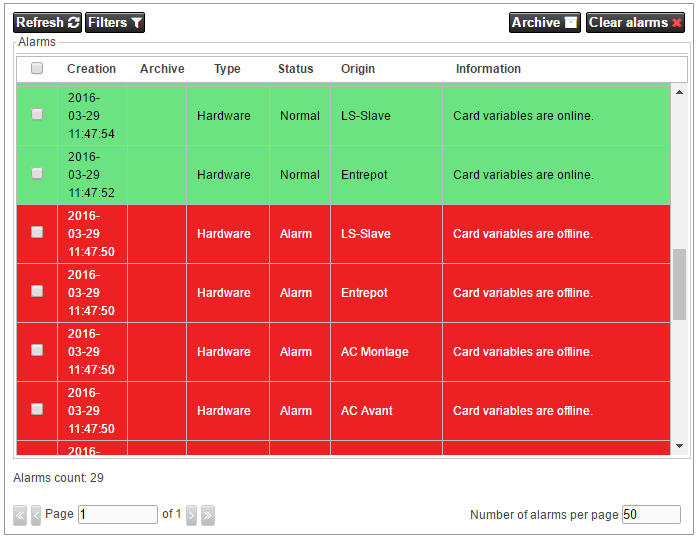
Alarm history appears.
Setting web browser notifications
Jasper can alert users when a new alarm is generated.
To receive Jasper alarm notifications:
-
Jasper must be open in at least one browser tab.
-
the user must grant Jasper permission to display system notifications. If it doesn't have permission, Jasper asks the user for it.
The user can turn off notifications in browsers that support notifications, including:
-
Mozilla Firefox 22 or later
-
Google Chrome 22 or later
-
Safari 6 or later
-
Microsoft Edge 14.342 or later
Note: Internet Explorer 11 does not support notifications.
Reviewing the services trace log
Jasper records all system activity pertaining to Jasper's automated actions, user activity and system activity. These logs records activities that can affect the system as a whole (e.g. changes to a configuration file or a variable).
Jasper dedicates a set amount of storage to these logs. If the amount of storage required exceeds this limit, Jasper begins to delete older log entries to make room for newer ones.
To review the services trace activity, follow these steps.
-
Sign in to Jasper as an administrator.
-
Open the Status menu and choose Services Trace Log under the System heading.
The Services Trace Log page appears. Log entries are divided among three tabs:
-
Jasper tab below
-
Users tab
-
System tab
-
Jasper tab
This tab lists traces of Jasper application activity.
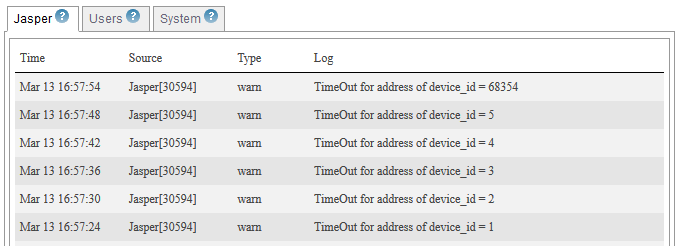
You may want to check this log upon startup, since it shows any configuration or communication problems. One common type of issue this tab can flag is if Jasper finds errors in specific configuration files.
Users tab
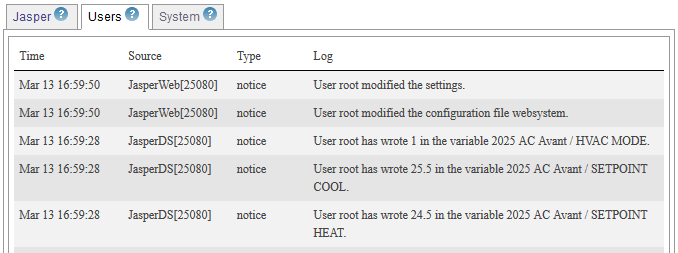
This tab lists activities performed by Jasper users.
System tab
This tab lists all connections to Jasper made using FTP and SSH.

Reviewing currently active WebSocket sessions
This page shows detail for all currently active WebSocket connections.
To review currently active WebSocket connections, follow these steps.
-
Sign in to Jasper as an administrator.
-
Open the Status menu and choose WebSocket Session List under the System heading.
The WebSocket Session List page appears.
Reviewing software, system and network status
Any issues Jasper may present could have to do with the overall system on which it operates. You can view the status of three key parts of the system to help you find issues.
To view Jasper system status, follow these steps.
-
Sign in to Jasper as an administrator.
-
Open the Status menu and choose Status under the System heading.
The System Status page appears. It presents one status dialog for each part of the system:
-
Software status below
-
System status below
-
Network status
-
Software status
The Software dialog shows:
-
versions of software in use in the Jasper environment
-
the last time Jasper's configuration file was changed.
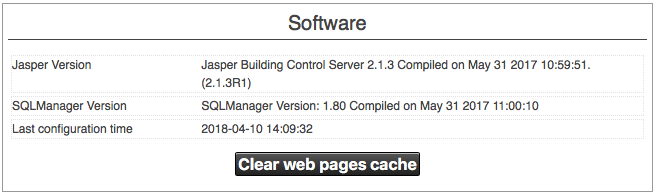
You can “Clear web pages cache” to rid the system of outdated information that Jasper may need to refresh. Jasper rebuilds cache files while it's in use - you don't need to restart Jasper for this to take effect.
System status
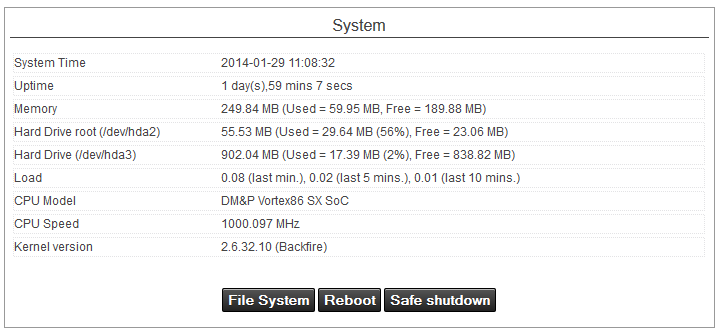
The System dialog shows:
-
current system time
-
accumulated uptime since last reboot
-
resources usage
-
effective load: “0” means no load. “1” means 100% load. You may sometimes see values greater than 1. This means the processor may be slightly delayed in executing tasks.
-
information about the CPU
-
the version of the kernel in use
File System
Click this button to view disk partitions and the last time they were checked. You can also reach this page by opening the Status menu and choosing File System under the System heading.
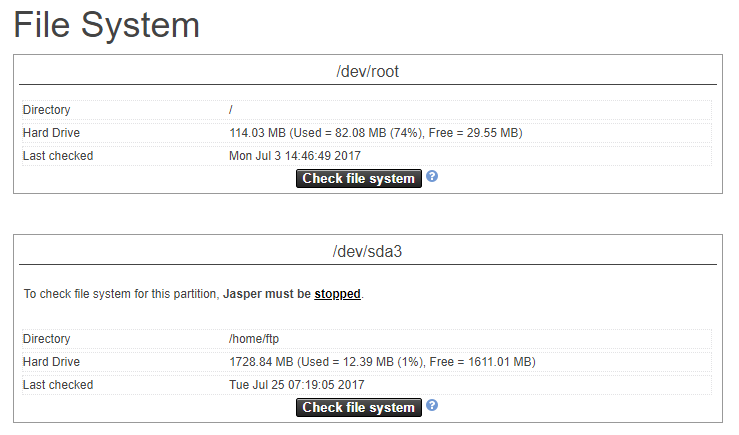
You can start a check of the file system (and any needed repairs) after you stop Jasper by clicking the Check file system button. You may have to restart the system if errors are found. For instructions on how to reboot Jasper, refer to Starting and stopping Jasper.

Reboot
Click this button to shut down and restart Jasper.
Safe Shutdown
Shut down Jasper while preserving all data. Use this option if you need to turn off Jasper. Shutting down Jasper in other ways may cause data loss.
Jasper starts on its own after you start the server. You don't need to start the software as a separate step.
Network status
The Network dialog shows:
-
information about the network interface and connection
-
network usage statistics
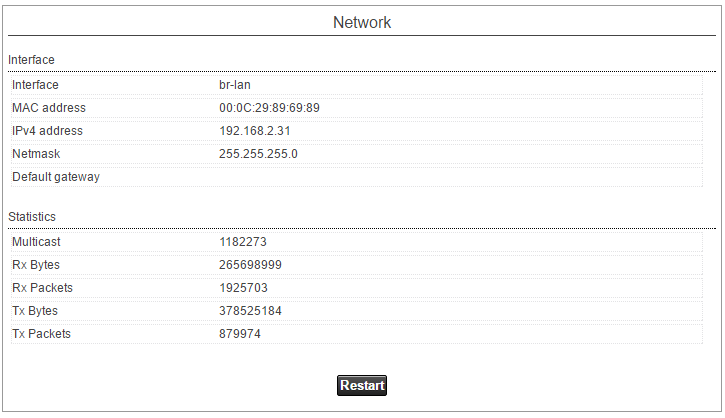
Once you change network configuration information shown here, you can have the new parameters take effect without rebooting Jasper by clicking the Restart button here.
Note: You may lose contact with Jasper if the IP address changes automatically or you change it manually. You will need to retrieve the IP address before you can reconnect to Jasper.
Backing up and restoring configuration files
You can create backups of system configuration files that you can restore to the live system if you experience issues related to changes made to those files.
To reach the interface that enables configuration file backup and restoration, follow these steps.
-
Sign in to Jasper as an administrator.
-
Open the System menu and choose Backup / Restore.
The Backup / Restore page appears.
Backing up configuration files
To back up any of the options shown, click the corresponding Download button.
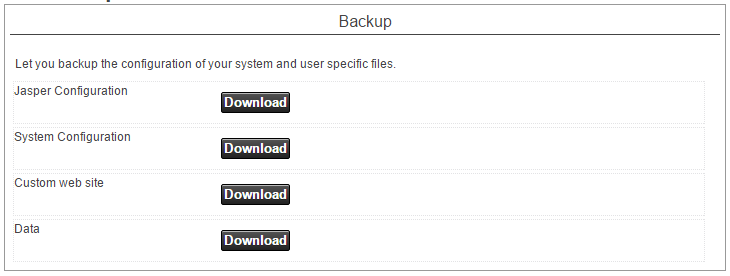
Jasper Configuration
The files backed up include all XML configuration files located in the /etc/Jasper folder.
System Configuration
The files backed up include Linux system configuration files, most of which are located in the /etc/config folder.
Custom web site
The files backed up include all web interface files created for a specific client installation and located in the /home/www/user folder.
Data
The alarms and loggers databases. This file cannot be restored.
Restoring configuration files
Jasper creates its backups in ZIP format. Every backup file is ready to be used to restore Jasper using the simple process below.
To restore files, click the Browse button to choose the ZIP file that contains your backup, then click the Upload File button.

Jasper unpacks the backup ZIP file and places each file the ZIP contains in the right places. Once you successfully complete the upload, Jasper may prompt you to reboot the system so that it uses the contents of the backup files.
Backup file uploads are limited to 20 MB so the web server does not time out during upload. Larger backups must be decompressed and transmitted by FTP.
Reviewing the address cache
The BACnet address cache displays information about the cards Jasper communicates with and the transaction state machine. Note: the transaction state machine is a sequence of operations that Jasper follows to find devices on the network. It checks for confirmation of messages that Jasper sends. It also retries messages that are not acknowledged as received.
To reach the BACnet Address Cache, follow these steps.
-
Sign in to Jasper as an administrator.
-
Open the Status menu and choose BACnet Address Cache under the BACnet heading.
The BACnet Address Cache page appears.
Cards table
This screen shows cards connected to Jasper and information about their network connection.
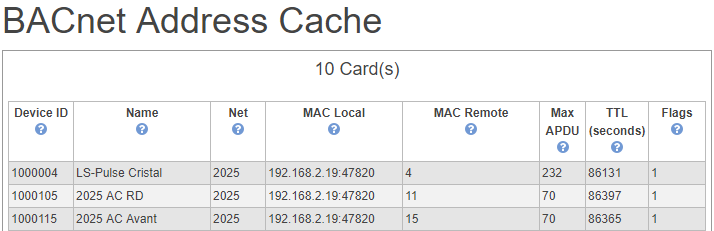
Device ID
Card device ID.
Device Name
Original BACnet card name.
Name
Human readable name as displayed in Jasper's configuration.
MAC
Controller MAC address.
Max APDU
Maximum Application Protocol Data Unit controller value.
Net
BACnet Network number.
TTL
(time to live, also known as “hop limit”) TTL prevents a data packet from circulating indefinitely. It improves caching performance.
This value is set to 3600 seconds when communication is initiated with a unit. If this value reaches 0, it is because there was no communication with this device for at least an hour and the entry disappears from the list.
Transaction state machine (TSM) table
This table shows how many communications the system is currently engaged in relative to its total capacity for communication.
Note: the transaction state machine checks for confirmation of messages that Jasper sends. It also retries messages that are not acknowledged as received.
In the example below, there are 255 TSMs available (Total TSM). Since there are 255 TSMs available (Idle TSM), the system is not engaged in any communications. The lower the Idle TSM number drops, the more communications the system is currently managing.

Browsing cards
You can review cards connected to your Jasper system and, in some instances, change values for their variables. To do so, follow these steps.
-
Sign in to Jasper as an administrator.
-
Open the Data menu and choose Browse under the Cards heading.
The Browse Card page appears.
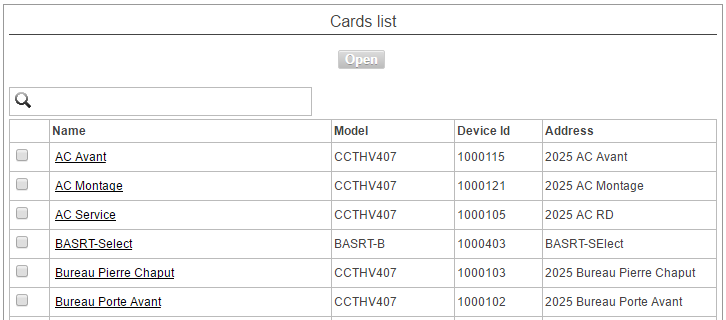
(search field)
Type the name of a variable you're looking for. Jasper filters this list so only cards that contain your search text appear.
Open button
To view variable values for a card or cards, select their check boxes, then click the Open button. The selected cards appear in a new page.
(check box)
Check the cards you want to open in a separate page, then click the Open button. If you choose multiple cards, they must each be the same model (or compatible models) for Jasper to show them together in a list. Only the CCTHV407 thermostat page works this way.
Name
The name of the CCTHV407 thermostat card. To view a card's page, click the name of the card.
Model
The model of the card.
Device ID
The unique ID of the card on the BACnet network.
Address
The unique ID of a card within Jasper. Unlike the name and device ID, the address cannot be changed.
CCLP-BACnet lighting panels
You can view a CCLP-BACnet panel using the Browse Cards page. This page displays relay states. On this page, you can also:
-
make changes to relay states (green = off, red = on) by clicking the appropriate relay.
-
configure the relay by clicking the relay name to open its Variables Configuration page. For more information, refer to Managing Variables.
To access this page, follow the steps in Browsing cards, then click the name of the card. Its configuration page appears.
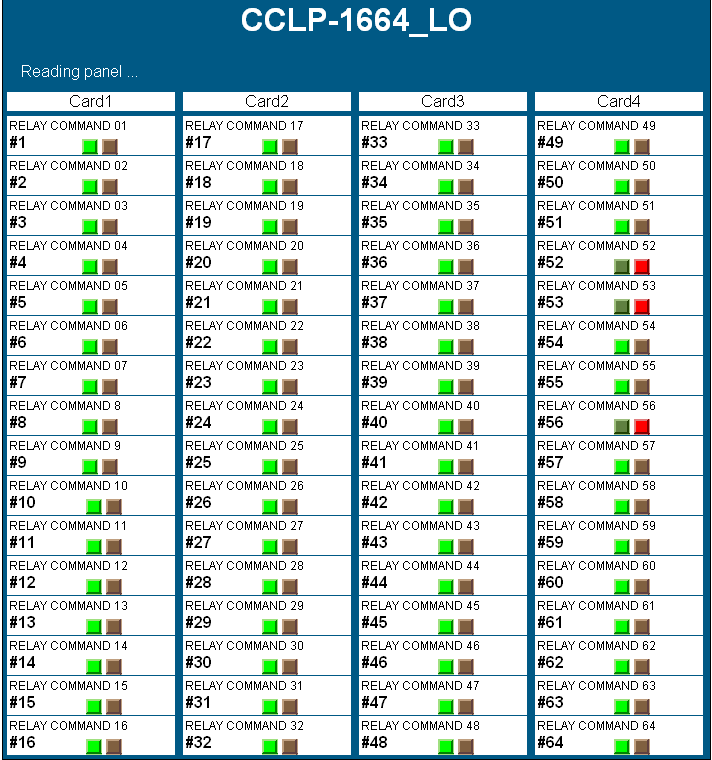
While new commands are sent instantly, large volumes of dataserver polling can delay the refresh of this panel.
Viewing card statistics
This page displays network response times between Jasper and device cards. It also shows any timed-out communications.
To view card statistics, follow these steps.
-
Sign in to Jasper as an administrator.
-
Open the Status menu and choose Cards Statistics under the Data heading.
The Cards Statistics page appears.
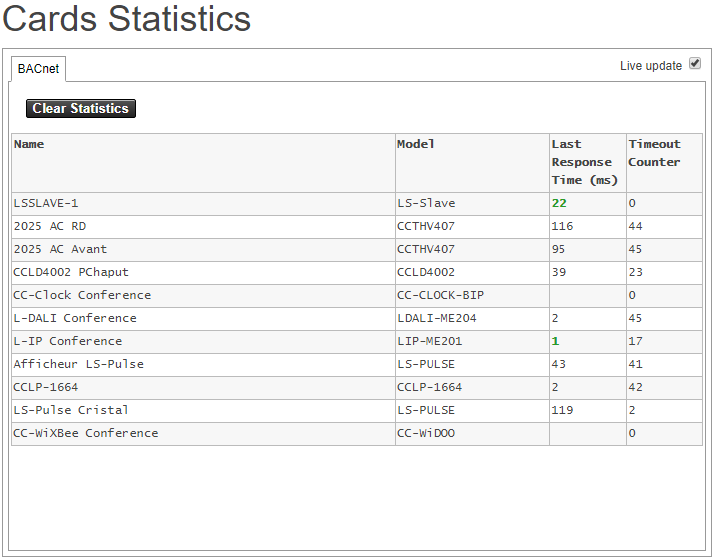
Notes:
-
If you use Jasper on more than one network, cards on this page are separated by network type (e.g. BACnet and XBeeDOO).
-
The Clear Statistics button resets counters for all cards.
-
When the Live update checkbox is checked, the most recent statistics automatically appear on the page.
-
Name
Name of the card.
Model
Model of the card.
Last Response Time (ms):
Response time in milliseconds of the last communication with the card.
Timeout Counter
Number of timed-out communications.
Browsing, reading and writing variables
This window lists variables configured in Jasper. You can also use it to change variable values.
To work with variables, follow these steps.
-
Sign in to Jasper as an administrator.
-
Open the Data menu and choose Browse under the Variables heading.
The Variables page appears.
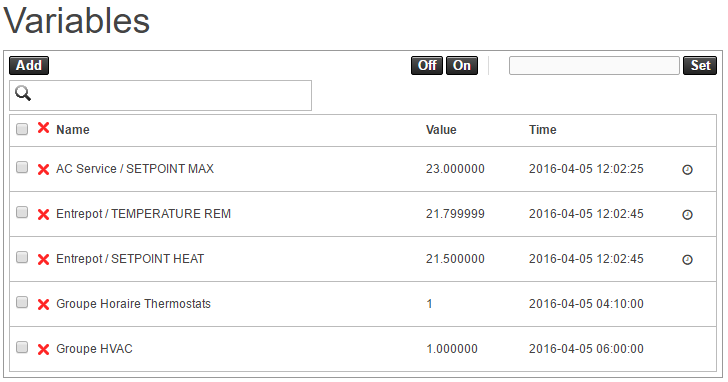
Add button
Click this button to add variable values to the list. An “Add variables” dialog appears.
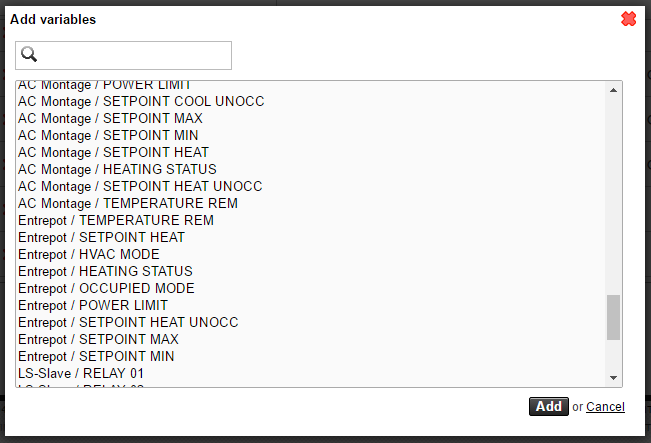
Select the variables you want to add and click the Add button. Those variables appear in the Variables list.
Note: you can add a group of variables by clicking the first variable in a range, holding the Shift button on your keyboard, and clicking the last variable in the range.
Note: you can also add a group of non-contiguous variables by clicking one variable, then holding the Control key on your keyboard as you click the other variables you want to add.
Off button
Set a variable's value to “off” (0). Before you use this button, check the check box next to the variables you want to turn off. This button only affects analog and binary variables.
On button
Set a variable's value to “on” (binary = 0, analog = 100). Before you use this button, check the check box next to the variables you want to turn on. This button only affects analog and binary variables.
Set button and text field
Set a variable's value to the value you type in the text field. Before you use this button, check the check box next to the variables you want to turn set. If you enter a non-zero value, binary variables take on the value “1.”
Search field
Use this field to filter the list of variables according to the name of the variable you're looking for.
(check box)
Check the box for a variable if you want to change its value using the Set, Off or On buttons.
(red “x”)
Click this x to remove the variable from this list. Clicking the X does not delete the variable.
Name
Name of the variable.
Value
Current value of the variable.
Time
The last date and time when the value was modified.
(icon column)
A magnifying glass icon flashes each time Jasper refreshes the value of the variable. An exclamation mark within a yellow triangle indicates the variable is not presently available.
Capturing network traffic
You can record the network traffic that reaches Jasper to a capture file, then download it and open it in a network analysis tool such as Wireshark. This page is available when the network capture package is installed.
To capture network traffic, follow these steps.
-
Sign in to Jasper as an administrator.
-
Open the System menu and choose Network Capture. The System Network Capture page appears.
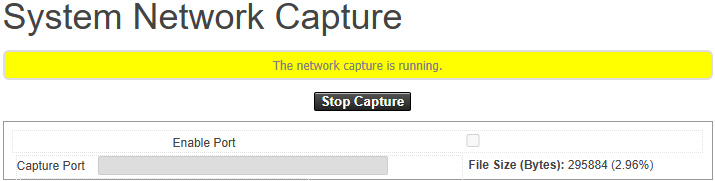
Enable Port
Select this check box to limit the capture to a single port. When it is unchecked, Jasper captures traffic on all ports.
Capture Port
The port to capture when Enable Port is selected.
File Size Limit (Bytes)
The maximum size of the capture file. Jasper stops the capture when the file reaches this limit. This value is set on the system and cannot be changed from this page.
Start Capture
Begin recording packets to the capture file. While a capture runs, Jasper shows a message that the capture is running and keeps updating the File Size.
Stop Capture
Stop recording.
File Size (Bytes)
The current size of the capture file, with the percentage of the size limit it has reached.
Download Capture
Download the capture file to your computer. This button appears when a capture file exists and no capture is running.
Delete Capture
Delete the capture file from the system. This button appears when a capture file exists and no capture is running.
Performing wireless network diagnostics and troubleshooting
Viewing wireless Information
(Only present on CC-WiXBee model.) This page shows configuration information and communication counters for the wireless module.
To view this information, follow these steps.
-
Sign in to Jasper as an administrator.
-
Open the Status menu and choose Status under the Wireless heading.
The Wireless information page appears.
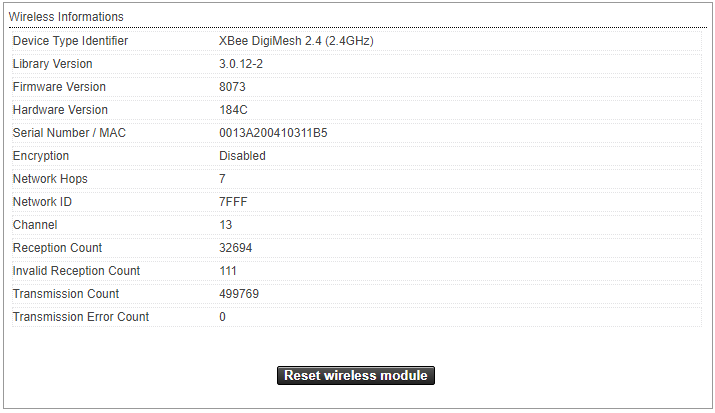
Device Type Identifier
Wireless module type.
Library Version
Version of the wireless communication library.
Firmware Version
Software version of the wireless module.
Hardware Version
Hardware version of the wireless module.
Serial Number / MAC
MAC address of the wireless module.
Encryption
Indicates whether communications are encrypted.
Network Hops
Allowed maximum number of network hops for transmitted messages.
Network ID
Network ID (PAN) used to group all radio modules for a project.
Channel
Wireless channel or radio frequency.
Reception Count
Number of received messages.
Invalid Reception Count
Number of invalid messages received.
Transmission Count
Total number of transmitted messages.
Transmission Error Count
Number of times the radios library could not transmit a message.
Reset wireless module
Stop and start the wireless module.
Using the wireless spectrum analyzer
(Only present on CC-WiXBee model.) The page analyzes energy usage across all frequencies. Note: This process can temporarily disrupt wireless communications.
To use the wireless spectrum analyzer, follow these steps.
-
Sign in to Jasper as an administrator.
-
Open the Status menu and choose Spectrum Analyzer under the Wireless heading.
The Wireless Spectrum Analyzer page appears.
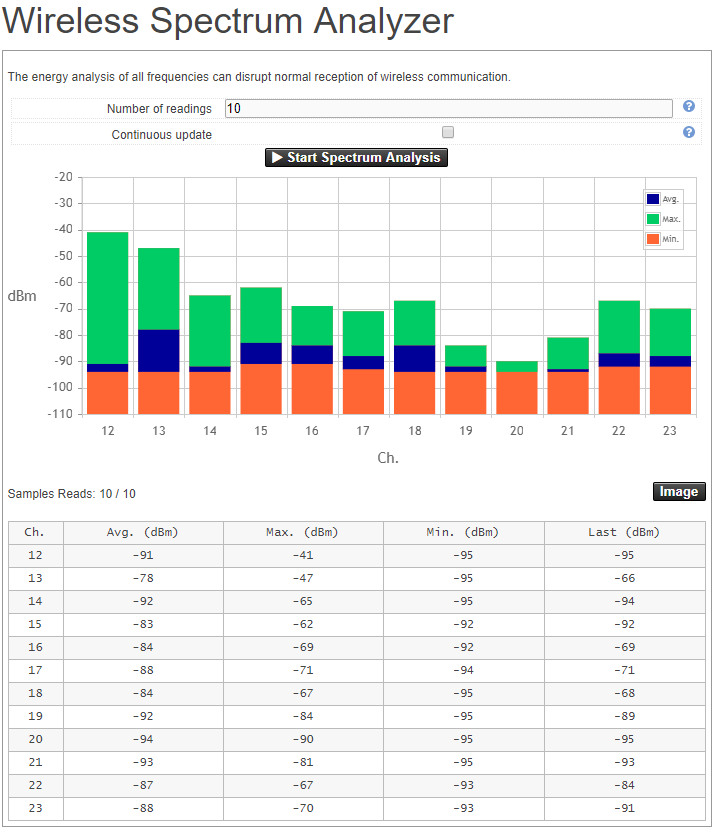
Number of readings
This is the finite number of readings that the XBee radio uses to produce the test results shown in the graph and table. The default value is 10 readings. This option is not available if you choose “Loop infinitely” (below).
Continuous update
Choose this option to have the XBee radio perform energy analysis continuously without being limited by the Number of readings (above). To use Number of readings, deselect Loop infinitely.
Start Spectrum Analysis
Start the spectrum analysis.
Ch
Wireless channel number or frequency.
Avg. (dBm)
Average signal power (dBm).
Max. (dBm)
Maximum signal power (dBm) for the number of samples.
Min. (dBm)
Minimum signal power (dBm) for the number of samples.
Last (dBm)
Latest signal power reading (dBm).
Monitoring wireless packets
(Only present on CC-WiXBee model.) You can use the wireless packets monitor to follow packets received and sent by the wireless module, travelling between the module and devices on the wireless XBee network.
To use the wireless packets monitor, follow these steps.
-
Sign in to Jasper as an administrator.
-
Open the Status menu and choose Packets Monitor under the Wireless heading.
The Wireless Packets Monitor page appears.
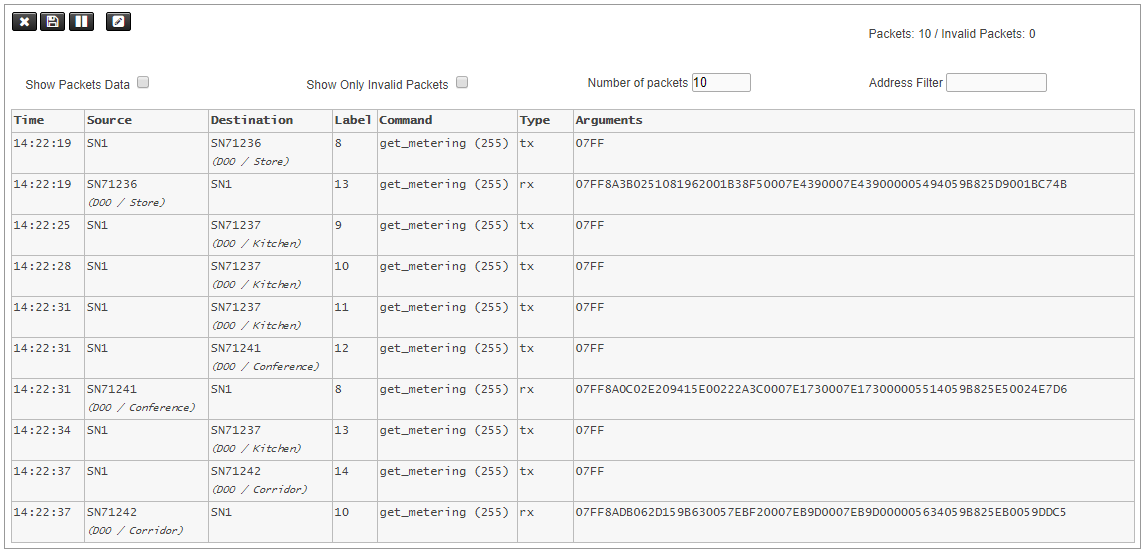

Clear all packets.

Save the packet list on your computer as a Comma-separated values (CSV) file.
 /
/ 
Pause or restart packets monitor.

Allows direct entry of a packet to send it on the wireless network. Advanced users can test the wireless network using direct entry of packets.

Show Packets Data
Displays raw packet data.
Show Only Invalid Packets
Displays only the invalid packets. Invalid packets appear in red.
Number of packets
Limits the number of packets.
Address Filter
Displays only packets with this source or destination address.
Updating the Jasper system
There are two ways to update the Jasper software. You can upload an update file from the web interface, or you can use the Jasper Updater program on a Windows computer. Both methods install the update packages provided by Cristal Controls and then restart the Jasper software.
Web Update
You can update the Jasper software from the web interface by uploading an update file that Cristal Controls provides. Jasper stops the software, installs the update, then restarts the software.
Updates must be performed by a qualified technician. During the update, Jasper stops and the page may become unresponsive. Do not power off the system while an update is running.
To update the Jasper system, follow these steps.
-
Sign in to Jasper as an administrator.
-
Open the System menu and choose System Update. The System Update page appears.
-
Under Upload Update File, click Select update file (.zip) and choose the update file provided by Cristal Controls. The file must be a
.ziparchive. -
Click Upload and Install.
During the upload, a progress bar shows the percentage transferred. Jasper then installs the update and, when it is done, restarts. The page reloads automatically once the system is back online.
Jasper Updater
You can update a Jasper device from a Windows computer using the Jasper Updater program provided by Cristal Controls. The program connects to the device over the network, installs the update packages, then restarts the Jasper software.
Updates must be performed by a qualified technician. The computer running the Jasper Updater must be able to reach the Jasper device on the network.
To update a Jasper device with the Jasper Updater, follow these steps.
-
On the Windows computer, run the Jasper Updater program provided by Cristal Controls.
-
In the IP address field, type the IP address of the Jasper device.
-
Click Next to start the update.
The program shows its progress while it installs the packages on the device. When it is done, the Jasper device restarts with the updated software.
Note: to install an optional extension, select Extension packages, then click Install for Network Packet Capture or CC-XBee. You can also use Uninstall to remove an extension.