Connecting Jasper to the BACnet network
The first step in an installation involves configuration of the network Jasper uses to communicate with BACnet devices.
Configuring general network settings
Use this page to connect Jasper to the IP network. If you have more than one network, connect Jasper to the IP network that BACnet resides on.
To connect Jasper to your network, follow these steps.
-
Sign in to Jasper as an administrator.
-
Open the System menu and choose Network.
The page's appearance depends on whether the Protocol is set to Static or Dynamic.
Static
System Network Configuration and DHCP Server.
Dynamic
System Network Configuration only. The dialog features only one setting (Hostname), explained below.
Network Configuration dialog
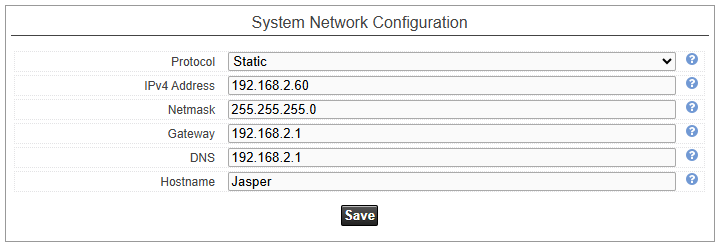
Protocol
Use a static protocol in production or test environments. Qualified technicians may use DHCP. See subsequent sections for details.
IPv4 Address
Ask your network manager for this setting.
Netmask
Ask your network manager for this setting.
Gateway
Ask your network manager for this setting.
DNS
Ask your network manager for this setting.
Hostname
Ask your network manager for this setting.
DHCP Server dialog
If you choose DHCP Server from the Protocol drop list in the Network Configuration dialog, Jasper displays the DHCP Server dialog.

You can enable Jasper's DHCP server if Jasper occupies a standalone network. The server enables devices connected to Jasper's network to automatically receive IP addresses.
Don't enable the DHCP server if Jasper is connected to a LAN that has a DHCP server.
Enable
Click this check box to enter DHCP settings.
Start Address / 192.168.2.200
Choose the address with the lowest number that Jasper can use. In the example above, this address is 192.168.2.200.
You may need to ask your network manager for this setting.
Limit
Choose a range of addresses “above” the Start Address that you can assign to Jasper components. Using the number “25” in the example above, Jasper components can be assigned an IP address between 192.168.2.200 and 192.168.2.224.
You may need to ask your network manager for this setting.
Lease time
Time, in hours, that a Jasper-connected device can keep the same IP address. This value must be an integer.
To have your changes take effect, click the Save button. Jasper may tell you to reboot the system to have the changes take effect. For more information, refer to System status.
SSH Server dialog
Allows disabling and modifying the port of the network SSH server.

Enable
Click this check box to enable the SSH server.
Port
The port of the SSH server.
To have your changes take effect, click the Save button. Jasper may tell you to reboot the system to have the changes take effect. For more information, refer to System status.
FTP Server dialog
Allows disabling and modifying the port of the network FTP server.

Enable
Click this check box to enable the FTP server.
Port
The port of the FTP server.
To have your changes take effect, click the Save button. Jasper may tell you to reboot the system to have the changes take effect. For more information, refer to System status.
Web Server Configuration
Controls how the Jasper web interface is served over HTTP and HTTPS. This dialog is available on OS 24.10 devices.
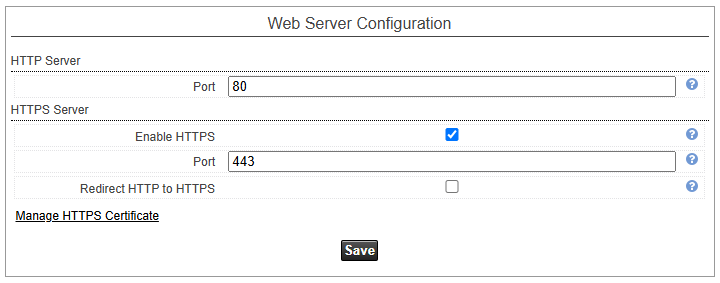
HTTP Port
The port used to serve the web interface over HTTP. The default is 80.
Enable HTTPS
Click this check box to serve the web interface over an encrypted HTTPS connection.
HTTPS Port
The port used to serve the web interface over HTTPS. The default is 443.
Redirect HTTP to HTTPS
Click this check box to automatically redirect plain HTTP requests to HTTPS.
Manage HTTPS Certificate
Click this link to open the HTTPS certificate page, where you can create a self-signed certificate, import your own certificate, export the installed certificate, or reset to the default certificate.
To have your changes take effect, click the Save button.
Configuring BACnet network settings
To connect Jasper to your network, follow these steps.
-
Sign in to Jasper as an administrator.
-
Open the Data menu and choose BACnet under the Configuration heading.
The following three dialogs appear.
-
Network (described below)
-
Device Object (described)
-
Time Synchronization (described)
-
Network

Name
Network identity. This is an arbitrary name included in the configuration file.
Network Interface
Defines the network interface used for the BACnet protocol communication. The default value is “br-lan”.
BIP Port
(BACnet IP) defines the IP port number for the BACnet communication. The default value is “47808”; sometimes it is displayed as the hexadecimal value “BAC0”. This value can be changed to use another independent BACnet network, example “47809” or “BAC1”.
BBMD Address
To set a connection to a BACnet Broadcast Management Device. This is a connection to a server device allowing communication to remote BACnet devices. You must provide the IPV4 address of the BBMD server.
BBMD Port
To set a port configuration for the BBMD server.
BBMD Time To Live
Set time in seconds used to renew the BBMD server connection.
RPM Service
(Read Property Multiple) set Jasper using multiple readings in a single read request.
Write Priority
Set the BACnet priority used by Jasper when writing to the device's objects.
Remote Network TSM Size
(Transaction State Machine) the number of messages that can be added to the TSM for write operations on a remote network. Default value is 1.
For more information, refer to Transaction state machine (TSM) table.
Device Object

The first three parameters in this dialog are part of the “Device” object and are visible to any BACnet device. (Note: in Jasper, “objects” and “variables” are the same thing.)
Name
A unique network identity for Jasper.
Device ID
Jasper's unique numerical identifier on the BACnet network.
Location
A value used by an operator's workstation to identify Jasper.
APDU Timeout (ms)
(Application Protocol Data Unit) The delay, in milliseconds, before Jasper retransmits a request for acknowledgement of a message. The default value is 3000 (3 seconds).
APDU Retries
The number of times Jasper tries to get acknowledgement for a BACnet message. The default value is 3 retries.
Time Synchronization
This section enables Jasper with BACnet date and time transmissions on its network in local or UTC time.

Enable
Select this check box to enable time synchronization.
Interval (m)
Interval between subsequent transmissions of the time from Jasper to all connected devices.
UTC Enable
Select this check box to enable coordinated universal time (UTC) time synchronization.
UTC Interval (m)
Interval between subsequent transmissions of UTC time from Jasper to all connected devices.
Configuring System Date and Time
Use this page to set system date and time.
To configure system date and time, follow these steps.
-
Sign in to Jasper.
You can set the time and date as either an administrator or a user with fewer rights (known as ViewEdit). For more information on types of users, refer to Understanding user permissions.
-
Open the System menu and choose Time.
The System Time dialog appears. (If Time Source is set to NTP, the NTP Time Synchronisation dialog also appears.)

Time Source
You can choose from Manual, NTP (Network Time Protocol) or BACnet. If you choose NTP, the NTP Time Synchronisation dialog appears below.
If you choose BACnet time source, Jasper accepts TimeSynchronisation and UTCTimeSynchronisation services from your BACnet network.
Current system time
If you choose Manual in Time Source, you can type the date (yyyy-mm-dd) and time (hh:mm:ss - use 24-hour time only) in this field.
Time zone
Choose the correct time zone from the list.
To have your changes take effect, click the Save button.
NTP (Network Time Protocol) Time Synchronisation dialog
If you chose NTP from the Time Source drop list in the System Time dialog, the NTP Time Synchronization dialog appears. You can use this option to periodically correct clock drift.
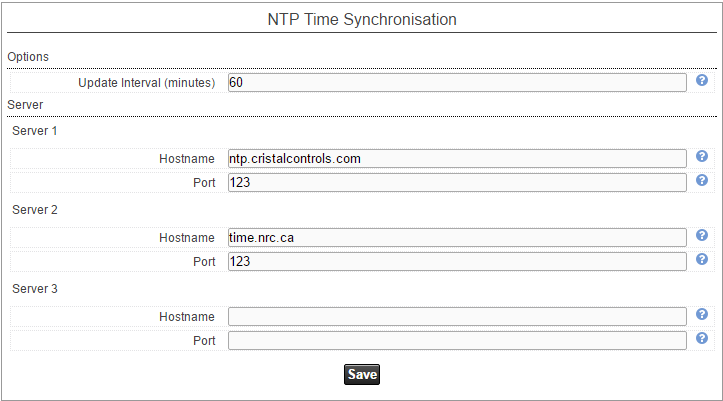
You can choose up to three servers that Jasper can use to set the time and date. If Jasper loses contact with the first server in this list, it will check the second server or the third if you have configured them here.
Server 1 Hostname
Type the name of the default timeserver.
(optional) Server 2 Hostname
Type the name of a secondary timeserver.
(optional) Server 3 Hostname
Type the name of a tertiary timeserver.
To have your changes take effect, click the Save button. Jasper may tell you to reboot the system to have the changes take effect.
Email configuration
Jasper can email notifications to those responsible for it when it detects issues.
To configure Jasper's email, follow these steps.
-
Sign in to Jasper as an administrator.
-
Open the System menu and choose Email.
The Email Configuration dialog appears.
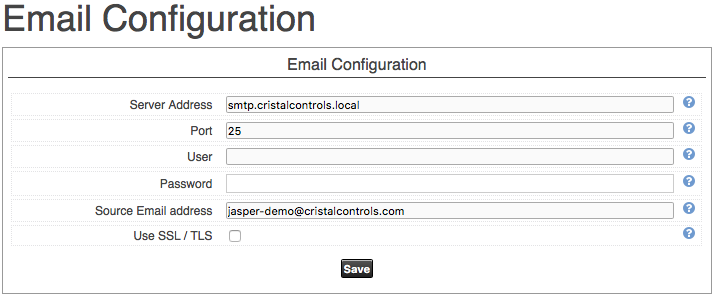
You may need to ask your network manager for some or all of these settings. None of these settings accept spaces.
Server Address
Type your organization's mail server domain.
Port
Type the port used by the mail server.
User
Type the user name assigned to the Jasper server.
Password
Type the password associated with the user name.
Source Email address
Type the full email address for the Jasper server.
Use SSL / TLS
Check this box to enable secure sockets layer (SSL) or transport layer security (TLS).
Once you complete these settings, you can test the email using the Email Test tool.

HTTPS Certificate Configuration
Jasper can serve its web interface over HTTPS using a TLS certificate. This page lets you view the installed certificate, create a new certificate, or import one from a certificate authority. It is available on OS 24.10 devices.
To reach this page, open the System menu and choose HTTPS Certificate. You can also open it from the Manage HTTPS Certificate link in the Web Server Configuration dialog.
The page has three tabs: Installed Certificate, Create a Certificate, and Import Certificate.
Installed Certificate
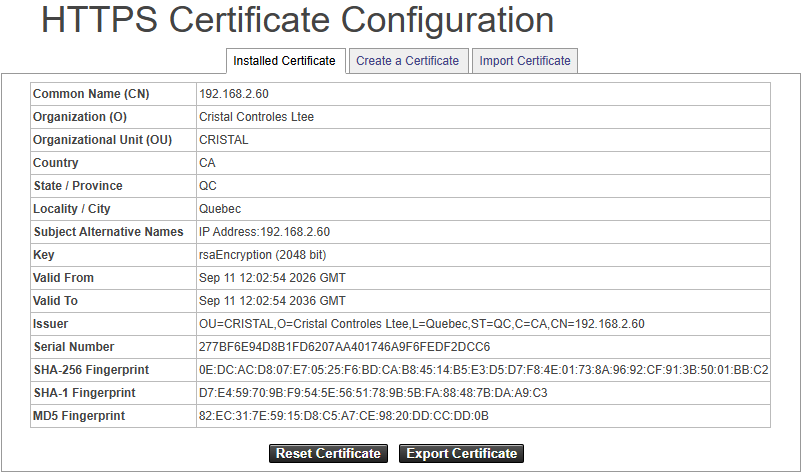
This tab shows the details of the certificate currently in use.
If the certificate has expired, a warning appears prompting you to create or import a new one.
Export Certificate
Click this button to download the installed certificate.
Reset Certificate
Click this button to replace the current certificate with a new default self-signed certificate.
Create a Certificate
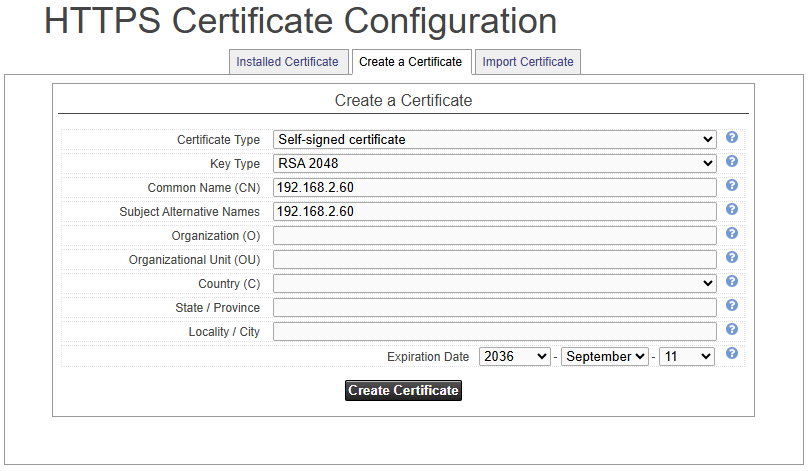
Use this tab to generate a new certificate. Fill in the fields, then click the button at the bottom.
Certificate Type
Choose Self-signed certificate or Certificate Signing Request (CSR). A CSR is sent to a certificate authority for signing, then imported from the Import Certificate tab.
Key Type
The type and size of the key.
Common Name (CN)
The primary name of the device, usually its IP address or host name.
Subject Alternative Names
IP addresses or host names separated by commas.
Organization (O)
The legal name of the organization. This field is optional.
Organizational Unit (OU)
The department or division within the organization. This field is optional.
Country (C)
The country where the organization is located. This field is optional.
State / Province
The state or province where the organization is located. This field is optional.
Locality / City
The city where the organization is located. This field is optional.
Expiration Date
The date the certificate expires. The certificate becomes valid today. The default is ten years from today.
When you finish, click Create Certificate for a self-signed certificate, or Create Certificate Request for a CSR.
Import Certificate
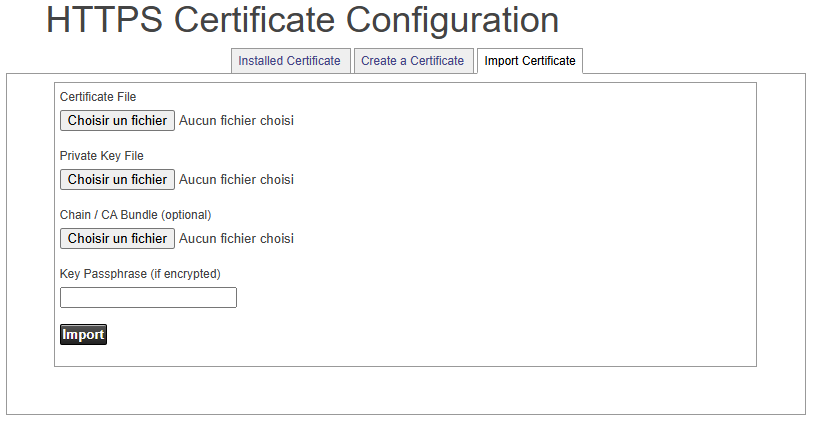
Use this tab to install a certificate that you obtained from a certificate authority.
Certificate File
The signed certificate file.
Private Key File
The private key file that matches the certificate.
Chain / CA Bundle (optional)
An intermediate chain or CA bundle file, if your certificate authority provides one.
Key Passphrase (if encrypted)
The passphrase for the private key, if the key is encrypted.
Click Import to install the certificate.