Customizing the Jasper interface to the client application
Jasper ships with a default interface that end users access using a web browser. Clients can customize this interface to match their brand or other company guidelines.
Customized interfaces tend to show more useful information than that found on standard Jasper web pages and make Jasper easier for client personnel to learn. For instance, customers may want to see things like their own floor plans or thermostat tables.
Beyond appearances, a customized interface can also ensure end users only access the parts of Jasper that they need to use.
General notes on customizing the web browser interface
Webmasters who understand PHP and JavaScript can customize the Jasper web interface. They then transfer the customized site using FTP to the “/home/www/user” folder in the Jasper file system.
To have their changes take effect, the site files they upload to “/home/www/user” must contain a file with one of these names:
-
index.php
-
index.html
-
index.htm
The system uses that file as the start page instead of the default Jasper page.
Customizing thermostats
This page shows thermostat states. You can modify parameters like the setpoint on this page.
To access and modify thermostat states in Jasper, follow these steps.
-
Sign in to Jasper as an administrator.
-
Open the Jasper menu and choose Thermostats under the Visualization heading. (By default, Jasper lists thermostats on a separate page by type.)
The Thermostats page appears. Note: the image below was taken from a system created for a company where the working language is French. The names of floors, zones and thermostats are like proper names and are not translated if you change languages in Jasper.
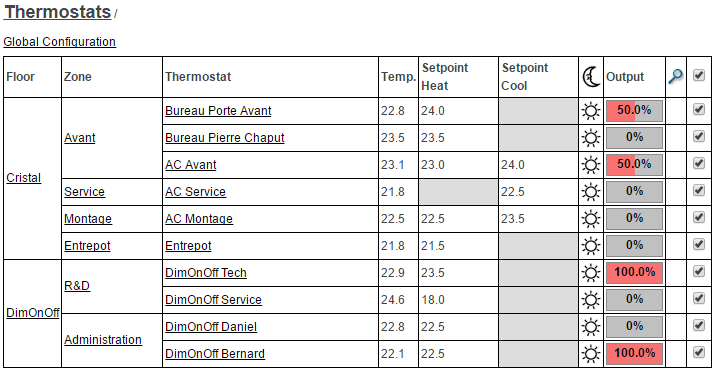
Floor
Name of a floor in a building. To view only control names on that floor, click the floor name.
Zone
Name of a zone on a floor. To view only control names in that zone, click the zone name.
Thermostat
Thermostat names. To set parameters for a thermostat, click its name. A dialog containing two panels (Basic and Advanced) appears where you can set the following:
- Setpoint Cool (Basic tab)
- HVAC Mode (Basic tab)
- Setpoint Cool Unoccupied (Advanced tab)
- Maximum User Setpoint (Advanced tab)
- Minimum User Setpoint (Advanced tab)
Once you make your changes, click Save to have them take effect.
Temp
Actual temperature reading from the thermostat.
Setpoint Heat
Heat setpoint for the thermostat.
Setpoint Cool
Cool setpoint for the thermostat.
Occupied mode / night mode indicator (crescent moon)
The sun icon indicates occupied mode. The crescent moon icon indicates unoccupied mode.
To view the schedule for the thermostat, click this icon. If no schedule has been applied, Jasper displays the message “(thermostat name) (mode) not controlled by the scheduler.”
To assign a schedule to a thermostat, refer to Configuring the scheduler.
Output
Current thermostat activity.
- A red bar indicates the percentage of heating output relative to full output.
- A blue bar indicates the percentage of cooling output relative to full output.
- A grey bar indicates the upper limit for heating or cooling as determined by the load shedder. If the load shedder is active, a portion to the right of the grey section will be white.
- The background white portion indicates the percentage of electricity consumption that the load shedder currently prevents. To the left of the white portion is either grey (the upper limit), blue or red, or a combination of blue and grey or red and grey.
Communications with the thermostat (magnifying glass)
Thermostat update status. When a magnifying glass appears, the system has obtained updated values from the thermostat.
A yellow exclamation mark means Jasper is not communicating with the thermostat. To learn more about the issue, place your mouse pointer over any pictograms shown.
Global Configuration (check boxes)
Select checkboxes for thermostats that you want to adapt a “global configuration.”
Once you have checked the appropriate boxes, click the “Global Configuration” link at the top left of the thermostat list, A dialog containing two panels (Basic and Advanced) appears where you can set the following:
- Setpoint Heat (Basic tab)
- Setpoint Cool (Basic tab)
- HVAC Mode (Basic tab)
- Setpoint Heat Unoccupied (Advanced tab)
- Setpoint Cool Unoccupied (Advanced tab)
- Maximum User Setpoint (Advanced tab)
- Minimum User Setpoint (Advanced tab)
Once you make your changes, click Save to have them take effect.
Customizing floor plans
Customized floor plans display switches and sensor readouts used for controllers linked to Jasper via the BACnet network. “Floor plans” can consist of both interior and exterior elements, as illustrated in the sample floor plan below.
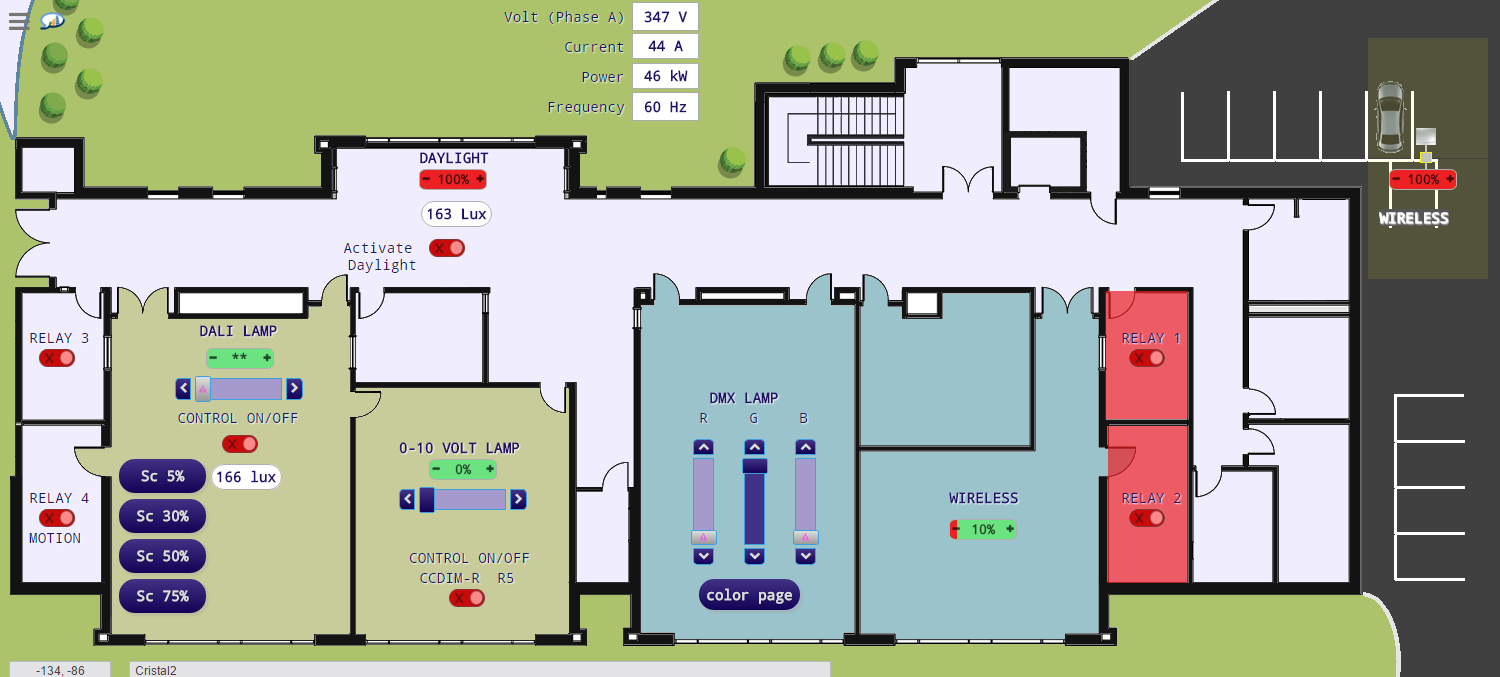
Each floor plan consists of:
-
a background image of the floor plan that you create outside of Cristal Controls and import into the system. You can import such images from CAD drawings. You can also create them using illustration software.
-
controls and readouts positioned in the appropriate places against the background image. The controls you place on the background image are not tied to that image. This means you can replace the image. If the new image is the same size as the old one, controls stay in the same place relative to the floor plan.
The most commonly used controls include:
-
on/off
-
analog
-
horizontal sliders
-
vertical sliders
-
buttons
-
links
For more information, refer to:
-
Configuring the Jasper user experience (floor plans)
-
Cristal Controls Jasper User Manual, “Adjusting settings for customized floor plans”