General settings
Setting display language and web interface behaviour
You can determine how Jasper appears in the web browsers of people who use it in your organization.
To configure these settings, follow these steps.
-
Sign in to Jasper as an administrator.
-
Open the System menu and choose Settings.
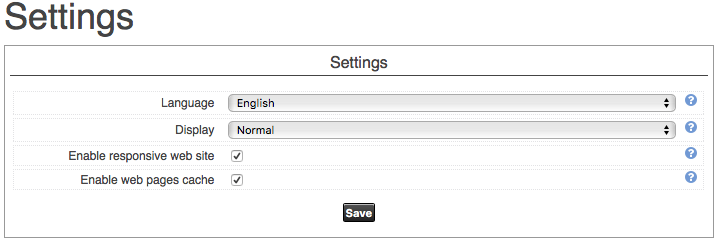
The Settings dialog appears.
-
To have your changes take effect, click Save.
Language
Choose English or French as the display language.
Display
Normal: the interface appears in the centre (horizontally) in the web browser.
Full screen: the interface occupies the full width of the browser and is left-justified. This option can enable display of the browser across multiple screens.
Enable responsive web site
Check this box to enable Jasper to modify its appearance to be more usable on narrower screens (e.g. tablets, phones, narrow computer web browser windows).
Regardless of the setting, some pages remain easier to use on a computer with a full-sized screen.
Enable web pages cache
Enable this option to speed up communication between a browser and Jasper.
Starting and stopping Jasper
As you configure Jasper, you may need to restart the system so that your changes take effect. This page gives you the tools to restart Jasper.
Tip: You don't need to restart Jasper after every change. To save time during configuration, you can make a planned number of changes before you restart Jasper.
In addition to start and stop controls, this page displays the status of both Jasper (at the top of the page) and SQLManager (at the bottom of the page).
To start and stop Jasper or check the status of Jasper or SQLManager, follow these steps.
-
Sign in to Jasper as an administrator.
-
Open the Data menu and choose Start/Stop Services.
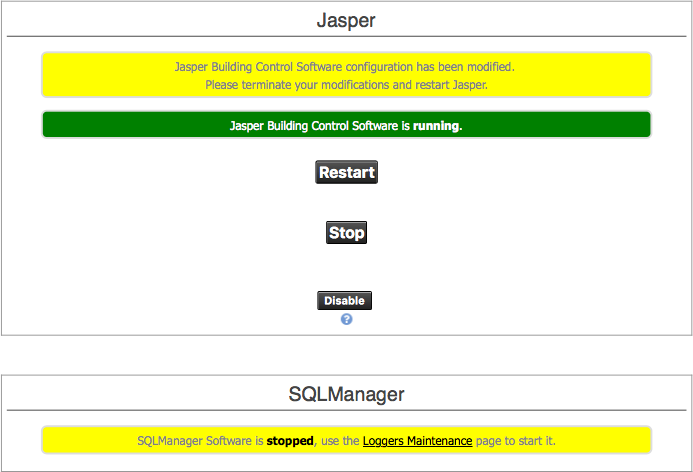
The Process Status dialog appears.
Jasper status messages
Any highlighted text at the top of the dialog shows Jasper's current status.
Restart button
Use this button to apply changes to Jasper's configuration. This button does not appear when Jasper is stopped.
Start/Stop button
When Jasper is active, the middle button reads Stop. When Jasper is not active, that button reads Start.
When you start your Jasper controller, several things happen:
- It reads XML files containing Jasper's application settings and loads these definitions into memory. (These files are located on the computer that hosts Jasper in the “/etc/Jasper” folder. Jasper creates these files when it is first installed.
- It collects information from all control cards to find any information it's missing.
- It periodically checks each variable if a write request is made.
Disable button
Use this button to ensure Jasper does not start when you boot your system. This option prevents needless activity by a server that maintains a real-time redundant copy of your Jasper configuration.
SQLManager messages
Any highlighted text at the bottom of the dialog shows SQLManager current status.
The SQLManager manager application runs for brief intervals according to a schedule described in Copy Logs to Backup Database.
Managing cards
You configure each device connected to your BACnet system using a “card” (controller) that connects to the dataserver over the network. You will need to add cards, delete cards and perform other configuration tasks to enable people to manage BACnet components.
Adding a card
To add a card, follow these steps.
-
Install the card on the network.
-
Sign in to Jasper as an administrator.
-
Open the Data menu and choose Add under the Cards heading.
The Card Templates page appears.
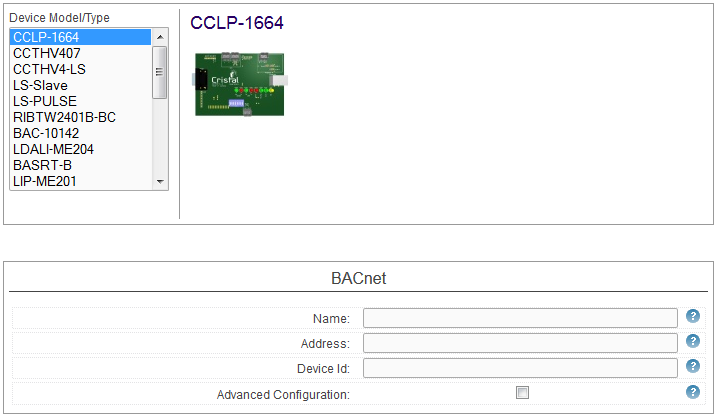
Device Model /Type list
Use this list to specify the type of card you want to add. When you click a card, an image of it appears to the right so you can confirm you're adding the right type of card.
BACnet Name
Type the name you want to assign to the new card.
BACnet Address
Type the BACnet address for the new card.
BACnet Device ID
Type the BACnet ID of the new card.
If you click the Advanced Configuration checkbox, the following optional parameters appear. Jasper automatically configures advanced settings for each controller. You can change them if need be during installation.

RPM Service (ReadPropertyMultiple)
Use this setting to read more than one BACnet value at a time. This is more efficient than having the system transmit one value per message.
Max APDU
Application Protocol Data Unit is the content of a BACnet message. Note: Jasper checks the RPM Service setting against the Max APDU setting. If RPM Service exceeds Max APDU, the controller will not be able to transmit its values.
Get Event Support
Determine whether the device can send alarms to Jasper.
The last section of the page offers settings specific to each type of card. For more information on these settings, refer to the documentation that accompanied the card.
Deleting a card
To delete a card, follow these steps.
-
Sign in to Jasper as an administrator.
-
Open the Data menu and choose Configuration/Delete under the Cards heading.
The Cards Configuration page appears.

-
Click the name of the card in the Cards list that you want to delete.
You can choose a range of cards by: clicking the top card in the range; holding the Shift button on your keyboard, and; clicking the bottom card in the range.
-
Click the Delete button.
-
Remove the card(s) from the dataserver.