Configuring the Jasper user experience (floor plans)
You can create and configure floor plans for your building. These floor plans contain both sensor feedback (e.g. voltage, current, power, frequency, lamp feedback) and setting controls for BACnet devices. You can place both types of objects in the places within your floor plans so that Jasper users can easily find the readings and controls they need.
Accessing floor plans
You can work on floor plans as both an end user and as an installer. This manual covers installer instructions to help you configure floor plans. For instructions on working with floor plans as an end user, refer to the Cristal Controls Jasper User Manual, “Adjusting settings for customized floor plans.”
To work with Jasper's floor plan features, follow these steps.
-
Sign in to Jasper as an administrator.
-
Open the Jasper menu and choose Floor Plan under the Visualization heading.
The Floor Plan page appears.
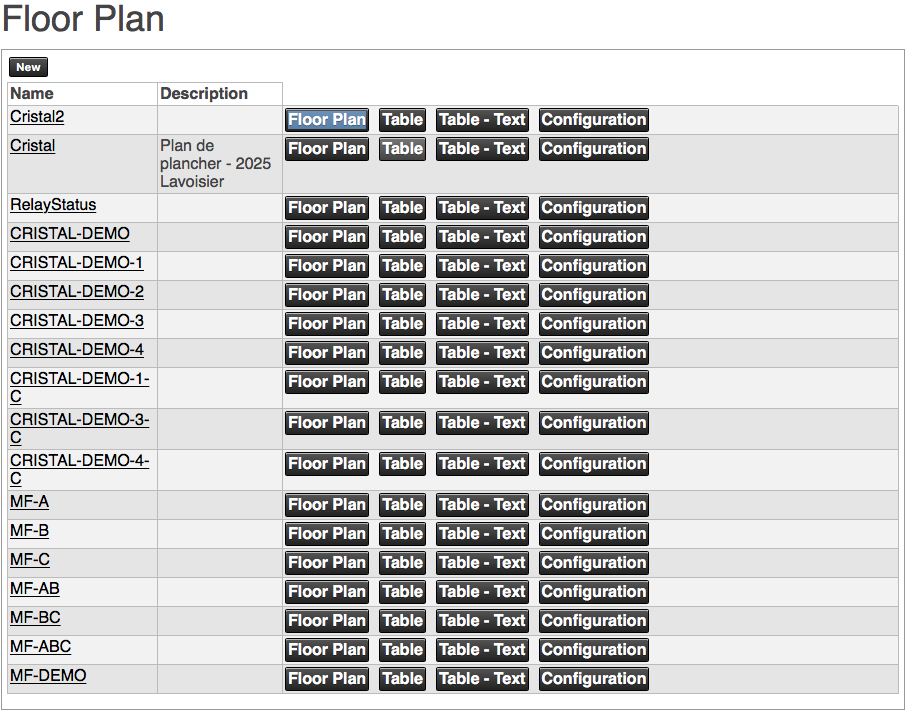
Notes:
-
You can also choose the “Floor Plan Fullscreen” option to remove the page header and footer. This option shows more of the list on your screen.
-
If you don't see the Configuration buttons visible in this screen image, you may be signed in to Jasper as a user and not an administrator.
Each line in this floor plan table contains a label, a description and four buttons.
(floor plan link)
View and work with the floor plan as a graphic.
Description
A brief note on the nature of this floor plan. To configure the description, refer to Configuring a floor plan.
Floor Plan button
View and work with the floor plan as a graphic.
Table button
View and work with the floor plan with each element in its own table row. Each element appears as it does in the graphical floor plan.
Table – Text button
View and work with the floor plan with each element in its own table row. Unlike the “Table” option (above), elements are represented as text instead of their graphical icons.
Configuration button
Work with the tools that enable you to configure a floor plan.
You cannot undo changes you make here, so before you make any changes, back up the current configuration. You can later revert to that backup if you need to. For instructions on backing up and restoring your configuration, refer to Backing up and restoring configuration files.
For more information, refer to these sections:
- The Configure option: Configuring a floor plan.
- All other sidebar options: Creating a floor plan below.
Creating a floor plan
To create a floor plan, follow these steps.
-
Follow the instructions in Accessing floor plans until Jasper displays the Floor Plan page.
-
Click the New button.
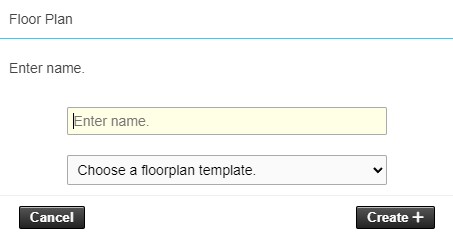
A Floor Plan dialog appears. It includes the fields "Enter name." and "Choose a floorplan template.". The choice of a floorplan template is optional.
-
Type the name for your new floor plan, if necessary, choose a floorplan template and click the Create+ button.
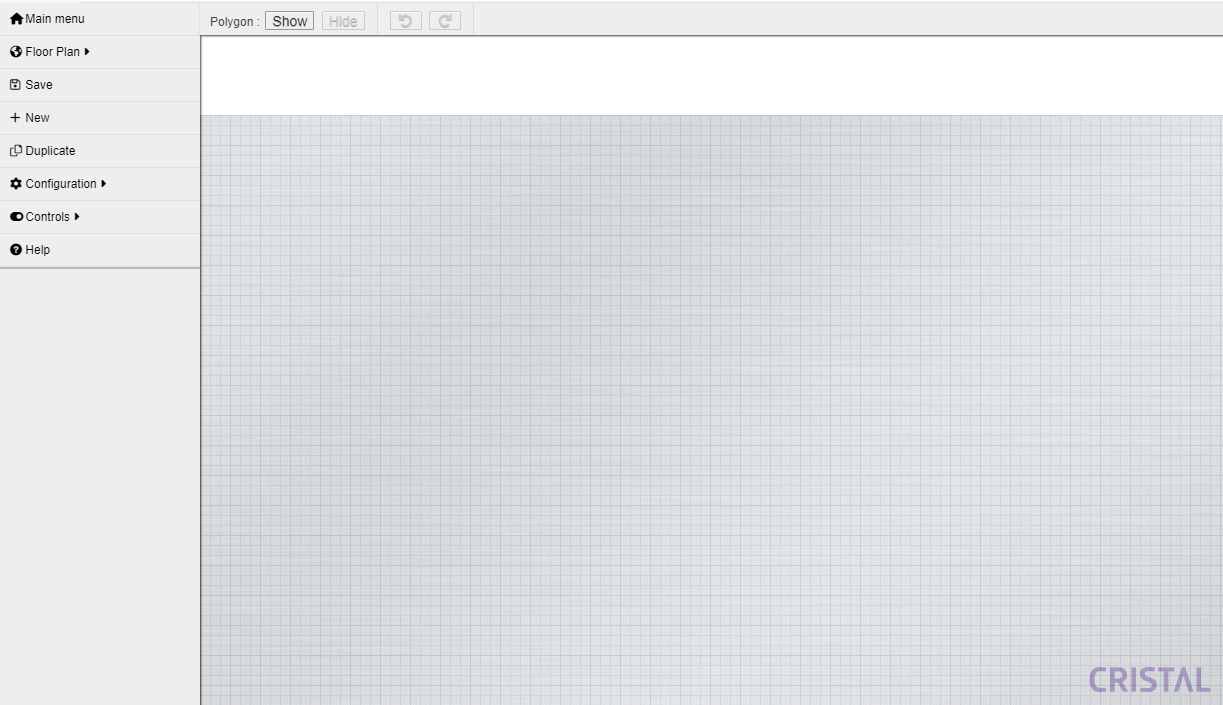
A screen appears containing a grid on which you can lay out a floor plan, with a list of floor plan creation tools in a sidebar to the left of the grid. This screen also features undo and redo buttons at the top left corner of the grid.
Notes:
-
The name of your floor plan appears in the tab of your web browser and in the bottom border of the browser window.
-
The current coordinates of your mouse pointer and, when applicable, the time and an error message appear in the bottom border of the browser window.
Main menu
Return to the Jasper home page.
Floor Plan
View a list of existing floor plans. To view or edit a floor plan, click that plan's name in the sidebar. The plan appears in the grid to the right.
To close this list and return to the main sidebar, click Floor Plan again.
Save
Save any changes you have made. You can also use the keyboard shortcut Ctrl + S.
New
Create a new blank floor plan. A Floor Plan dialog appears. Type the name for your new floor plan and click the Create+ button. A screen appears containing a grid on which you can lay out a floor plan, with a list of floor plan creation tools in a sidebar to the left of the grid.
Duplicate
Create a new floor plan based on the one that you currently have open. A Floor Plan dialog appears. Type the name for your new floor plan and click the Create+ button. A screen appears containing a copy of the floor plan you duplicated, with a list of floor plan creation tools in a sidebar to the left of the grid.
Configuration
Show configuration options that affect the entire current floor plan. For more information, refer to Configuring a floor plan.
Controls
List controls you can add to the floor plan. For more information, refer to Adding controls to a floor plan.
Help
List keyboard shortcut options and explanations of icons. The Help menu also offers suggestions on how to modify the page URL to customize the floor plan interface. These settings do not affect the Jasper interface outside of floor plan pages.
Polygon: Show/Hide
Make polygon controls accessible/inaccessible on the floor plan. If the Show button is activated, polygon controls become accessible and can be modified. All other control types become non-configurable and vice versa (if the Hide button is activated).
Configuring a floor plan
You can use the tools in this sidebar to create a new floor plan or configure the global attributes of an existing plan. To return to the main sidebar, click Configuration again.
Rename
Rename the floor plan.
Modify description
Change the description that appears in the main floor plan list of tables. By default, floor plans have no description.
Modify plan
Upload a new image to serve as the background image of the floor plan (walls, doors, parking spaces, etc.). These images help end users orient themselves when they use Jasper.
You can create floor plan background images using CAD software, flowchart software or even simple illustration software. The .png format is recommended due to its small size and clarity. You can also use other formats such as .jpeg or .gif.
Resize controls
Adjust the size of all controls in the floor plan. This feature does not adjust the size of the floor plan in the background.
Delete
Delete the floor plan. You cannot undo floor plan deletions.
Adding controls to a floor plan
You can add and configure a variety of controls to your floor plan. For full explanations of each control, refer to the Jasper user manual, “Adjusting settings for customized floor plans.”
To add controls to your floor plan, follow these steps.
-
Follow the instructions in Accessing floor plans until Jasper displays the Floor Plan page.
-
Find the floor plan to which you want to add controls and click its Configuration button. (You can also use this process to configure or delete existing controls.)
The floor plan appears with configuration controls in the left sidebar.
-
In the sidebar, click Controls.
A list of controls appears in the sidebar. To return to the main sidebar, click Controls again.
-
Click a control in the sidebar to add it to the floor plan.
You can move a control by using the mouse to drag the small hand icon attached to it. You can determine precise placement using the Position attribute described in Configuring a control's attributes (master attribute list).
Note that the two check boxes at the top of the sidebar are not controls. They determine the behaviour of the floor plan interface. For illustrations of these controls, refer to the Cristal Controls Jasper User Manual, “Adjusting settings for customized floor plans.”
-
Configure the control using the options that appear in the sidebar. For more information, refer to Configuring a control's attributes.
-
Click the Modify button to have your changes take effect.
Toggle Grid check box
Select this check box to overlay the floor plan with a 10 x 10 pixel grid to help you position controls.
Snap To Grid check box
Select this check box to have Jasper align controls automatically to the grid. If you want to position controls free of this constraint, deselect this box.
Add digital
On / off switch to the floor plan.


Add analog
Control offering a 0-100% range.

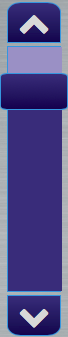
Add slider vertical
Control offering a 0-100% range.
Add slider horizontal
Control offering a 0-100% range.

Add on / off
Toggle for on and off values.


Add simple
Trigger a write command with the value shown by the button.

Add link
HTML link button to open a new web page.

Add text
Fixed text label

Add input text
Numeric value.

Add input color
Color control with Red, Green and Blue components.


Add card
Temperature control for Cristal CCTHV-407 Thermostat.

Add light control
Control of temperature and intensity

Add polygon
Control allowing to have any shape on the floor plan.
Add system time
Display the Jasper system date and time on the floor plan. The displayed format is configurable with the Time Format option. The available values are Date + Time, Time, Time (no seconds) or Date.

Configuring a control's attributes (master attribute list)
Each control in a Jasper floor plan is made up of both:
-
physical appearance
-
attributes that control how it influences variables
By choosing the control you want to add, you determine its appearance. To have a control affect Jasper according to your specifications, you need to configure that control's attributes.
Note: you can configure attributes both when you add a control to a floor plan and if you need to edit the control.
Since attributes can apply to more than one control, this section lists attributes in alphabetical order. To have your changes take effect, click the Modify button below the list of attributes.
Card
This is the card selected for this control. Click Modify to select a thermostat.
Applies to: Card.
Icon
A simple icon that appears in the control on the floor plan. Each control can only display one icon.
- To choose an icon for the control, click the icon to the right of the text field.
- To delete the icon, click the red “x” to the right of the text field.
Applies to: Simple, Link, Text.
Link
The URL of a web page. You can use this attribute to open another web page that a user needs to configure the floor plan.
Applies to: Link.
Live Update
Click this check box to have the control write its current value to the variable while the user slides the control using the mouse. Otherwise, the control writes the value set when the user releases the mouse button.
Applies to: Slider vertical, Slider horizontal.
Position
These two numbers are the X (horizontal) and Y (vertical) coordinates of the control on the floor plan.
- The first number is X, with 0 being the left edge of the floor plan.
- The second number is Y, with 0 being the top edge of the floor plan.
Applies to: all controls.
Read variable
The variable from which the control displays the value you see.
Applies to: Digital, Analog, Slider vertical, Slider horizontal, On/off, Input text, Input color, Polygon.
Size
The width and height, in pixels, of a control.
Applies to: Simple, Link, Text, Input text, Input color.
Skin
A selection of different “looks.” You may need to choose a different skin to make the control stand out from the floor plan background.
Applies to: all controls except Card.
Style
You can determine the appearance of a control using CSS attributes such as width, height, color, font size and text alignment.
Applies to: various controls.
Text
A label that appears in the control on the floor plan.
Applies to: Simple, Link, Text.
Time Format
Select how the system date and time appears: Date + Time, Time, Time (no seconds) or Date.
Applies to: System time.
Title
Text that appears as a tooltip when users move the mouse pointer over the control.
Applies to: Input color.
Type
A read-only label (short form) of the control.
Applies to: all controls.
Unit
A label for the value displayed. (e.g. A, Amp, kW, kWh, Hz, etc.)
Applies to: Input text.
Value
The value written to the write variable when you press a Simple button. You can choose a value from the drop list or type a value in that same field.
Applies to: Simple.
Write variable
The variable to which the control writes the value the end user enters.
Applies to: Digital, Analog, Slider vertical, Slider horizontal, On/off, Simple, Input text, Input color.
Highlight
Check this box to set the control to have a white border when the value of the write variable is equal to the value of the read variable.
Applies to: Simple button.
Background color
Changes the background color of the polygon.
Applies to: Polygon.
Opacity
Changes the transparency of the control. It takes decimal values between 0 and 1 (with 0 totally transparent).
Applies to: Polygon.
Border color
Changes the color of the control border.
Applies to: Polygon.
Border width
Changes the thickness of the control's border. A value of 0 indicates that there is no border on the control.
Applies to: Polygon.
Using right-click menu floor plan tools
While you work in a floor plan, you can use the right-click menu to show a list of features that can help you create your floor plan.
Show plan image
See the plan (without controls) in a new browser tab.
Plan screen shot
Download a screen shot of the plan, with controls, to your computer.
Reload
Load the last saved version of the plan.
Show information
Show information about the floor plan, including:
- Name
- Description
- Size of the floor plan
- Number of different types of controls
Keep Selection
(This option only appears if a control or controls are selected in the floor plan.) Use this option to copy the selection of controls so you can paste it into another floor plan.
Insert Saved Selection)
Paste the selection of controls that you copied from another floor plan using the Keep Selection option.
Search controls
Open a search box to find and highlight controls on the floor plan. For more information, refer to Searching for controls on a floor plan.
Exit Configuration Mode
Display the user interface for the floor plan.
Configuring controls: advanced techniques
Advanced techniques
When you start working with floor plans, you will create controls and move them on a floor plan one at a time. As your floor plans acquire more controls, you can work more quickly using the following tips.
Move multiple controls
Select the controls you want to move (drag your mouse over a group of controls) and drag the group.
Duplicate a control
Select the control and press Ctrl-V on your keyboard.
Duplicate multiple controls
Select the controls and press Ctrl-V on your keyboard.
Copy controls from one floor plan to another
Select the control(s) you want to copy, right-click and choose Keep Selection.
Go to the floor plan to which you want to add the control(s), right-click and choose Insert Saved Selection.
Copy select parameters from one control to another
Click the control that has the parameters you want to copy to select it. A Paste Special icon appears above the grid, to the right of the Redo icon.
Click the Paste Special icon. The Paste Special dialog appears.
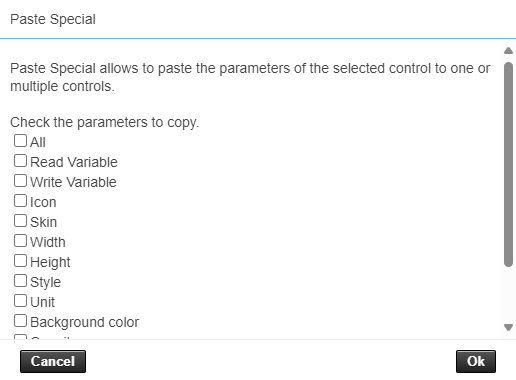
Select the parameters you want to copy and click OK. More controls appear above the plan grid.
Select the controls to which you want to apply these parameters and click the Apply button.
Once you no longer need this feature, click the Done button.
Positioning multiple controls
If you select multiple controls in a floor plan, additional icons appear above the grid that enable the following operations on the selected controls.
- Horizontal auto-align left, center and right. For left and centre, Jasper uses the control farthest to the left as a guide. For right, it uses the control farthest to the right.
- Vertical auto-align top, center and bottom. For top, Jasper uses the topmost control as a guide. For bottom, Jasper uses the bottommost control as a guide. For center, Jasper uses the leftmost control as a guide.
- Distribute controls horizontally or vertically. Jasper distributes the buttons equal distances apart using the controls at the right and left edges (or top and bottom edges) of your selection as guides.
- Delete controls. You can also use the Delete key on your keyboard.
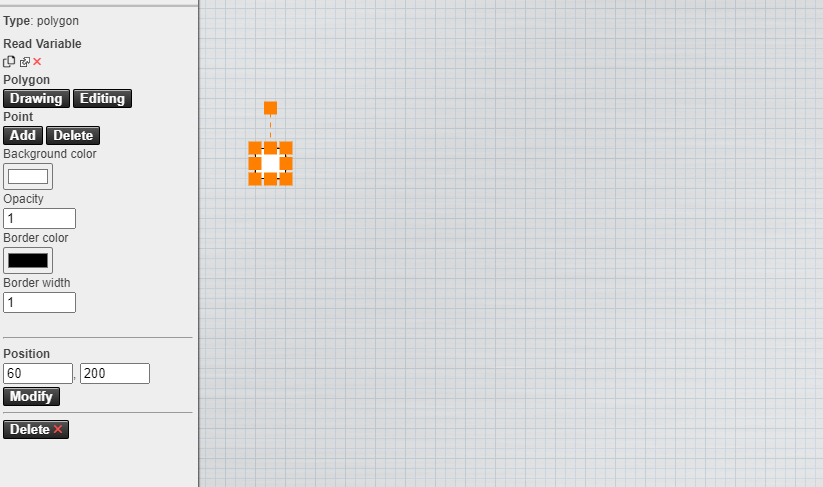
Polygon control configuration
| Functionality | Description | |
|---|---|---|
| Drawing | Allows to define any polygon by selecting the various points that form it. This requires the polygon to be selected on the floor plan to be modified. After clicking on the button, the selected polygon is no longer visible on the floor plan. Move the cursor and click on the floor plan at each position where you wish to place a point. To form the polygon by connecting the various points, simply double-click when you add the last point to form the polygon. | |
| Editing | It is used to modify the shape of a polygon control on the floor plan. The modification concerns the position of the points. It is possible to move the points of a polygon after selecting one of them. The cursor is used to move it to the desired position. | |
| Point | Add | Allows to modify the shape of a polygon by adding a new point to the polygon. After clicking on the option, the polygon takes on an editable shape with the various points that make it up. The cursor is used to add the point at the desired position with a click. |
| Delete | Allows to modify the shape of a polygon by deleting a point on it. After clicking on the option, the polygon takes on an editable shape with the various points that make it up. Use the cursor to select the point and click to delete it. | |
| Modify | Used to move a polygon to a given position. The x (abscissa) and y (ordinate) coordinates of the position must be entered in the first and second write fields respectively. The values given must be whole numbers. | |
 |
Deleting a floor plan
To delete a floor plan, follow these steps.
-
Sign in to Jasper as an administrator.
-
Open the Jasper menu and choose Floor Plan under the Visualization heading.
The Floor Plan page appears.
-
Click the floor plan you want to delete.
The floor plan appears.
-
Right-click the floor plan and click Enter Configuration Mode.
The floor plan appears in configuration mode.
-
In the sidebar to the left, click Configuration.
The Configuration sidebar appears.
-
In the configuration sidebar, click Delete.
A confirmation dialog appears.
-
Click the Delete x button.
Jasper returns to the Floor Plan page. The plan you deleted no longer appears in the list.
Searching for controls on a floor plan
You can use the search box to find and highlight the controls you are looking for.
To search for controls on a floor plan, follow these steps.
-
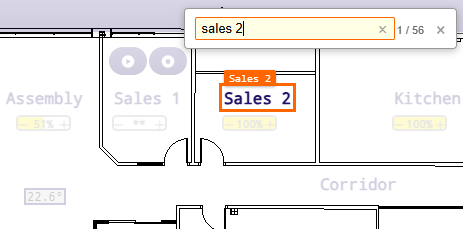
Right-click the floor plan and click Search controls.
A floating search box appears at the top right of the plan.
-
Type part of a control name, variable, or text in the search box.
As you type, Jasper highlights the matching controls and dims the others. A counter next to the box shows the number of matches out of the total number of controls.
Notes:
- The search looks through the control text, title, and the names of the variables the control uses.
- Press Escape on the keyboard or click the close button (x) to close the search box.