Configuring scenes controllers
This web page enables digital addressable lighting interface (DALI) scene commands like GOTO, STORE and REMOVE.
Scenes enable preset configurations of distinct groups of lights in a given space. For instance, in a conference room:
-
Scene 1 can automatically dim lights near a screen to 20 per cent intensity and those farther away to 80 percent intensity to make the screen's contents more legible.
-
Scene 2 can be 100 per cent intensity for regular meetings.
-
Scene 3 can be zero per cent to turn off all lights when the room is not occupied.
To configure scene controllers, follow these steps.
-
Sign in to Jasper as an administrator.
-
Open the Data menu and choose Scene controllers under the Variables heading.
The Scene controllers page appears.
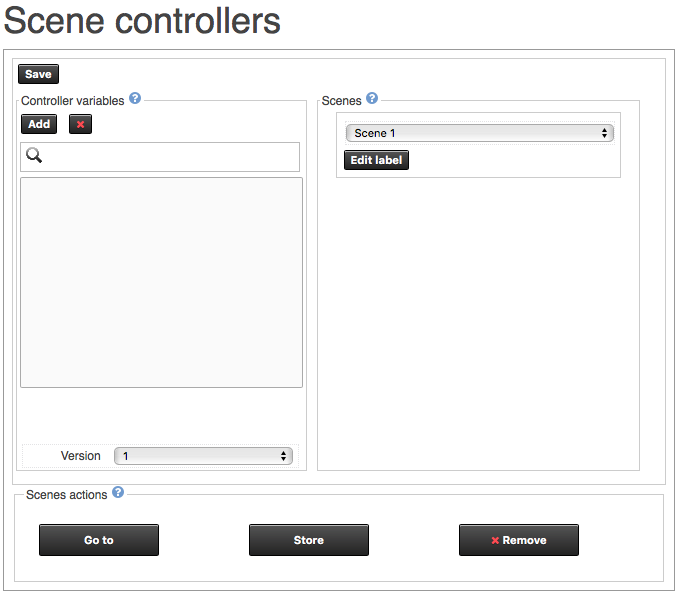
Controller variables section
Add button
Click this button to add a scene variable. A dialog appears where you can select the variable.
(red “x” button)
Click this button to remove the scene controller variable that you selected in the list of variables below.
(list)
Scene controller variables on the BACnet system. Multiple variables may be assembled into one group.
Version
The version of L-DALI in use. The default is 2. You can choose “1” to ensure compatibility with the first version of L-DALI.
Scenes section
Drop list
Choose the scene you want to configure. You can configure up to 16 scenes in each room.
You must have at least one variable in the list to the left to be able to use this drop list.
Edit Label button
Click this button to rename a scene. Jasper keeps the scene number and adds the text you type to the right of the number. (e.g. “Scene 2 - Presentation”). Once you assign a named scene to a variable, that name only appears when you click that variable.
Scenes actions
Go to button
With a scene selected in the Scenes drop list and a variable that contains a lighting configuration selected in the list to the left, click this button to assign the scene to the variable.
Store button
If you have manually configured a lighting setup in a room that you want to use again, click this button to store the current lighting setup (as represented by a variable in the list to the left) in a scene.
X Remove button
Click this button to delete the selected scene's settings.
Jasper sends the following values to the variables according to the scene you select and the button you click.
| Scene 1 | ... | Scene 16 | |
|---|---|---|---|
| Go to | 1 | 2...15 | 16 |
| Store | 17 | 18...31 | 32 |
| Remove | 33 | 34...47 | 48 |