Finding connected BACnet devices
You can have Jasper find BACnet devices on your network that were not configured when you added cards to Jasper. Once Jasper finds those devices, you can add them to Jasper using the instructions in Adding a card.
To find connected BACnet devices, follow these steps.
-
Sign in to Jasper as an administrator.
-
Open the Data menu and choose BACnet Discovery under the Cards heading.
The BACnet Discovery page appears.
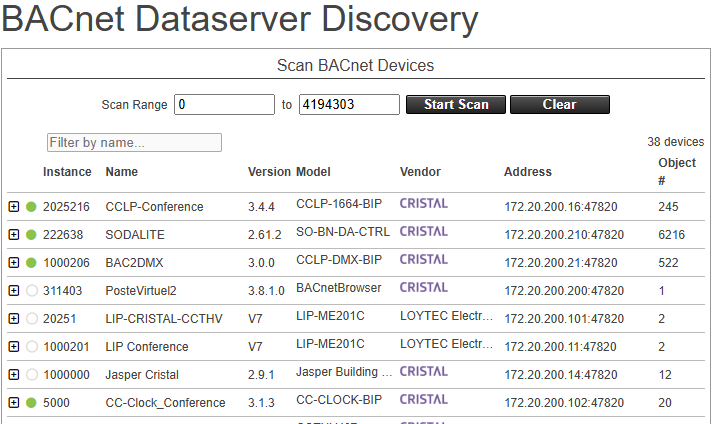
Scan Range
Enter the range of device instance numbers to scan for, from 0 to 4194303. On a large network with many devices, this option saves you time by creating a smaller list of devices to search through for the one you want.
Start Scan
Click this button to have Jasper build a list of devices it finds on your BACnet network. While a scan runs, this button changes to Stop so you can end the scan early, and to Rescan once the scan is complete.
Clear
Click this button to clear the list of devices.
Filter by name
Type in this box to narrow the list to devices whose name matches what you enter.
(listed devices)
For each device, Jasper shows the Instance, Name, Version, Model, Vendor, Address and the number of objects it holds. Click the "+" to open a device and configure its objects on a separate screen.
When you open a device, Jasper reads its objects and shows a device information panel above the object list.
Name
The name reported by the device.
Instance
The device instance number.
Model
The device model name.
Version
The device firmware version.
Vendor
The device vendor name.
Max APDU
The largest message the device accepts, in bytes.
Support ReadPropertyMultiple
Whether the device supports the ReadPropertyMultiple service, which lets Jasper read several properties in one request.
Support SubscribeCOV
Whether the device supports the SubscribeCOV service, which lets Jasper receive value changes as they happen.
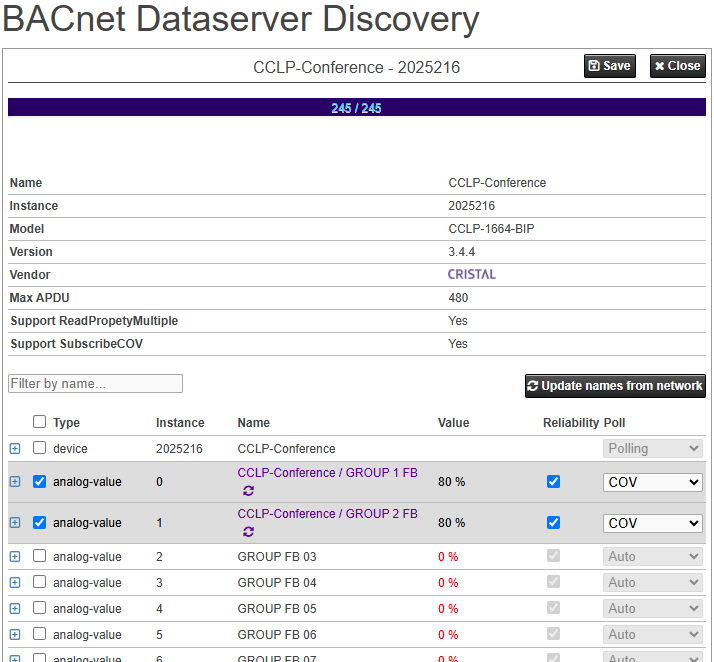
(expand)
Click the "+" to read and display the object's proprietary properties. See Discovering proprietary properties.
Check box
Select this check box to add the object to Jasper.
Type
The BACnet object type.
Instance
The object instance number.
Name
The object name. The button next to the name switches it between the name read from the network and the configured name.
Value
The present value of the object. If you click a value, a separate dialog appears where you can change the value.
Reliability
Select this check box to have Jasper read the Reliability property of the object. It can inform users of an issue with the BACnet object.
Poll
You can have Jasper choose which objects are read and how from the device. Note that not all choices are available for all objects.
- No: Jasper does not read the object. It only writes.
- Polling: Jasper reads the value periodically.
- COV: (Change of Value) The value is obtained using the BACnet service "SubscribeCOV". If an error occurs while trying to subscribe to the object, Polling will be used for the subsequent reads.
- COV Forced: The value is obtained using the BACnet service "SubscribeCOV". Even if an error occurs, Jasper continues attempting to subscribe to the object.
- Auto: The next time Jasper restarts, this value will be set as COV if the COV subscription is successful. If not, polling will be set.
Updating object names from the network
While a device is open, you can align the configured variable names with the names read from the device.
Update names from network
Replace every configured name with the name read from the device. Because this overwrites customized names, Jasper asks you to confirm first.
(update a single name)
The button next to each name updates that configured name from the name read from the device.
(restore a single name)
The button next to each name restores the previously configured name for that variable.
Discovering proprietary properties
Some BACnet objects expose proprietary properties, which are vendor-specific properties with an identifier of 512 or higher. Click the "+" next to an object to read its proprietary properties from the device.

Adding objects to the dataserver
Select the objects and proprietary properties you want, set their Poll and Reliability options, then click Save to add the device to the dataserver configuration. Before saving, Jasper shows a summary so you can review the changes:
Added variables
Variables that will be added to the configuration.
Removed variables
Variables that will be removed from the configuration.
Renamed variables
Variables whose name will change.
Poll changes
Variables whose Poll setting will change.
Reliability changes
Variables whose Reliability setting will change.
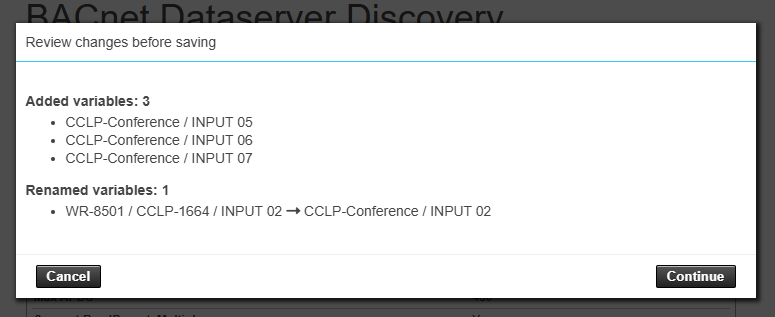
Confirm the summary to save the changes, or cancel to keep editing. Jasper may prompt you to restart the system for the changes to take effect.
This page can be used by only one user at a time. If someone else is already using it, Jasper warns you and lets you take over the page, which disconnects the other user.