Tailscale Remote Access
Tailscale gives secure remote access to the Jasper web interface over the
internet, without any port forwarding or firewall changes at the site. When
enabled, Jasper joins an encrypted private network (a tailnet) and receives a
private Tailscale IP address in the 100.x.y.z range. Any computer or mobile
device signed in to the same tailnet can then reach the Jasper web interface at
that address.
Prerequisites
- Jasper has internet access.
- A Tailscale auth key from the tailnet admin console. A reusable, ephemeral
key that allows the
tag:jaspertag is recommended.
Enroll Jasper
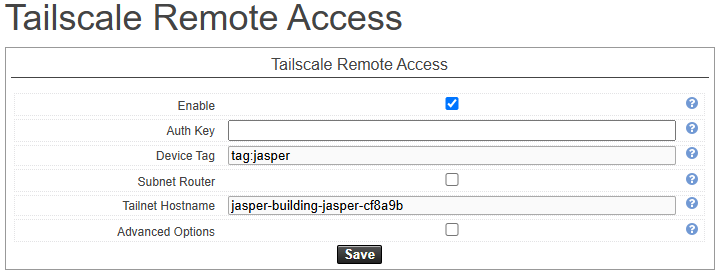
- Sign in to the Jasper web interface as an administrator.
- Open System > Network, then click Tailscale Remote Access.
- Check Enable and paste the Auth Key.
- Leave the Device Tag at its default (
tag:jasper) unless your tailnet uses a different tag. The read-only Tailnet Hostname field shows the name Jasper will use on the tailnet. - Click Save.
Within a few seconds the Status panel shows the assigned Tailscale IP,
and Jasper appears in the Tailscale admin console under its hostname. From any
device signed in to the same tailnet, open a web browser and go to that IP, for
example http://100.x.y.z/.
Status and actions
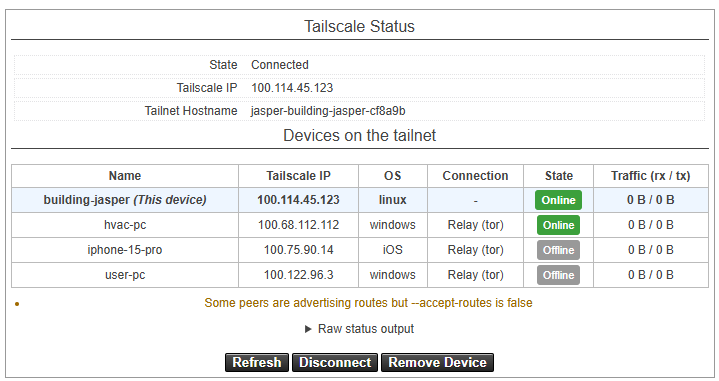
The Status panel shows the current State (Connected,
Enabled, not connected, Disabled, or Logged out - auth key required), the
assigned Tailscale IP, the Tailnet Hostname, the devices on the tailnet,
and any health warnings. Click Refresh to reload it.
The action buttons appear according to the current state:
- Disconnect drops the connection but keeps the saved device identity.
- Connect brings the tunnel back up after a Disconnect, reusing the saved identity. No auth key is required.
- Remove Device signs Jasper out of the tailnet and stops the service. The
state then shows
Logged out - auth key requiredand Connect is hidden: re-enrolling requires a new Auth Key and Save. Use it when decommissioning Jasper or moving it to another tailnet, and also remove the node from the Tailscale admin console. - Unchecking Enable and saving turns the connection off. To turn it back on, check Enable and save with a blank auth key: Jasper reuses its saved identity.
If Jasper does not come online:
- Confirm Jasper has working internet access.
- Confirm the auth key is still valid and has not expired or been revoked.
- Confirm
tag:jasper(or the tag you entered) is defined in the tailnet ACL.
Subnet routing (optional, advanced)
Subnet routing is not enabled by default. Enable it only when you need to reach other hosts on the local network at the site through Jasper. For plain remote access to the Jasper web interface, leave it off.
When enabled, Jasper advertises its local network(s) to the tailnet so other Tailscale devices can reach hosts behind it.
To enable it:
- On the System > Network page, click Tailscale Remote Access, then check Subnet Router.
- Review the Advertised Subnets field. It is pre-filled with the detected
LAN (for example
192.168.1.0/24); edit it or add more subnets separated by commas. - Click Save.
Advertised routes must also be approved in the Tailscale admin console before other devices can use them.
BACnet access
Subnet routing forwards unicast traffic only: broadcasts do not cross the tailnet. BACnet/IP discovery (Who-Is / I-Am) relies on local broadcasts, so a remote BACnet client can reach devices on the advertised subnet by unicast, but a plain discovery finds nothing.
To discover and browse BACnet devices remotely, register the remote client as a foreign device with a BBMD (BACnet Broadcast Management Device) on the BACnet/IP network at the site. The BBMD then relays broadcasts to the remote client as unicast, which passes through the subnet route.
Login server (optional, advanced)
Leave this off unless the site runs its own control server. Most deployments use the official Tailscale coordination server and do not need it.
By default Jasper joins the official Tailscale coordination server. Under Advanced Options the Login Server URL can point Jasper at a self-hosted control server (such as Headscale) instead.
- Enter the full URL, for example
https://headscale.example.com. Bothhttpandhttpsare accepted. - Leave the field empty to use the official Tailscale server.
- The Auth Key must be issued by that same control server.
- Changing the login server logs Jasper out and re-enrolls it against the new server, so provide a valid auth key when changing it.