Firmware Upgrade
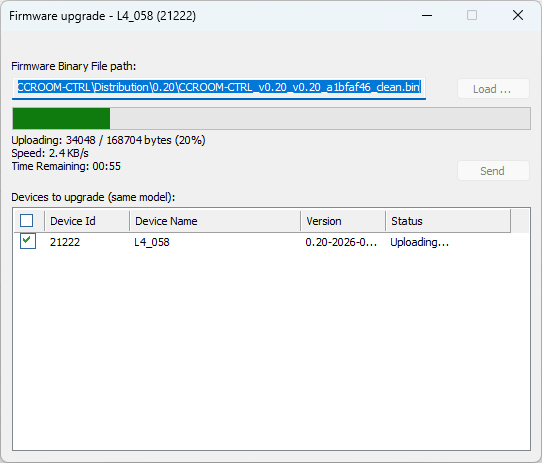
The controller firmware can be updated over the BACnet network using the BACnet Browser. In the device list, select the controller, then open the Device > Firmware Upgrade menu. You can also right-click the controller in the device list and choose Firmware Upgrade from the context menu.
Contact Cristal Controls before upgrading, as some firmware versions may not be compatible and could result in the BACnet MS/TP and other configuration being lost.
| Step | Action |
|---|---|
| 1 | Select the controller in the device list and open Device > Firmware Upgrade (or right-click the controller and choose Firmware Upgrade). |
| 2 | Click Load ... and select the firmware binary file provided by Cristal Controls. |
| 3 | In the Devices to upgrade (same model) list, check every controller you want to update. |
| 4 | Click Send to start the transfer. The progress bar shows the upload progress. |
| 5 | Wait for the Firmware upgrade completed message. Each controller reboots automatically. |
Do not power off the controllers or close the window during the transfer. Once the upgrade is complete, read the configuration back to confirm the devices are operating normally.
Batch upgrade
The Devices to upgrade (same model) list lets you upgrade several controllers of the same model in one operation. The window lists every compatible controller found on the network, with its Device Id, Device Name, Version and Status. Check the box next to each controller to include it in the batch, then click Send. The controllers are upgraded in sequence, and the Status column reports the progress (for example Uploading...) for each one.