Setting
The dimming controller can be set using the Cristal Controls BACnet Browser application software. This software allows reading and writing the dimming controller setting over the BACnet network. The settings can also be saved and read from a file. Here are the different dimming controller settings and their uses. This application software is free and is available at cristalcontrols.com.
Configuration buttons
| Button | Details |
|---|---|
| Load from file | Allows loading a binary setting file in the interface. |
| Save to file | Saves the setting in a binary file. |
| Read | Read the current setting of the dimming controller. |
| Write | Write the setting in the dimming controller. |
| Config Version | Indicates the version of the setting. |
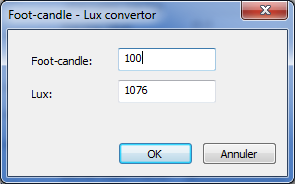
| Foot-candle to Lux | Displays a window to convert a value of foot-candle to lux and vice versa. |
Status
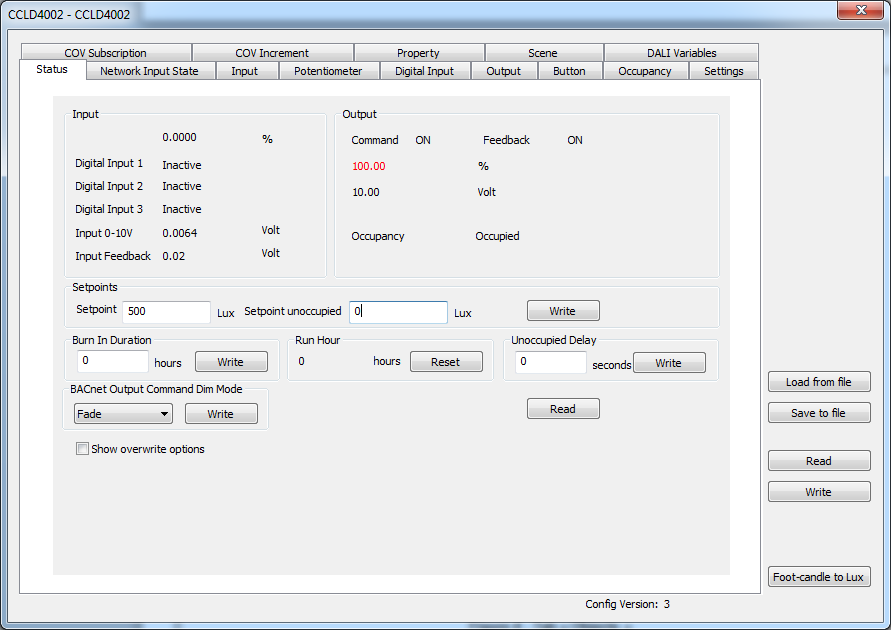
This window provides access to the status of the dimming controller.
| Item | Explanation |
|---|---|
| Input | The entry value is calculated in lux or percent depending on setting. |
| Digital Input 1 | Value of the digital input 1. |
| Digital Input 2 | Value of the digital input 2. |
| Digital Input 3 | Value of the digital input 3. |
| Input 0-10V | Value of the 0-10V physical input. |
| Output | Last command sent to the relay. Output percentage: if shown in red, the output feedback is not following the output command. Value of the 0-10V physical input as 0% and 100% can be limited by settings. |
| Occupancy | Occupied mode. |
| Setpoint | Setpoint for occupied mode. |
| Setpoint unoccupied | Set point of the unoccupied mode. |
| Burn-In Duration | Remaining time (in hours) for initial lamp burn-in. Writing a value greater than zero starts the burn-in and the value will decrease by one each hour. While the burn-in is active, dimming commands are prohibited. |
| Run Hour | Indicates the total time (in hours) the output has a value greater than 0%. The button "Reset" writes zero to this value to clear accumulated times. |
| Unoccupied Delay | Delay (in seconds) before the Occupancy takes into account the changes to the input. For example, this value may adjust the time of a motion sensor. It must then be set to minimum as sensor delay is added to this delay. |
| BACnet Output Command Dim Mode | Determines if the BACnet command uses the fade or not. |
| Overwrite | This section allows direct modification of some values. |
| Output 0-10V | Percentage of the 0-10V output. |
| Occupancy | Occupancy mode. |
| Input | Input value. |
Network Input State
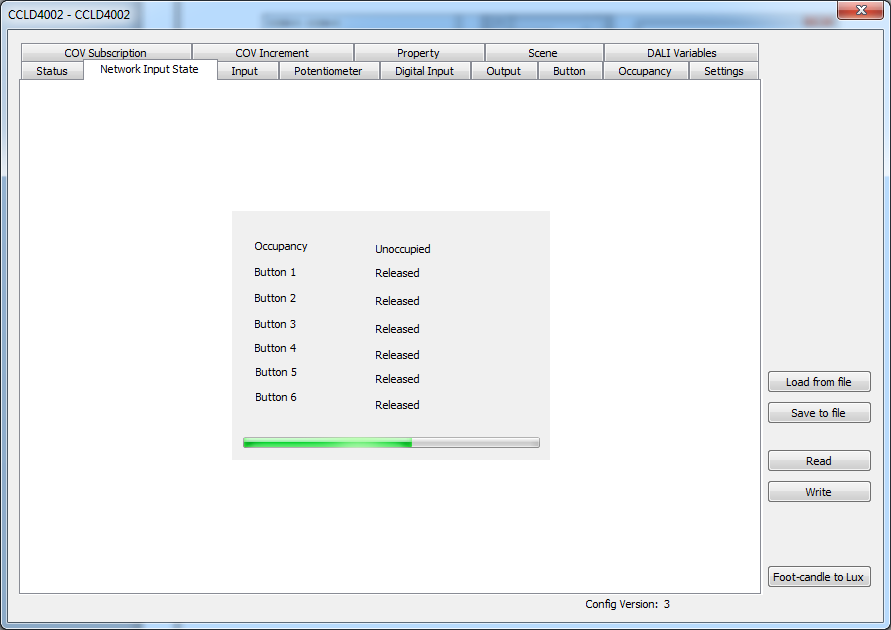
This window displays the current states of the network inputs as read by the dimming controller. This information is useful when the dimming controller reads the BACnet objects from other controllers by itself.
Input
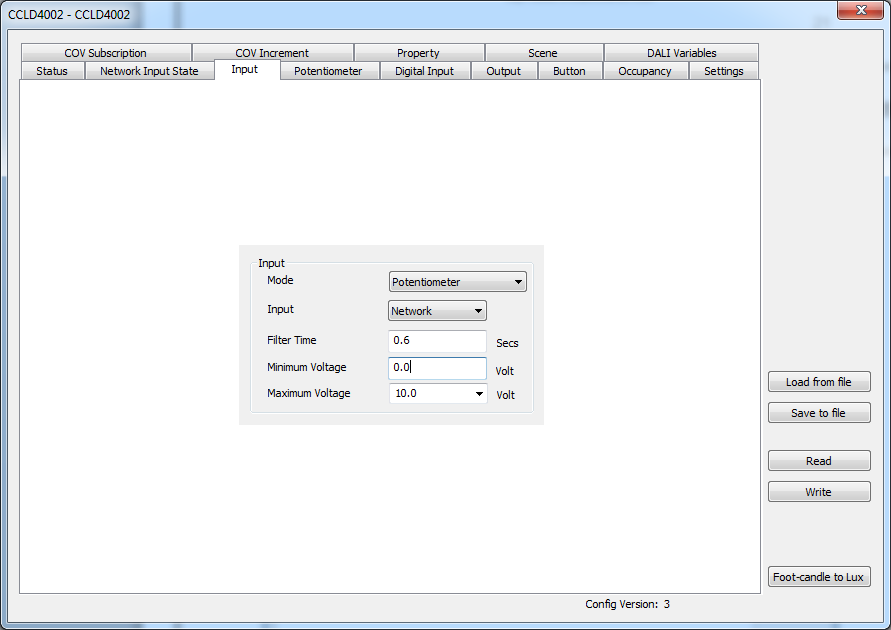
This window is to set the analog Input parameters.
| Item | Explanation |
|---|---|
| Mode | Operation mode for the input. Daylight harvesting or Potentiometer. If not used, select Potentiometer. |
| Input | Input signal type: 0-10V input or BACnet. If no device is connected to analog input, select Network. |
| Filter Time | Filter time applied to an input reading. |
| Minimum Voltage | Minimum voltage of the 0-10V input. Modify the value representing 0% of the input. |
| Maximum Voltage | Maximum voltage for the 0-10V input. Modify the value representing 100% of the input. |
Lux Meter
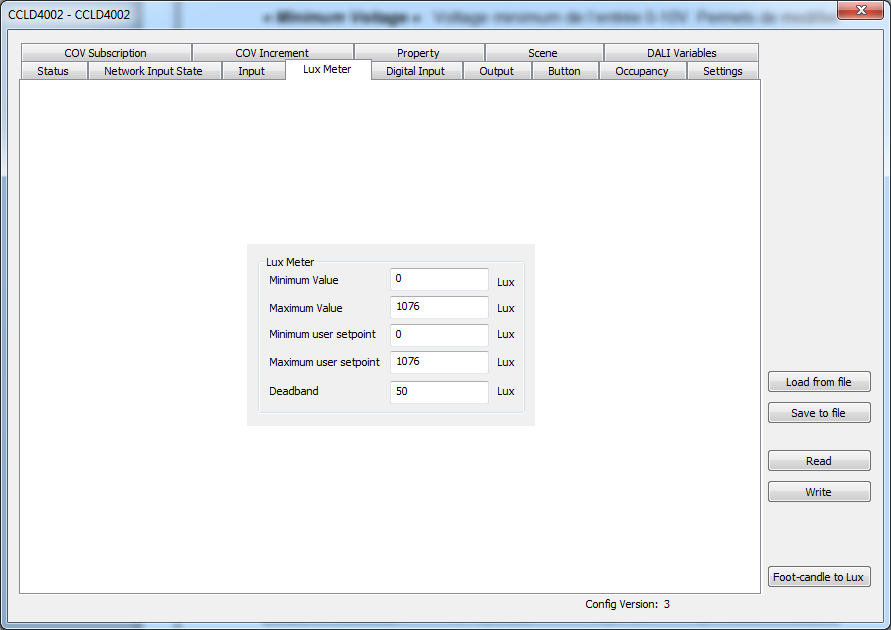
This window is to set the lux meter.
| Item | Explanation |
|---|---|
| Minimum Value | Minimum calibration (in Lux) readable by the sensor. This value is usually 0. |
| Maximum Value | Maximum calibration (in Lux) readable by the sensor. This is the Lux reading when the sensor gives a 10V signal. |
| Minimum user setpoint | Minimum setpoint value that can be adjusted by the user. |
| Maximum user setpoint | Maximum setpoint value that can be adjusted by the user. |
| Dead band | Dead band to avoid fast ON and OFF cycles. |
Potentiometer
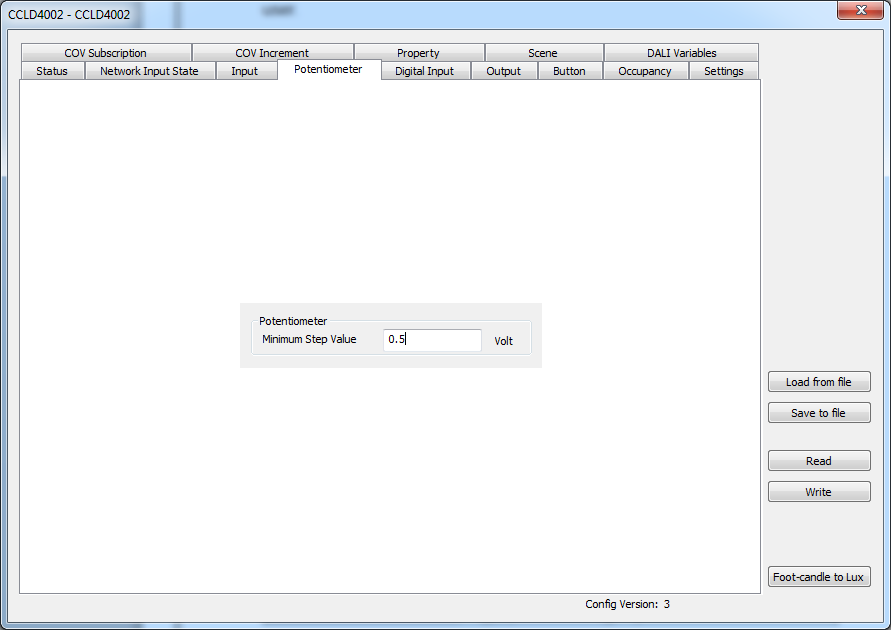
This window is to set the potentiometer input.
| Item | Explanation |
|---|---|
| Minimum Step Value | Minimum change in volts at the input before applying change to the output. This setting avoids cycling caused by potentiometer input readings. |
Digital Input
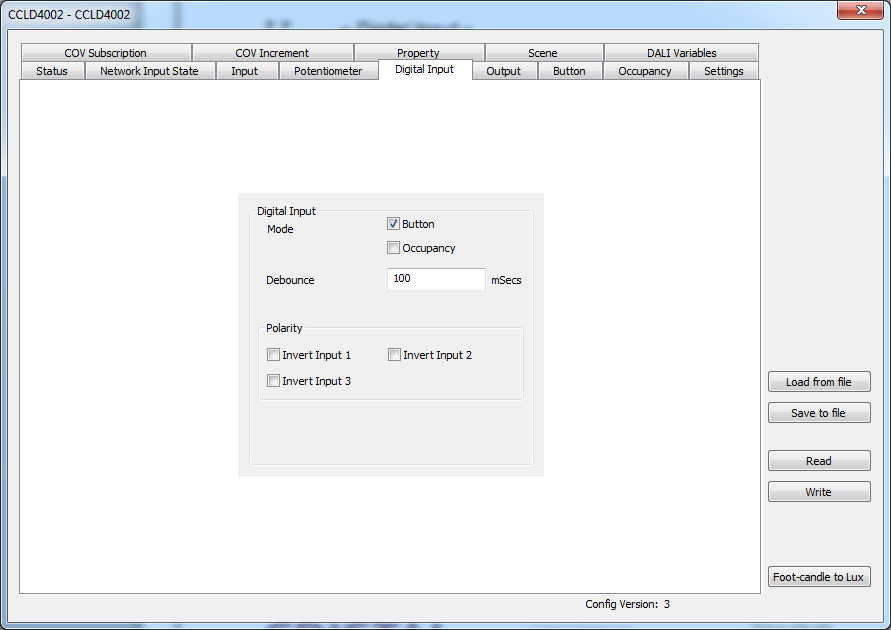
This window is to set the digital inputs.
| Item | Explanation |
|---|---|
| Mode | Button enables the digital inputs 1 and 2 to be used as buttons. Occupancy enables the digital input 3 to be used as the occupancy input. |
| Debounce | Debounce time on digital inputs. |
| Polarity / Invert Input n | Invert the logical value of the digital input. |
Output
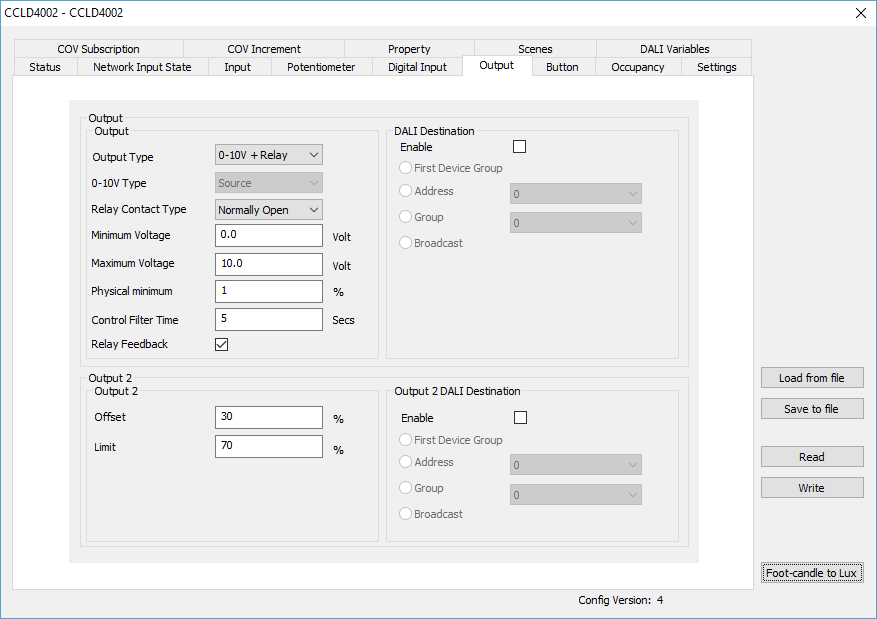
This window is to set the 0-10V output.
Output
| Item | Explanation |
|---|---|
| Output Type | Enable the 0-10V output (0-10V + Relay) or disable it (Relay). |
| 0-10V Type | Enable the 0-10V Sink or Source output. |
| Relay Contact Type | Normally Open or Normally Closed relay contact. |
| Minimum Voltage | Minimum value of 0-10V output in volts. |
| Maximum Voltage | Maximum value of 0-10V output in volts. |
| Physical Minimum | Voltage used to turn off the output with the relay. This value corresponds to the "Physical Minimum Level" when using DALI. |
| Control Filter Timer | Output filter time in seconds. |
| Relay Feedback | Set if using a relay with feedback on the WR output. |
DALI Destination
| Item | Explanation |
|---|---|
| Enable | If DALI destination is enabled, modifications of the dimming controller output level are sent on the DALI network to the specified address. |
| First Device Group | First DALI group configured in the dimming controller. The group with the lowest number. |
| Address | A DALI short address. |
| Group | A DALI group number. |
| Broadcast | Broadcast. |
Output 2
The second output is an internal calculation for a second lighting zone. When in daylight mode, the controller is dimming the inside zone near the corridor and the second zone is communicated to a second controller to dim a brighter zone near the windows.
When the controller is in manual mode and not in daylight control, the second output follows the value of the first input.
| Item | Explanation |
|---|---|
| Offset | Offset, in percent, of the second output. While first output is below this value, second output will be 0%. |
| Limit | Limit, in percent, for the second output. From this value, both outputs have the same level. Below this value, the second output has a linear value function of the first input. |
Button
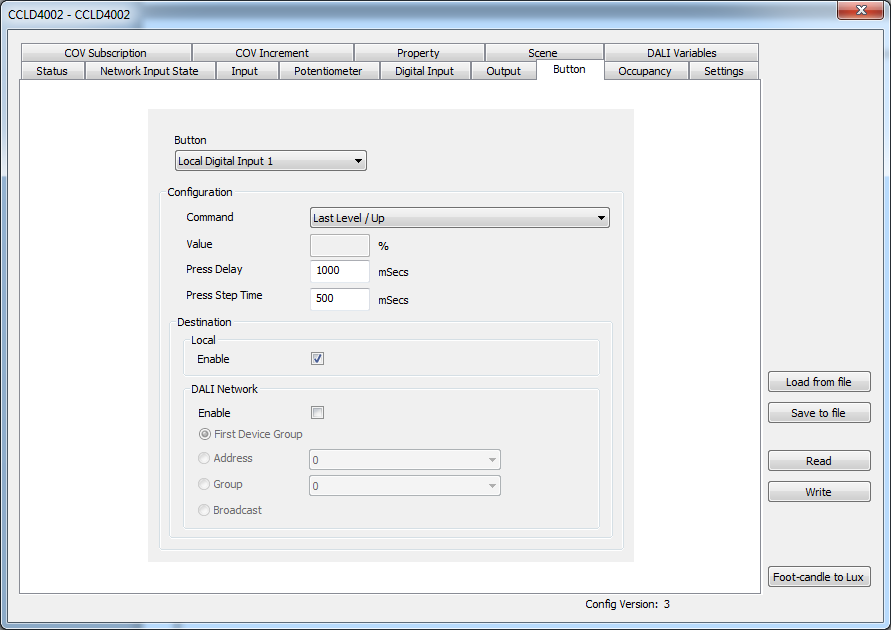
This window is to set the actions of the physical and network buttons.
Button
Select the button being configured.
Configuration
How to set the selected button.
| Item | Explanation |
|---|---|
| Mode | Push-button treats the input as a momentary button and gives access to the full command list. Switch treats the input as a maintained contact and limits the command list to the toggle commands. |
| Command | Command for button. See table below. |
| Value / Scene | Percentage or scene number. For a toggle command, this is the first of the two values. |
| Value 2 / Scene 2 | Second value used by the toggle commands. Each press alternates between this value and the Value / Scene value. |
| Press Delay | Debounce of the input. |
| Press Step Time | Time between the resend of the long press command. |
Command List for buttons
| Command | Button function |
|---|---|
| Undefined | No command / inactive |
| Direct Value | Pressed = "Value" % |
| Max Level / Up | Pressed = Max Level Long Press = Up (repeated) |
| Last Level / Up | Pressed = Last Level Long Press = Up (repeated) |
| Off / Down | Pressed = Off Long Press = Down (repeated) |
| Max Level / Up / Store Scene X | Pressed = Max Level Long Press = Up (repeated) Released for 30 seconds = Store Scene |
| Off / Down / Store Scene X | Pressed = Off Long Press = Down (repeated) Released for 30 seconds = Store Scene |
| Recall Max Level | Pressed = Recall Max Level |
| Recall Min Level | Pressed = Recall Min Level |
| Off | Pressed = Off |
| Go To Scene X | Pressed = Go To Scene |
| Go To Scene X / Store | Pressed = Go To Scene Long Press = Store Scene After 30 seconds = Store Scene |
| Go To Scene X / Up | Pressed = Go To Scene Long Press = Up (repeated) |
| Go To Scene X / Down | Pressed = Go To Scene Long Press = Down (repeated) |
| Go To Scene X / Up / Store | Pressed = Go To Scene Long Press = Up (repeated) Released for 30 seconds = Store Scene |
| Go To Scene X / Down / Store | Pressed = Go To Scene Long Press = Down (repeated) Released for 30 seconds = Store Scene |
| Go To Scene X / On And Step Up | Pressed = Go To Scene Long Press = On And Step Up |
| Go To Scene X / Step Down And Off | Pressed = Go To Scene Long Press = Step Down And Off |
| Go To Scene X / On And Step Up / Store | Pressed = Go To Scene Long Press = On And Step Up Released for 30 seconds = Store Scene |
| Go To Scene X / Step Down And Off / Store | Pressed = Go To Scene Long Press = Step Down And Off Released for 30 seconds = Store Scene |
| Modulo Up / Up | Pressed = raises the output to the next multiple of "Value" % Long Press = Up (repeated) |
| Modulo Down / Down | Pressed = lowers the output to the previous multiple of "Value" % Long Press = Down (repeated) |
| Max Level / Off (toggle) | Pressed = toggles between Max Level and Off |
| Last Level / Off (toggle) | Pressed = toggles between Last Level and Off |
| Max Level - Up / Off - Down (toggle) | Pressed = toggles between Max Level and Off Long Press = Up or Down depending on the current state |
| Last Level - Up / Off - Down (toggle) | Pressed = toggles between Last Level and Off Long Press = Up or Down depending on the current state |
| Direct Value (toggle) | Pressed = toggles between two configured "Value" % levels |
| Go To Scene (toggle) | Pressed = toggles between two configured scenes |
| Set Power Limit | Pressed = sets the power limit to "Value" % |
| Set Power Limit (toggle) | Pressed = toggles the power limit between two configured "Value" % levels |
Destination / Local
| Item | Explanation |
|---|---|
| Enable | Indicates if the button affects the dimming controller itself. |
Destination / DALI Network
| Item | Explanation |
|---|---|
| Enable | Indicates if the button sends the command on the DALI network. |
| First Device Group | First DALI group configured in the dimming controller. |
| Address | A specific DALI short address. |
| Group | A specific DALI group number. |
| Broadcast | Broadcast. |
Occupancy
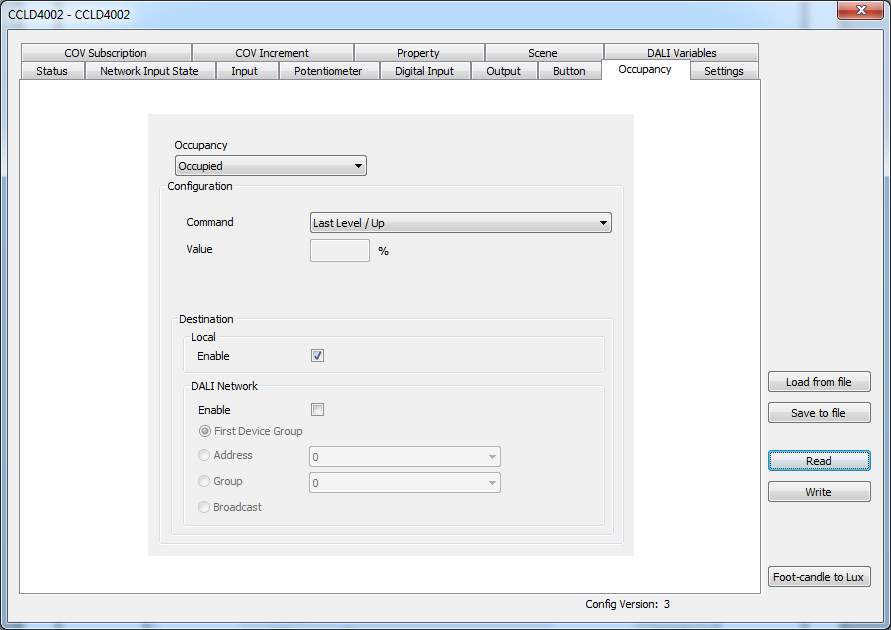
This window is to set the actions of the occupied mode.
Occupancy
| Item | Explanation |
|---|---|
| Occupied | Set the actions for the occupied mode. |
| Unoccupied | Set the actions for the unoccupied mode. |
Configuration
See the Configuration section under Button.
Settings
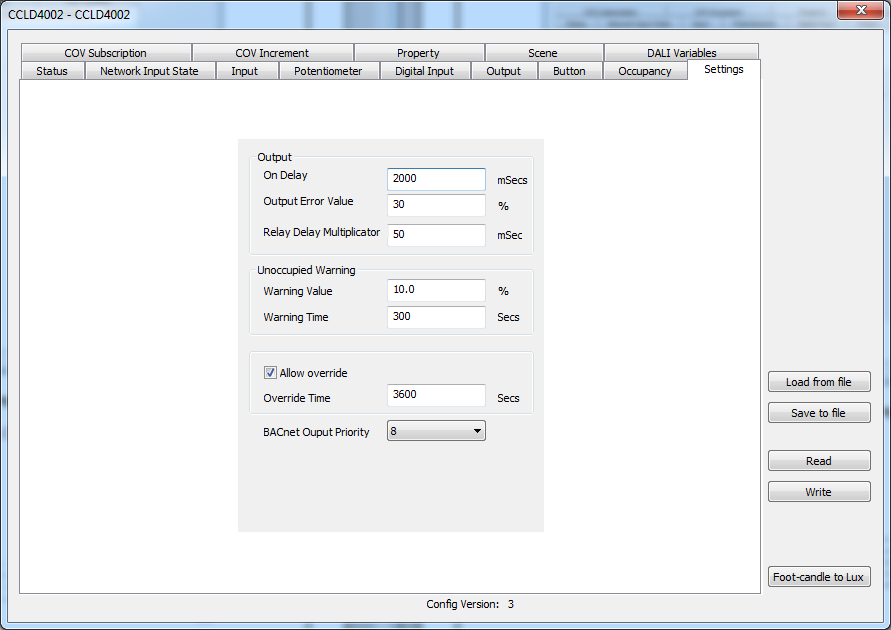
This window is for the dimming controller settings.
| Item | Explanation |
|---|---|
| On Delay | Time in seconds the output is at its maximum before reaching the required level when the output turns from OFF to ON. This is warming up the tubes when turned ON. This value is usually 0 for LED lamps. |
| Output Error Value | Leniency for difference between 0-10V command and feedback. This setting adjusts sensitivity for 0-10V feedback. BACnet writes the reliability property to no output. DALI affects the Lamp failure status. |
| Relay Delay Multiplier | Delay in milliseconds between the activation of each relay of a same communication loop. This will avoid a lot of relays drawing current from the same transformer when turning ON or OFF at the same time. |
| Warning Value | Percentage value on the 0-10V signals before reaching the unoccupied mode. This is the lamp value for the warning before OFF. |
| Warning Time | Output remaining warning time before it reaches unoccupied mode. |
| Allows override | Allows buttons to turn ON the lights and suspend the unoccupied mode. |
| Override Time | Override period for the unoccupied mode. |
| BACnet Output Priority | BACnet priority internally used by the dimming controller. |
COV Subscription
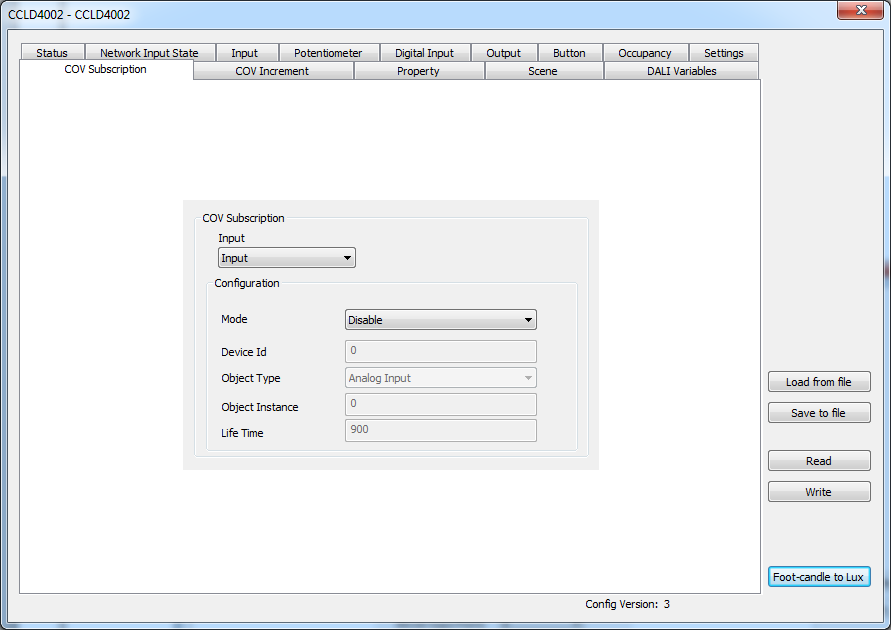
This window is to set the network values read.
| Item | Explanation |
|---|---|
| Input | Choice between: Input, Occupancy, Button 1, Button 2, Button 3, Button 4, Button 5 and Button 6. |
| Mode | Choice between: Disable, Subscribe COV, Subscribe Unconfirmed COV, Polling / COV without subscription. This is the BACnet service for network updates. |
| Device Id | Instance number of the BACnet device source. |
| Object Type | BACnet object type. Choice between: Analog Input, Analog Output, Analog Value, Binary Input, Binary Output, Binary Value, Multi-state Input, Multi-state Output, Multi-state Value. |
| Object Instance | Instance number of the BACnet object. |
| Life Time | Time in seconds between COV subscriptions. |
| Interval | Time in seconds between polling. |
COV Increment
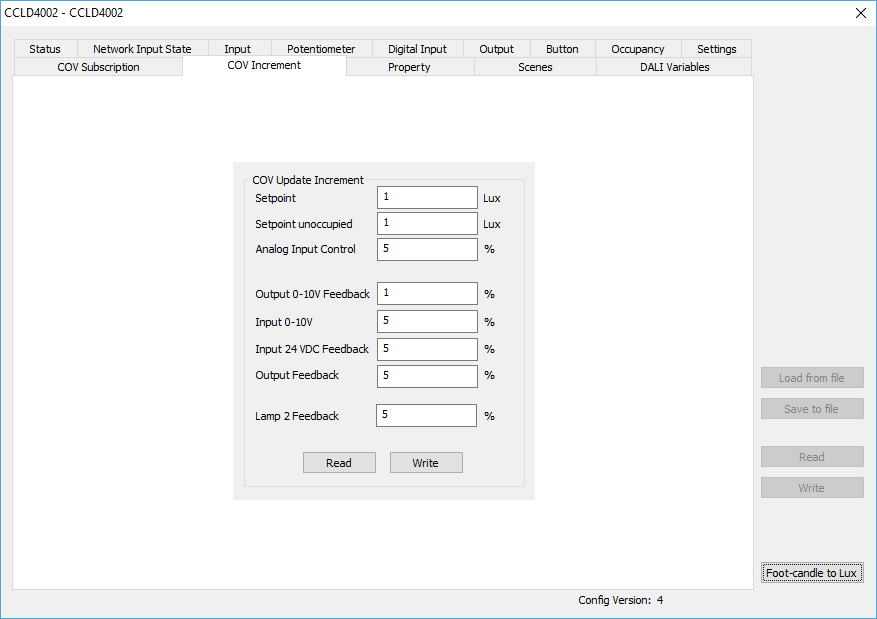
This window is to set the COV Increment of objects that can be subscribed by another BACnet device. These settings are the differences used to make new transmissions on status changes. These adjustments have an impact on network bandwidth. For example, if the 0-10V input is oscillating frequently by 1%, set Analog input control to 5% to get only significant changes and avoid continuous transmissions.
Property
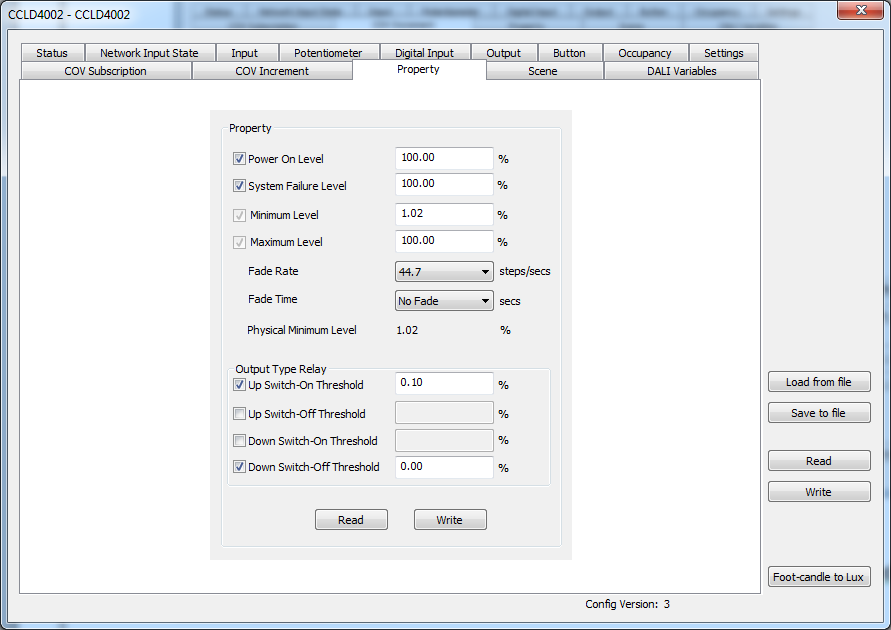
This window is to set the DALI property.
Property
| Item | Explanation |
|---|---|
| Power On Level | Is the lamp value when powered ON. |
| System Failure Level | Is the lamp value when power is lost on the DALI bus. |
| Minimum Level | Is the minimum adjustable lamp level. |
| Maximum Level | Is the maximum adjustable lamp level. |
| Fade Rate | Speed adjustment when ramping with "Up" and "Down" commands. |
| Fade Time | Speed adjustment when changing to another scene. |
| Physical Minimum Level | This is the minimum lamp value a DALI command can apply. |
Output Type Relay
These values allow ON and OFF commands according to lamp value received. It can be used for hysteresis creation or proportional controls on a group of lamps.
| Item | Explanation |
|---|---|
| Up Switch-On Threshold and Up Switch-Off Threshold | They generate ON and OFF commands when receiving UP DALI commands. |
| Down Switch-On Threshold and Down Switch-Off Threshold | They generate ON and OFF commands when receiving DOWN DALI commands. |
Scene
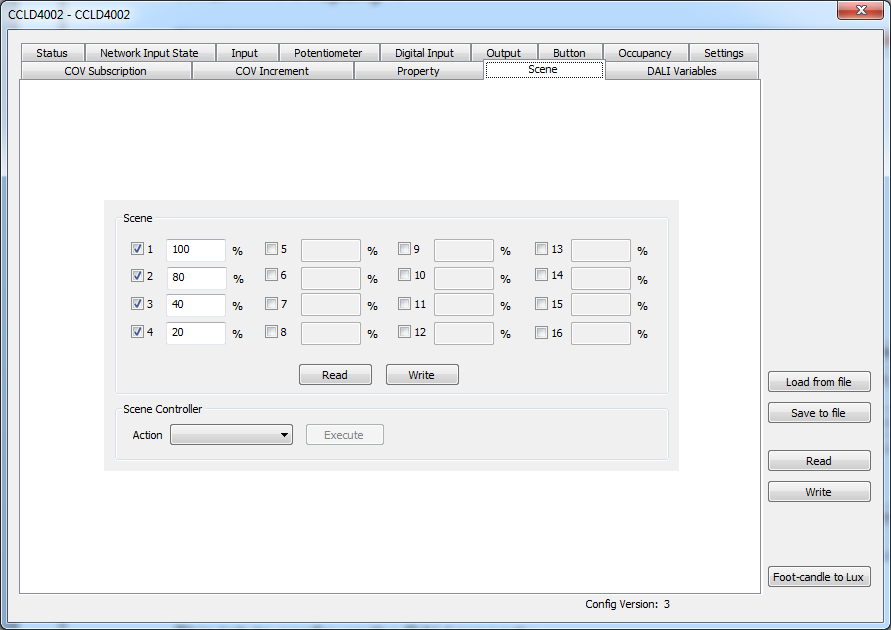
DALI Variables
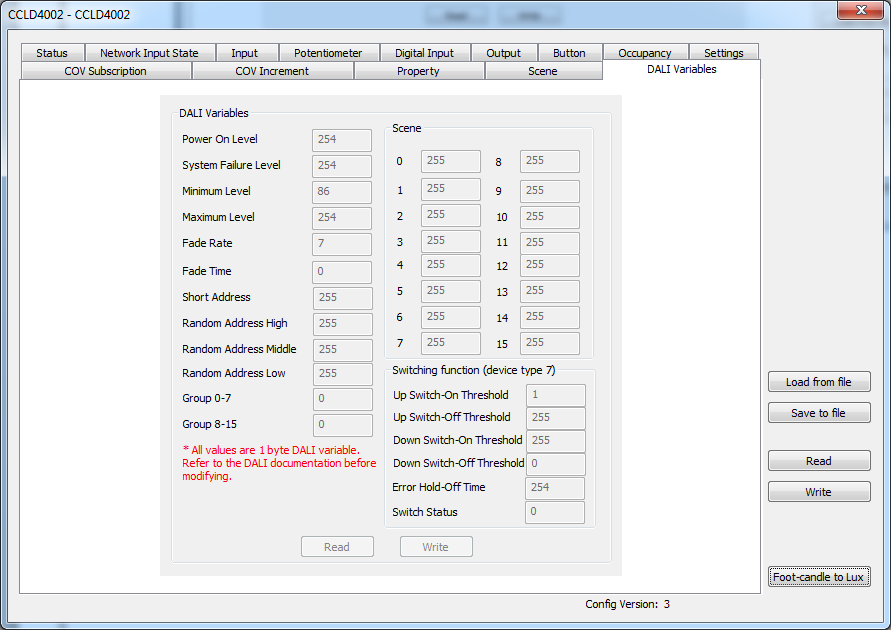
This window allows visualizing the DALI variables.
It is possible to change these RAW DALI values here, but only an experienced DALI protocol programmer should do it. The use of the Property and Scene tabs is preferable. To allow editing, double-click on the dimming controller in the list of cards of BACnet Browser while pressing the Alt key.
Firmware Upgrade
The dimming controller firmware can be updated over the BACnet network using the BACnet Browser. In the device list, select the dimming controller, then open the Device > Firmware Upgrade menu. You can also right-click the dimming controller in the device list and choose Firmware Upgrade from the context menu.
Contact Cristal Controls before upgrading, as some firmware versions may not be compatible and could result in the BACnet MS/TP and other configuration being lost.
| Step | Action |
|---|---|
| 1 | Select the dimming controller in the device list and open Device > Firmware Upgrade (or right-click the dimming controller and choose Firmware Upgrade). |
| 2 | Click Load ... and select the firmware file (.S19) provided by Cristal Controls. |
| 3 | Click Send to start the transfer. The progress bar shows the upload progress. |
| 4 | Wait for the Firmware upgrade completed message. The dimming controller reboots automatically. |
Do not power off the dimming controller during the transfer. Once the upgrade is complete, read the configuration back to confirm the device is operating normally.