Configuring Jasper
Configuring the scheduler
The user can begin to set weekly schedules by opening the Jasper menu and choosing Scheduler, Configuration.
This page contains three tabs.
Schedules
Setting weekly schedules.
Days
Creating events on a given day of the week.
Exceptions
Enabling schedule exceptions.

Setting the weekly schedule
The Schedules tab enables configuration of weekly schedule settings.
To use the scheduler, open the Jasper menu and select Scheduler, Configuration.
The Scheduler Configuration screen appears, open to the Schedules tab.
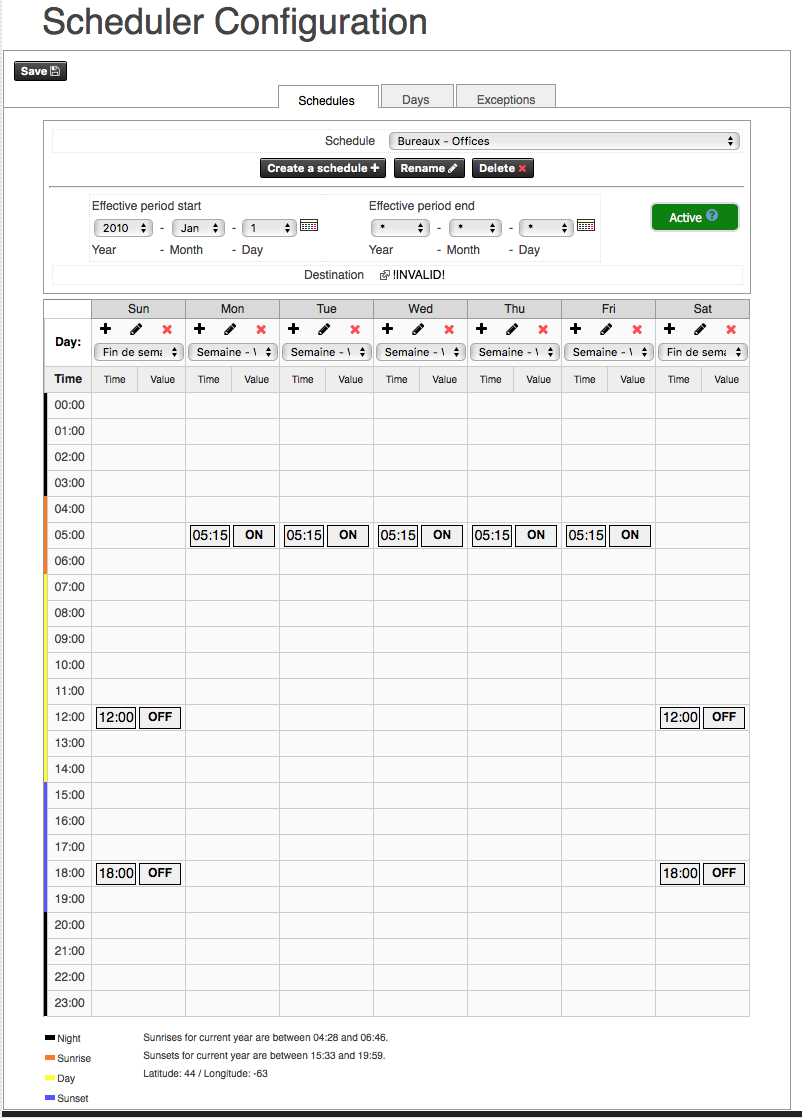
To configure weekly schedule settings, use the following controls:
Schedule
A list of all schedules.
Create a schedule
Create a new schedule.
Rename button
Rename the selected schedule.
Delete button
Delete the selected schedule.
Save button
Save changes in the system.
Effective period start
(Optional) set the date when the schedule takes effect.
Effective period end drop lists & calendar icon
(Optional) set the date when the schedule no longer affects the system.
Destination
Click the current destination (just above the days of the week) to select the variable whose schedule you want to change. If no variable is currently chosen, the word “!INVALID!” appears.
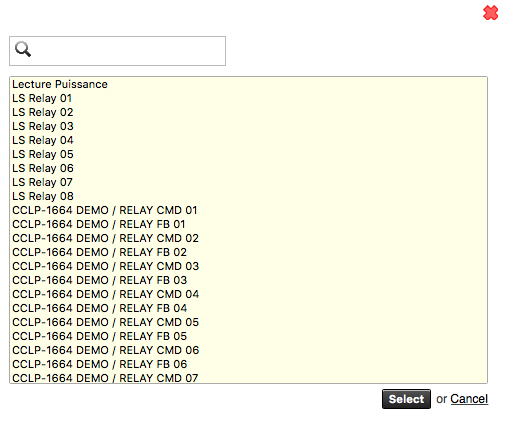
Once you click the destination, you can select the variable from a list like the one below.
Save
Click this button to save all changes you make on this page. If you leave this page without clicking Save, any changes made will be lost.
Setting the daily schedule
To configure daily settings, use the controls at the top of each day column, just under the three-letter short forms for each day, in the window explained.

Drop list
Contains a selection of daily events. Common examples include “Weekday” and “Weekend” event groupings.
Once you create a grouping and add it to this list, you can apply the grouping to other days. You can create these groupings using the Days tab, next to the Schedules tab. For more information, refer to Setting up daily events.
Plus sign (Create a new day)
To enter events in a new day. A new window opens in which you can type the name of the new day. The system then switches to the **Days **tab where you can add events. You can use the Days list to copy events from a typical day to other days.
Pencil icon (Edit the selected day)
To modify a day's events in the “Days” tab.
Red X (Clear all events)
To erase a day's events.
Setting up daily events
The “Days” tab lets you add or delete events on specific “types” of days.
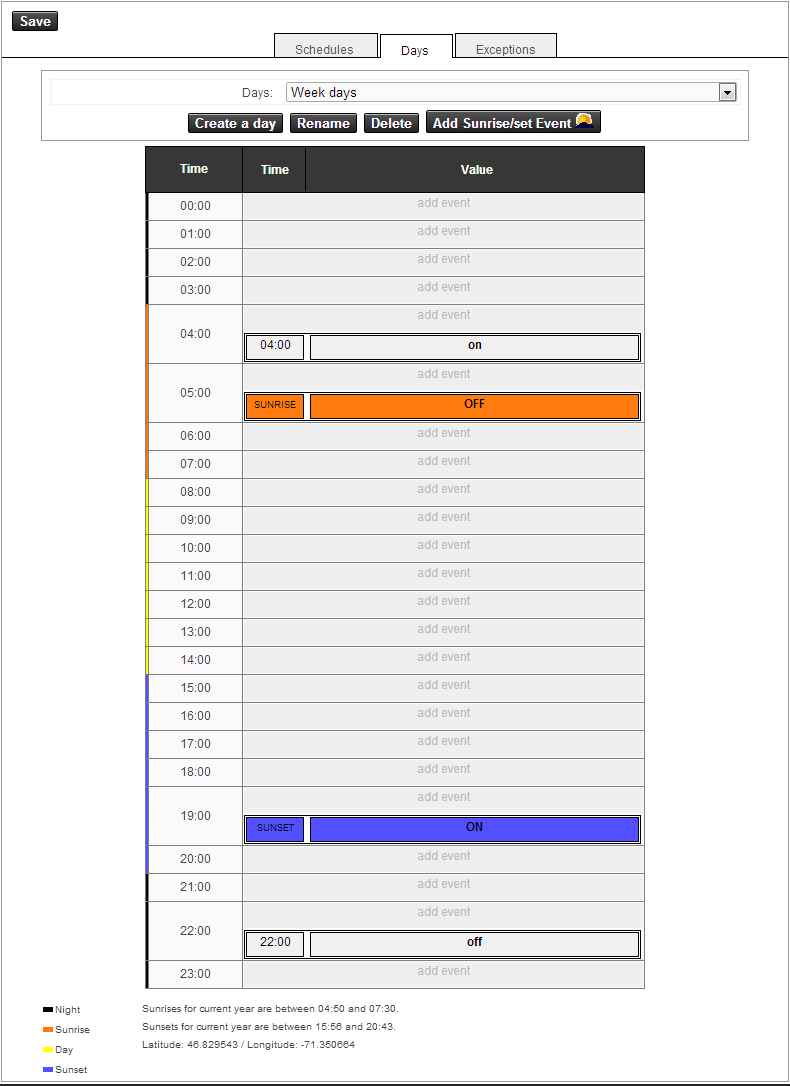
To configure events on a given day, use the controls in this tab.
Days
This drop list shows the “typical days” list (e.g. weekday, weekend day).
Add event
Every unoccupied line in the day calendar contains the words add event in grey.

Once you click add event, you can add an event at the specified time on this row.
Once a user adds an event, the user can change its time and value by clicking the time and value fields, respectively, and typing a new time and/or value.

The value can be:
- Numerical
- “ON”
- “OFF”
- “OCCUPIED”
- “UNOCCUPIED”
Deleting an event
When you move the mouse pointer over a row that contains an event, a red “X” appears to the right. Click this X to delete the event.
Save
Click this button to save all changes you make in this tab. If you leave this page without clicking the Save button, any changes made will be lost.
Setting “typical days” with sunrise and sunset events
Once you set geographical coordinates (see Setting geographical coordinates), you can set sunrise and sunset events by clicking Add Sunrise/set Event in the Days tab (shown below).
The Sunrise/set event dialog box appears.
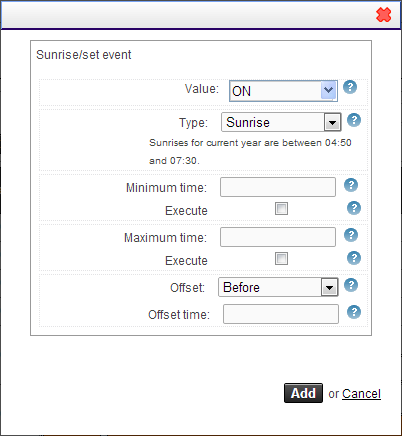
To add or modify sunrise/set events, complete this dialog box.
Value
An action applied to a control set.
Type
Sunrise or sunset event.
Minimum time
Earliest allowable time for the event.
Execute
When the event is earlier than the minimum time and this box is checked, the event is done at the minimum time. If the box isn't checked, the event will be ignored.
Maximum time
Latest allowable time for the event.
Execute
When the event is later than the minimum time and this box is checked, the event is done at the maximum time. If the box isn't checked, the event will be ignored.
Offset
To determine whether event starts before or after the sunset or sunrise time.
Offset time
If you select an Offset time, the Offset time field appears, and you can add an offset (hh:mm) for the event from the sunrise or sunset time.
Setting geographical coordinates
Jasper uses your building's latitude and longitude to calculate times for sunset/sunrise events.
To set your building's geographical coordinates, open the Jasper menu and click Scheduler, Astronomic Configuration.
Configuration options appear.
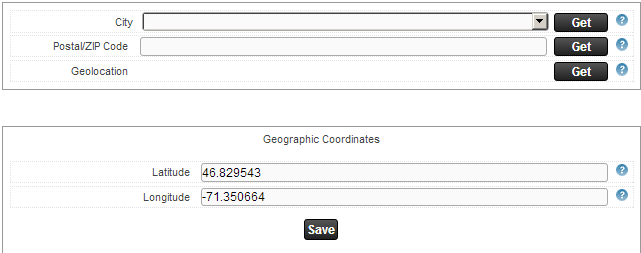
You can enter coordinates using one of these four methods:
-
Select a city from the City drop list and click Get.
-
Enter a Postal/ZIP Code1 and click Get.
-
Click Get to the right of the Geolocation2 label.
-
Type the Latitude and Longitude settings.
Once you use any of the methods listed here, coordinates appear in Latitude and Longitude.
Creating calendars
You can create a calendar that you can later use in schedules as well as exceptions to regular schedules that contain hourly events that differ from those in regular schedules.
To configure the calendar, open the Jasper menu and click Scheduler, Calendars. The Calendar Configuration screen appears.
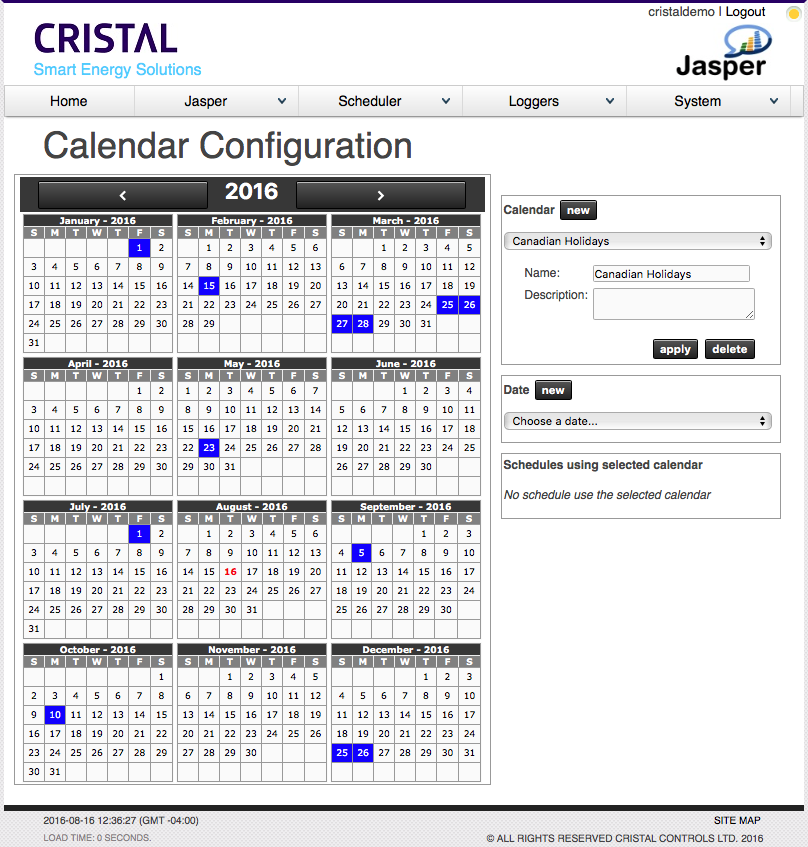
All exception dates or holidays appear blue in this calendar.
Cristal Controls has created several sample calendars that you can modify to fit your needs.
| Conges fériés Canadiens | Canadian Holidays | United States |
|---|---|---|
| • Jour de l'An • Pâques • Fête de la Reine • Saint-Jean-Baptiste • Fête du Canada • Fête du Travail • Action de grâce • Noël | • New Year • Family Day • Easter • Victoria Day • Canada Day • Labour Day • Thanksgiving • Christmas | • New Year's Day • Martin Luther King Day • Washington Presidents Day • Memorial Day • Independence Day • Labor Day • Columbus Day • Veterans Day • Thanksgiving Day • Christmas Day |
Managing calendars
You can use the Calendar box to the right of the main calendar to create a new calendar or modify or delete a calendar.
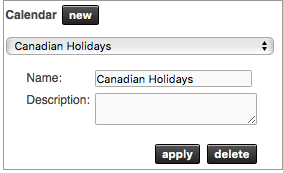
New
Create a new calendar. A dialog box appears where you can enter the name of the new calendar.
Name
Modify the selected calendar name.
Description
Modify the description that explains what this calendar is used for.
Apply
Save any changes made.
Delete
Delete the selected calendar.
Managing dates
You can use the Date box to the right of the main calendar and below the Calendar box to create a new date or modify or delete a date.
New
Create a new date. A dialog box appears where you can enter the name of the new date.
Name
Modify the selected date name.
Type
Enter the type of date you want to create.
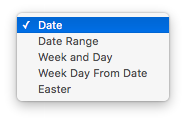
The rest of this box offers a tailored set of fields depending on the date type you select. Each choice you make is reflected in the calendar to the left.
For information on date settings, refer to Date types.
Apply
Save any changes made.
Delete
Delete the selected date.
Date types
Date
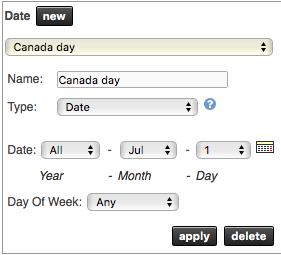
Year: A specific year or all years.
Month: A fixed month, all even months, all odd months or all months.
Day: A precise day, last day of the month or all days.
Day Of Week: A weekly day or all days.
Date Range
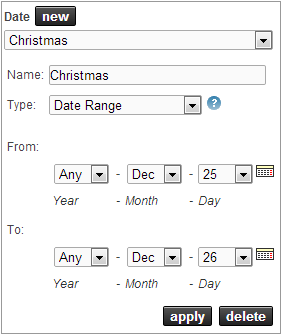
From: Start date.
To: End date.
Week and Day
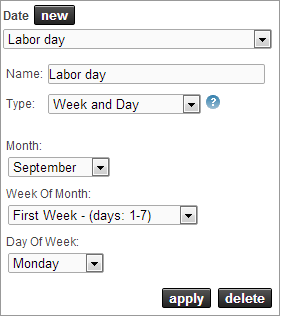
Month: Fixed months, even months, odd months or all months.
Week Of Month: Either a 7-day period or all days. For example, Labour Day is always the first Monday of September in Canada. It would be set to first week and “day of Week” to Monday.
Day Of Week: A day of the week or all days.
Week Day From Date
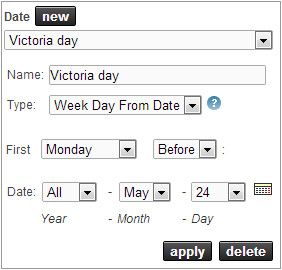
First: To select a weekday before or after the Date.
Date: Date
Easter

Start: Starting day according to Easter day.
End: Ending day according to Easter day.
Setting schedule exceptions
You can use the Exceptions tab to create schedule exceptions. The Exceptions tab shows daily events replacing standard weekly events from the Schedules tab.
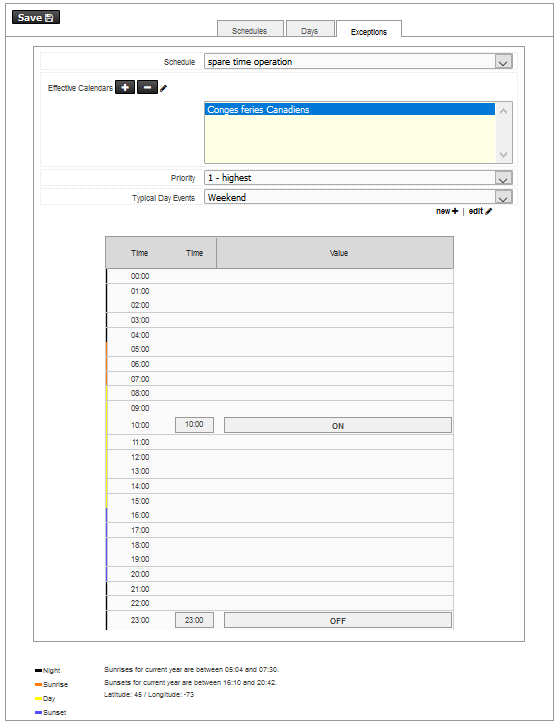
Creating schedule exceptions
To create a schedule exception or modify an exception, complete the Exceptions tab.
Schedule
Select a schedule from this list to which you want to add an exception.
Effective Calendar
A list of exception calendars applied to the schedule.
Effective Calendar / +
Click this button to add an exception calendar to the selected schedule.
Effective Calendar / -
Click this button to remove an effective exception calendar from the selected schedule.
Effective Calendars / pencil icon
Click this link to open the configuration web page for the calendar you select. For more information on this option, refer to Creating calendars.
Priority
Set calendar exception priority from 1 to 16, 1 being the highest priority and 16 being the lowest. If two calendars define the same date (e.g. “Weekday” at a priority of 10 and “Holiday” at a priority of 3), Jasper uses the calendar with higher priority (in this sample case, “Holiday”).
Typical Day Events
This list shows available typical days. The selected day is the one used by the calendar.
Typical Day Events / edit
Click this link to open the Days tab and modify the selected day.
Typical Day Events / new
Click this link to create a new typical day. A new window appears in which you can create a new day name, then the Days tab appears to enable event modification.
Save
Save changes to the system. If you leave this page without clicking this button, any changes made will be lost.
Configuring RGB settings
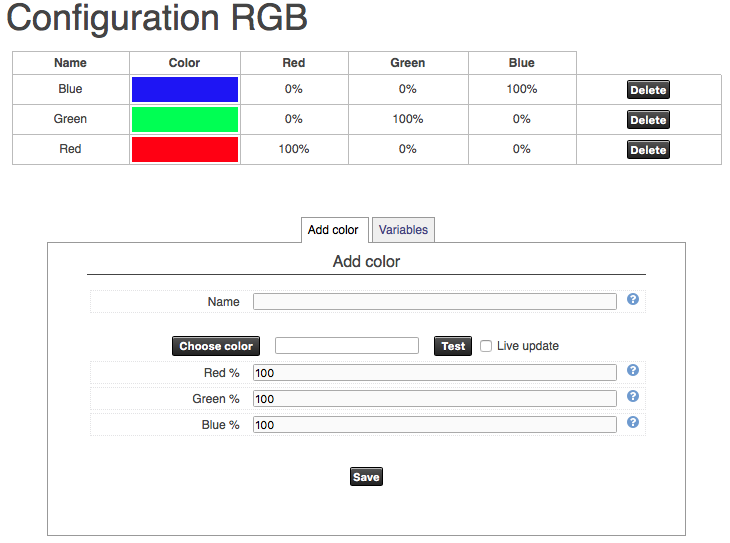
You can create custom combinations of red, green and blue for your system.