Performing basic tasks in Jasper
You can work with your Jasper controller using a web browser on a device connected to the same network as the controller. Using Jasper, you can both view the status of and configure your systems.
Signing on to Jasper
To access your Jasper controller, follow these steps:
-
In the browser address bar, type http://192.168.2.60. (If the installer changed this address, use the new address instead.)
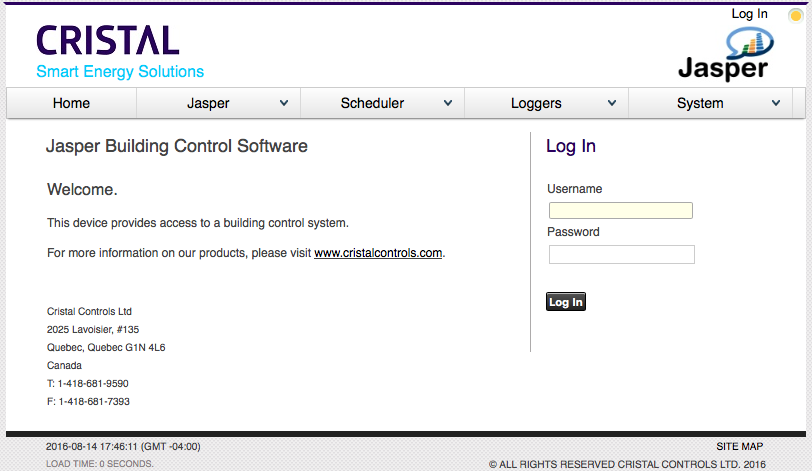
A dialog box like the one below appears requesting your user name and password.
-
Type the default user name root and default password cristal.
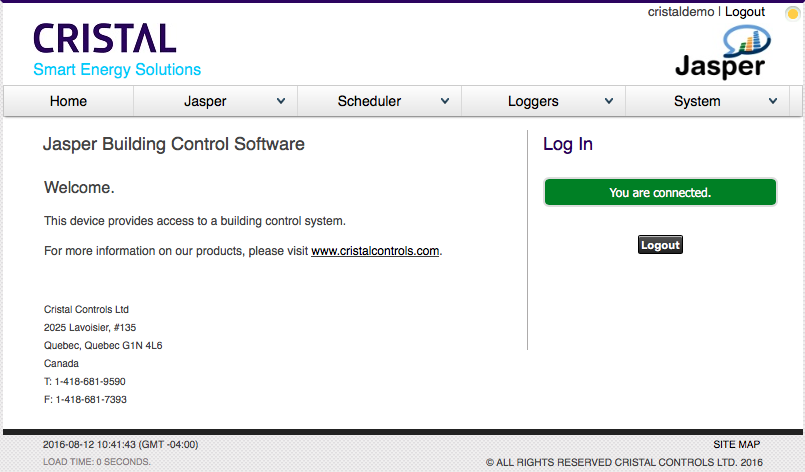
A Jasper welcome page like the one below appears. You may have a personalized welcome page and menus.
Note: The most recent versions of Mozilla Firefox, Google Chrome, Microsoft Edge or Apple Safari allow access to all features in Jasper. Jasper also works with Internet Explorer 11 or newer, but Explorer does not provide access to all Jasper features and graphic elements may not always render correctly.
User Menu configuration
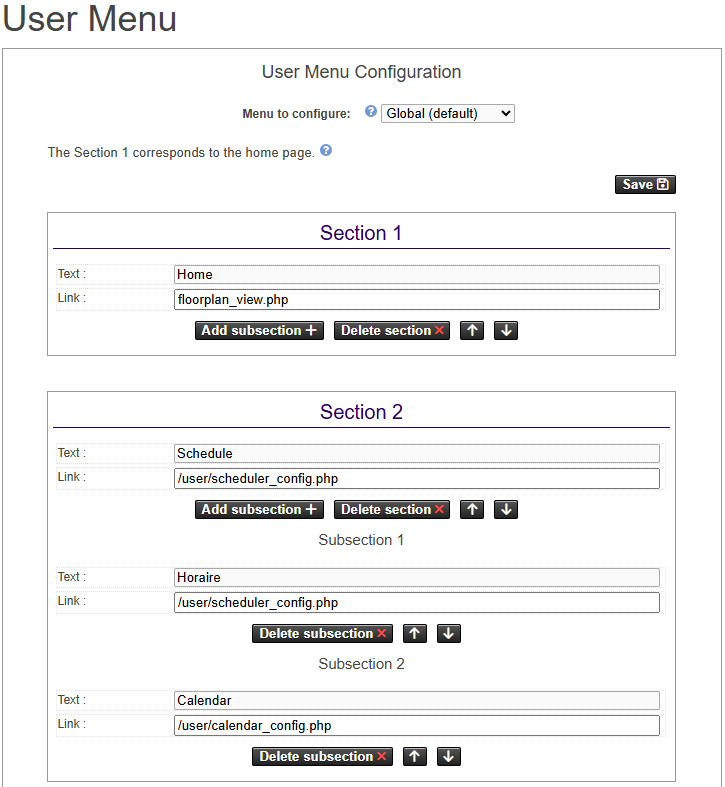
This page is used to configure the home page and menu. Each section represents a menu tab and is displayed in order of addition. A section may have one or more sub-sections representing its options. Section 1 is dedicated to the home page.
To set up a section or sub-section, enter its name in the “Text" field and, if applicable, a link to the corresponding web page. Use the buttons to add or delete a section or sub-section.
Configuring menus per user and per permission
You can build several menus and choose which users see them. The Menu to configure: selector at the top of the page controls which menu you are editing:
- Global (default): the menu used when no more specific menu applies.
- By permissions: a menu for a user permission level.
- By user: a menu for a specific user.
When a user opens the interface, Jasper resolves the menu in this order: the menu dedicated to the user first, then the menu for the permissions of the user, and finally the Global menu. A selection with no dedicated menu inherits the next available level.
To remove the menu for the current selection, click the button Delete this menu.
Menu page configuration
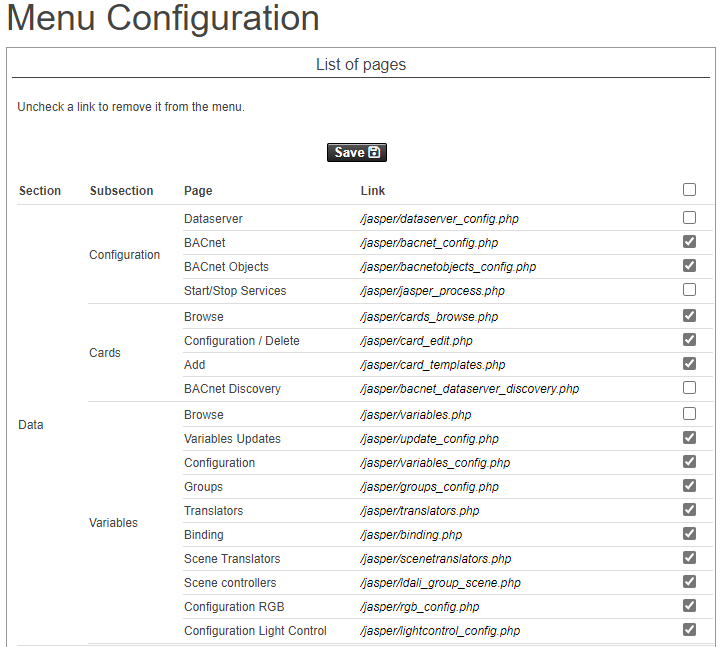
This page allows you to hide / disable one or more menu pages. The menu is made up of several sections. Each section may contain one or more sub-sections. Menu pages are grouped into sub-sections. A page is identified by its name and link.
By default, all menu pages are displayed (checkbox enabled). To hide/deactivate a page, simply uncheck it in the list using the checkbox in the last column.
Configuring the load shedder
This web page:
-
shows the load shedder power setting and the power setpoint.
-
enables changes to the power setpoint and other load shedder settings.
To access these settings:
-
Open the Jasper menu.
-
Select Load Shedder, Display.
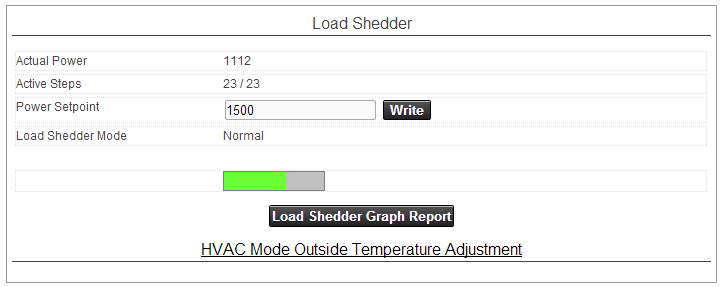
The page shows one section per load shedder, with the name of the load shedder as its title. Click the name to show only this load shedder. If you can access the load shedder configuration page, a Configuration button next to the name opens the configuration of this load shedder.
Actual Power
Shows the actual power as read on the network. This value is updated at regular intervals. If a Power Unit is configured for the load shedder, the unit (W or kW) is shown after Actual Power, Power Setpoint and Effective Power Setpoint.
Active Steps
Shows the load shedder's number of active stages. This value is updated at regular intervals. The above example shows “23/23” which means 100% of the loads are on. “0/23” would indicate 100% of the loads are off when load shedding is in operation.
Power Setpoint
When the actual power reading increases higher than this value, the shedding algorithm reduces electrical consumption.
You can modify this value by typing a new value in the text field and clicking the Write button. This value is updated only when opening the web page.
Load Shedder Mode
Indicates whether the load shedder is in “generator mode” or “Normal” mode.
Status Bar
Indicates load shedding state.

When red, the actual power reading is higher than the power setpoint and load shedding is active.

When green, the actual power reading is lower than the power setpoint, load shedding is inactive and the system is operating normally.

When yellow, the actual power reading matches the setpoint.
Load Shedder Graph Report
See Generating energy management logs for the preceding 24 hours below.
HVAC Mode Outside Temperature Adjustment
Enables HVAC mode configuration for Cristal Controls thermostats according to outdoor temperature.

When the outdoor temperature is higher than the “Cool” value, the thermostats are in cool mode. When the outdoor air is below the “Heat” value, the thermostats are in heat mode.
To enable this configuration, set the value translator LOAD_SHEDDER_HVAC_MODE in the configuration file.
You will also need a binding using this rule between your outdoor temperature and the HVAC mode on your thermostats.
Generating energy management logs for the preceding 24 hours
When you click the Load Shedder Graph Report button shown, a graph appears. This graph shows:
-
energy usage during the preceding 24 hours
-
setpoint
-
number of active loads
See the example below.
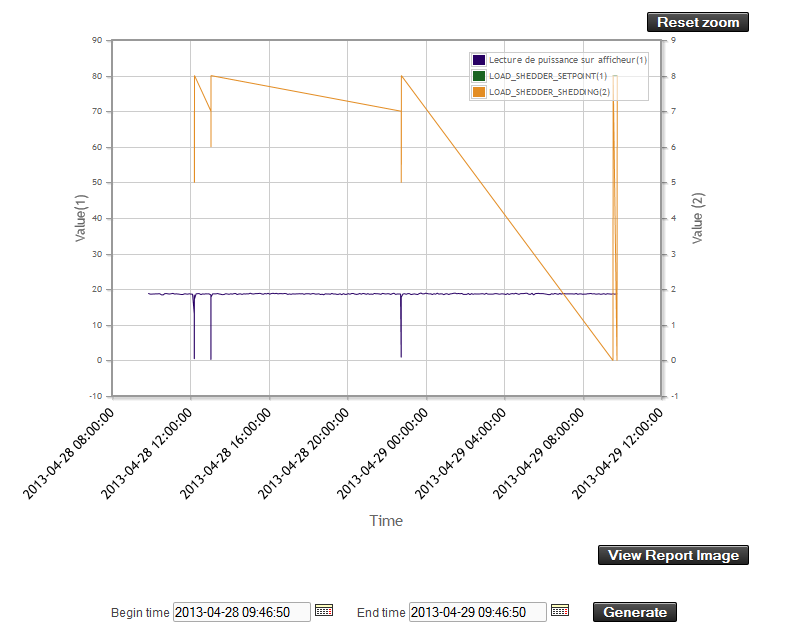
You can use the graph to set a Begin Time and End Time by moving your mouse pointer over the portion of the graph that you want to change and clicking that area.
Checking and adjusting thermostats
This page shows thermostat states. You can modify certain parameters from this page.
To access this page, open the Jasper menu and select Thermostats CCTHV407 or Thermostats CCTHV4-LS.
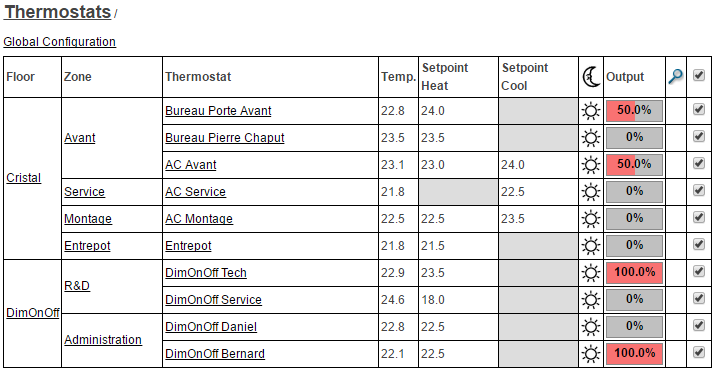
A list of thermostats that resembles the list shown below appears.
Floor
Indicates the floor names.
Click a specific floor name and the corresponding floor appears on a new page.
Zone
Indicates zone names on each floor.
Click a specific zone and the corresponding zone appears on a new page.
Thermostat
Indicates thermostat names. When you click a specific thermostat's name, a dialog box enabling configuration of that thermostat appears. The dialog box contains two tabs: Basic and Advanced.
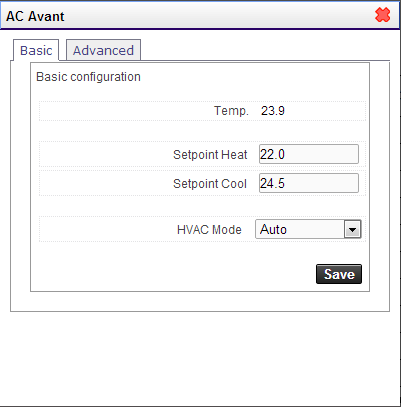
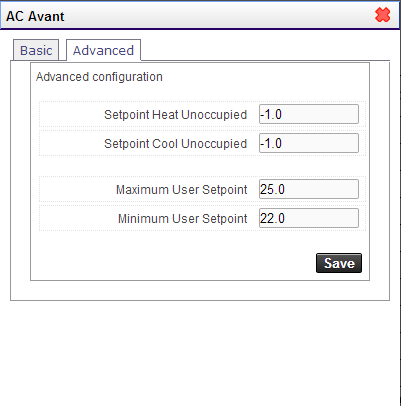
If you change a setting, click the Save button to have it take effect.
Temp
Indicates the actual temperature of the room.
Setpoint Heat
Indicates the desired heating setpoint of the room.
Setpoint Cool
Indicates the desired thermostat's cooling setpoint.
Moon icon
Indicates the thermostat's occupancy status.
- A moon icon indicates “unoccupied” mode.
- A sun icon indicates “occupied” mode.
If you click this icon and you have “view edit” or higher access rights, a new window opens showing the occupancy schedule.
Output
Indicates the output state of the thermostat.
- A red bar indicates the heating output percentage.
- A blue bar indicates the cooling percentage.
- A gray background indicates the limit percentage used by the thermostat for heating or cooling.
- Any background white portion indicates load shedding. This white portion reduces the length of the gray bar starting from the right. The length of the gray bar represents the reduced maximum output during load shedding.
Magnifying glass
Indicates the thermostat status. When the magnifying glass appears, the web interface is updating its values. A yellow exclamation mark indicates that Jasper is not communicating with the thermostat. If you place the mouse over icons that appear in this column, more information appears.
Check box
Lets you select several thermostats to configure at once. After you place check marks in the boxes for thermostats you want to configure, click the Global Configuration link and the thermostat configuration dialog opens. For more information on this dialog, see Checking and adjusting thermostats.
Once you change parameters and click Save, the new configuration will be sent to every thermostat with a selected check box.
Adjusting settings for customized floor plans
Each customized floor plan displays controls.
To access floor plans and their controls, open the Jasper menu, select Floor Plan, then select the floor plan that you want to control. The images that appear, contain elements that you can control by clicking your mouse on them.
Consider these examples.
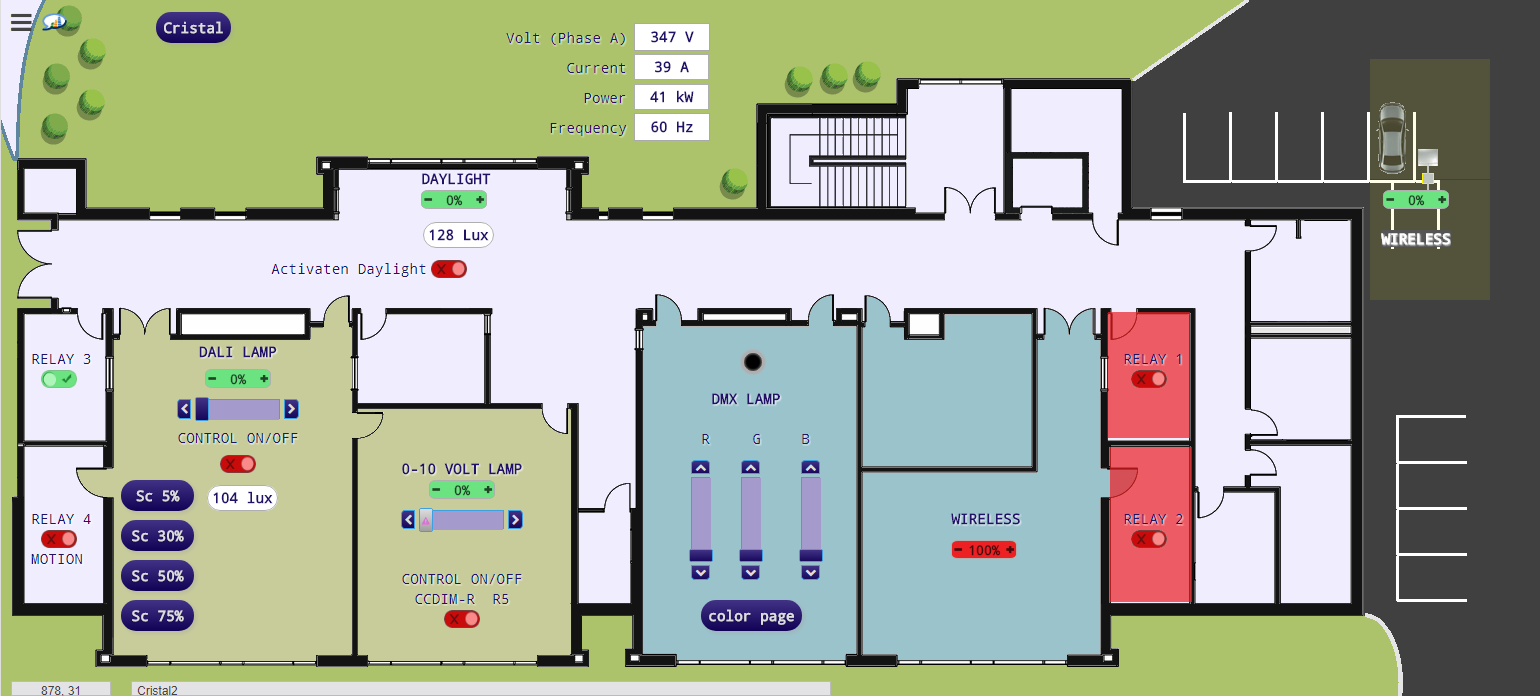
The following control types are available: Digital, Analog, Slider, On / Off, Input Text, Input Color, Card, Simple, Link and Text.
When the control is Offline, either:
-
there is a communication problem.
-
the control value may not be initialized.
When the control is in Error, there is a hardware problem.
Digital
Display an On / Off type value. Click on left for OFF or on right for ON.
Cristal Default
- On

- Off

- Offline

- Error

Cristal Light Blue
- On

- Off

- Offline

- Error

Cristal Dark Blue
- On

- Off

- Offline

- Error

Cristal Yellow Light
- On

- Off

- Offline

- Error

Analog
Display a value with a 0-100% range.
Cristal Default
- On

- Off

- Offline

- Error

Cristal Dark Blue
- On

- Off

- Offline

- Error

Cristal Yellow Light
- On

- Off

- Offline

- Error

Slider
Display a value with a 0-100% range.
Cristal Dark Blue
- On

- Off

- Offline

- Error

Cristal Light Blue
- On

- Off

- Offline

- Error

On / Off
Toggle an On / Off type value. Click to toggle the status.
Cristal Default
- On

- Off

- Offline

- Error

Light Bulb
- On

- Off

- Offline

- Error

Occupancy Sensor
- On

- Off

- Offline

- Error

Toggle
- On

- Off

- Offline

- Error

Occupancy Man
- On

- Off

- Offline

- Error

Sun / Moon
- On

- Off

- Offline

- Error

Input Text
Display a numeric value.
Cristal Default
- On

- Off

- Error

Transparent
- On

- Off

- Error

Lighting Background
- On

- Off

- Error

Yellow Light Background
- On

- Off

- Error

Input Color
You can set specific colours using RGB settings. Click the colour in the dot to activate a dialog box that enables you to set a new colour. The colour of the lighting device is the same colour you see in this dot.
Normal


Offline

Error

Card
The card contains the temperature control for the Cristal CCTHV-407 Thermostat.

Simple button
When you click a button that contains a certain setting, you write that setting to the lighting device.

Link
HTML link button to open a new web page.

Text
Fixed text label.

Polygon
The Polygon control lets you add any shape to the floor plan. It can be used to define or identify a space or room on the floor plan. If a Polygon control is associated with a BACnet variable or object, its appearance changes according to the value of the latter.
Default Cristal
- Off

- On

- Offline

- Error

Cristal dark blue
- Off

- On

- Offline
- Error

Cristal orange
- Off

- On

- Offline

- Error

Cristal light blue
- Off

- On

- Offline
- Error
Cristal yellow light
- Off

- On

- Offline

- Error

Adjusting lighting areas using mobile devices
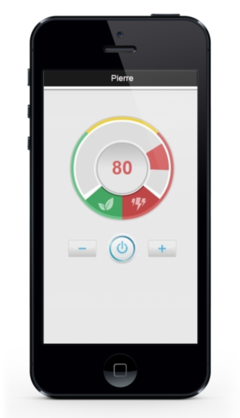
You can use this web page on a mobile device's web browser (this is not an application) to view and control a personal lighting area. The mobile device and Jasper must be on the same network.
You can change the lighting in several ways:
-
using the + and - buttons
-
using the “on / off” button
-
rotating the cursor
-
touching the number and entering a new number
Viewing lighting statistics
This page shows lighting statistics for control sets on a floor plan. Each control set could consist of one lighting fixture or several fixtures connected to a single relay.
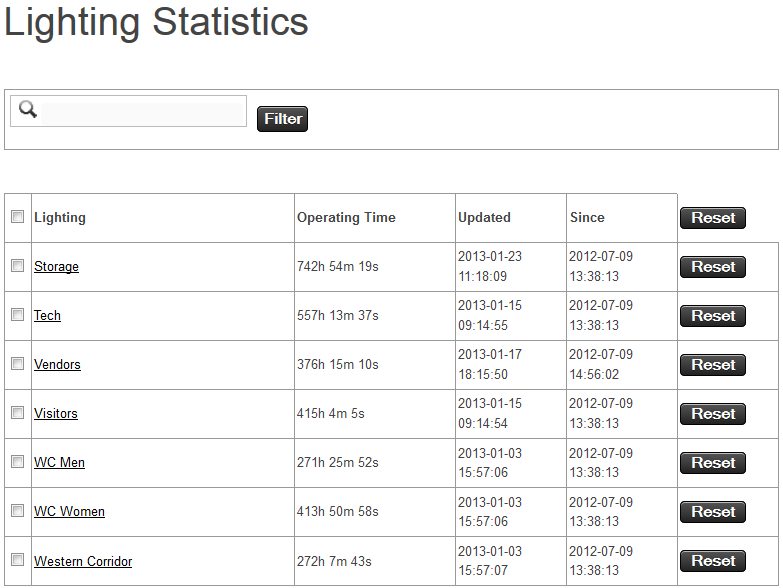
There are several ways to use this page.
Sort the list by the values of a specific column
Click the header for that column.
Reset the value of a set of lighting fixtures
Click the Reset button to:
- set the time in the Operating Time column to zero
- adjust the date in the Since column
Modify several rows at once
Click the check boxes to the left of the rows you want to change, then make the desired change.
Modify all rows in this list
Click the top check box (the one next to the word Lighting in the image above). All rows are selected and ready to be modified.
Find specific sets of lighting fixtures
Type any part of the name of a group in the text box at the top of this screen, then click the Filter button.
Browsing and modifying variables
This window:
-
shows variables and their values in the Jasper DataServer, BACnet objects, and groups
-
can be used to determine and modify variable values
To access this screen, open the Data menu and select Variables, Browse.
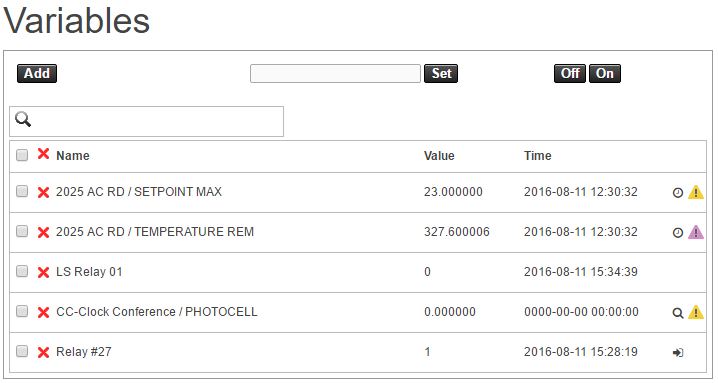
You can view and configure variables in this screen using the:
-
controls at the top of the screen.
-
table of variables below the controls.
Add
Use this button to add a variable to the list. See Adding variables.
Off and On
Use these buttons to determine whether the variables with a check mark in their checkboxes are turned on or off.
Jasper uses both binary and analog variables. Clicking the Off button sets the values of both to zero (0). Clicking the On button sets the value of:
- binary variables to 1
- analog variables to 100
Text field and Set
Enter a value for the selected variable(s) in the list at the bottom of the page, then click the Set button. The Off and On buttons are shortcuts to the binary values 0 (Off) and 1 (On, binary variable) or the analog value 100 (On).
Search field
Enter text that forms part of the name of the variable you seek. Jasper displays variables whose names include your search text and excludes variables whose names do not include that text.
Each row in the list contains information for one variable.
Checkbox
Selects variable(s) to be modified. You can select more than one variable for a given change.
Red "X"
Lets you discard the variable.
Name
Variable name.
Value
Current value of the variable in Jasper.
Time
Last time this variable was modified.
Symbols column
Displays the update status:
- A magnifying glass indicates the value read by Jasper.
- A yellow question mark indicates a variable whose value has not been read for a certain period of time and may be outdated.
- A pink exclamation mark serves as an alert for issues like a burnt-out bulb or a defective relay.
- A clock indicates a variable Jasper polls (reads) regularly.
- A door with an arrow indicates the device is sending updated values to Jasper.
Adding variables
The Add button (in the top left corner of the image) lets you add variables to the system.
To add a variable, follow these steps.
-
In the Variables screen, click the Add button.
The Add variables dialog appears.
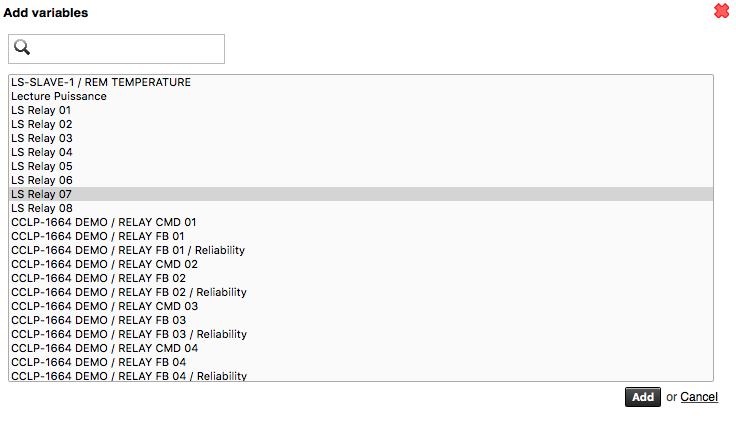
-
Select the variable(s) you want to add, then click the Add button.
The Add variables dialog closes and the variable(s) you chose appears in the Variables list.
Live variable graph
The Graph column (marked with a line chart icon) lets you plot the live values of one or more variables on a real-time chart. This is useful to watch how values change over time.
To use the live variable graph, follow these steps.
-
In the Variables list, select the Graph checkbox for each variable you want to plot.
-
Click the Show Graph button above the table. The chart appears and displays the live values of the selected variables. Click Hide Graph to collapse the chart again.
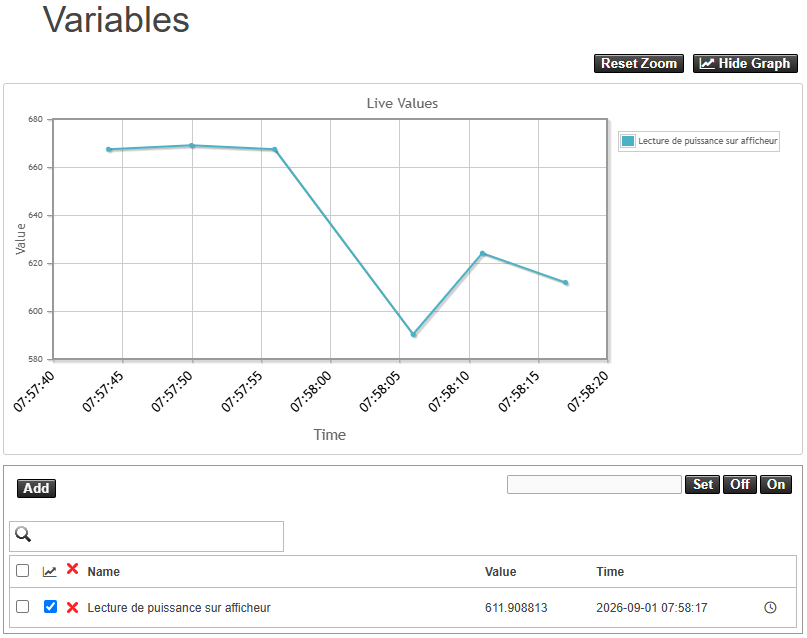
The chart shows the last 15 minutes of data, with time along the horizontal axis and the variable value along the vertical axis. Each variable is drawn in its own color.
While the chart is open, you can:
- point at a data point to see its time and value.
- drag across the chart to zoom into a time range, then click the Reset Zoom button to return to the full view.
- clear the Graph checkbox of a variable to remove its line from the chart.
Browsing controller cards
This screen shows controllers (i.e. cards) configured in Jasper's Data Server.
To access this screen, open the Data menu and select Cards, Browse.
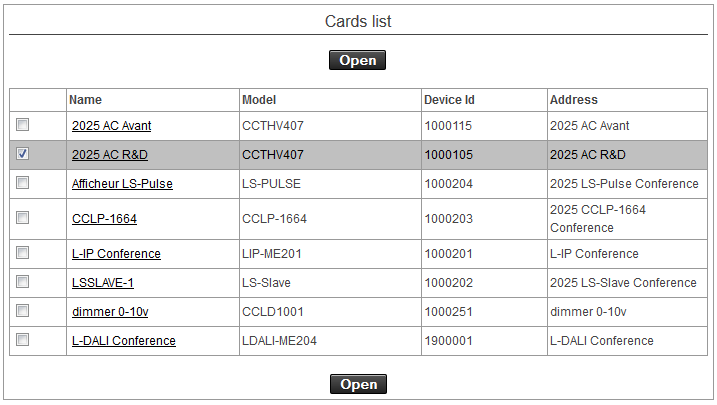
Clicking a device name opens a new screen that provides information about the selected device, as well as the ability to change its settings. Screens vary depending on the type of device viewed.
Viewing CCLP-BACnet lighting panels
You can access a complete CCLP-BACnet panel from “cclp-bacnet.php” within Jasper.
This page is not accessible from the Jasper configuration menu; it was designed to be included in customized menus for customers who use lighting systems.
To view the CCLP-BACnet panel, select its card and click Open.
A panel like this one appears.
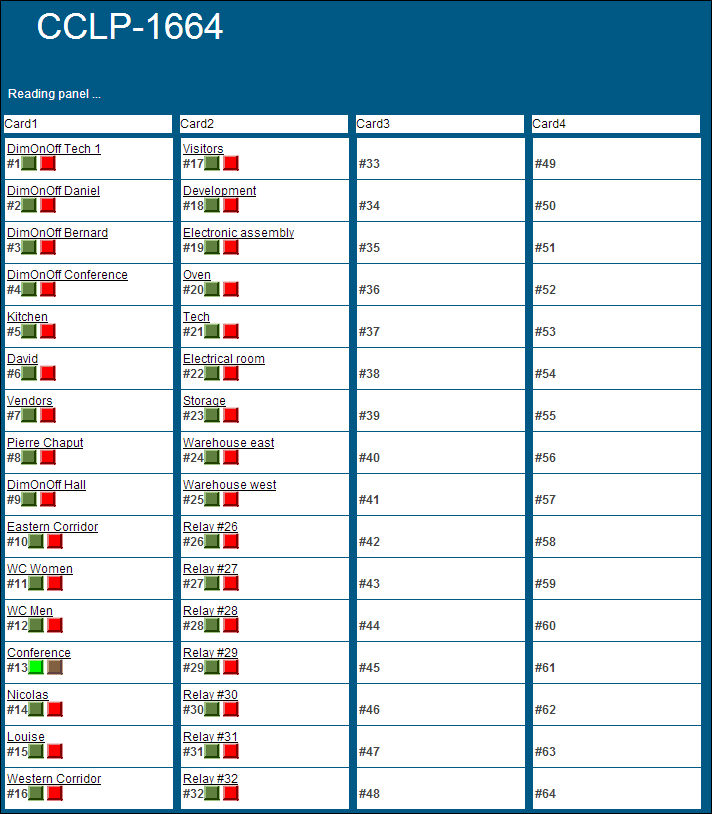
This page displays relay states and enables changes when you click the corresponding green or red button. While new commands are applied instantly, your display might not show the updated value right away, depending on DataServer polling refresh times.
Viewing alarm history
The “alarms.php” screen shows all recorded alarms.
To view alarms, open the Loggers menu and select Alarms, History. A list like the one below appears.
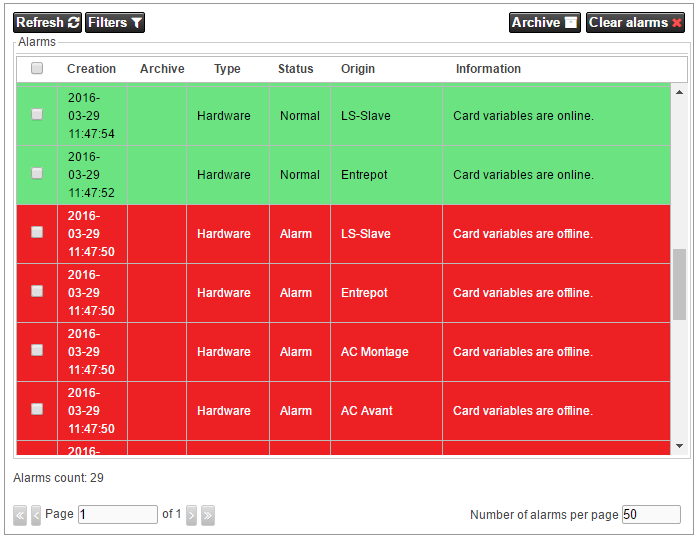
Browsing alarm history information
For each alarm the following information is displayed.
Creation
Time the alarm was created.
Archive
Time the alarm was archived. Jasper does not archive alarms on its own, so this value is empty or 0 until a person archives the alarm.
Type
Type of alarm: Hardware, Software, Security or Supervised Reading.
Status
Status of the alarm.
Origin
Source of the alarm.
Information
A brief description of the reason for the alarm.
Managing alarm history information
The four buttons above the list are used to manage recorded alarms.
Refresh
Displays the most recent alarms.
Filters
Enables filtering of displayed alarms. If you click this button, filtering options appear. To view the list using your options, click the Save button at the bottom of the Filters box.
Archive
Archives selected alarms.
Clear alarms
Clears alarm history.
Setting web browser notifications
Jasper can alert users when a new alarm is generated.

To receive Jasper alarm notifications:
-
Jasper must be open in at least one browser tab.
-
the user must grant Jasper permission to display system notifications.
If it doesn't have permission, Jasper asks the user for it.

The user can turn off notifications in browsers that support notifications, including:
-
Mozilla Firefox 22 or later
-
Google Chrome 22 or later
-
Safari 6 or later
-
Microsoft Edge 14.342 or later
Internet Explorer 11 does not support notifications.
Viewing variable dependencies
Jasper can show how variables relate to each other using two interactive graphs. These graphs include the links created by bindings, groups, schedulers, scenes, the load shedder, and alarms, and more, so you can see how a change to one variable affects the rest of the system.
You open both graphs from the Variables page. To reach it, open the Data menu and select Variables, Browse.
System Dependency Graph
The System Dependency Graph shows the dependencies across the whole system in a single view.
To open it, click the System Dependency Graph link at the top of the Variables page.
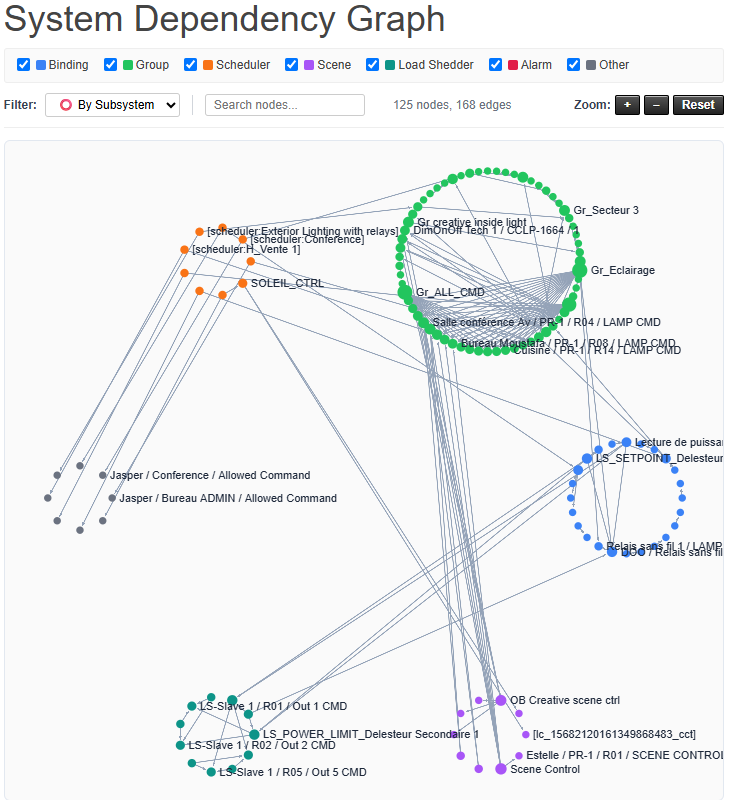
Each node is a variable, and each line is a dependency between two variables. The legend identifies the type of each link: Binding, Group, Scheduler, Scene, Load Shedder, Alarm, and Other. You can search for a variable, zoom, and move around the graph.
Dependency Graph
The Dependency Graph shows the dependencies for a single variable.
To open it, select a variable in the Variables page, then click the Dependency Graph link for that variable.
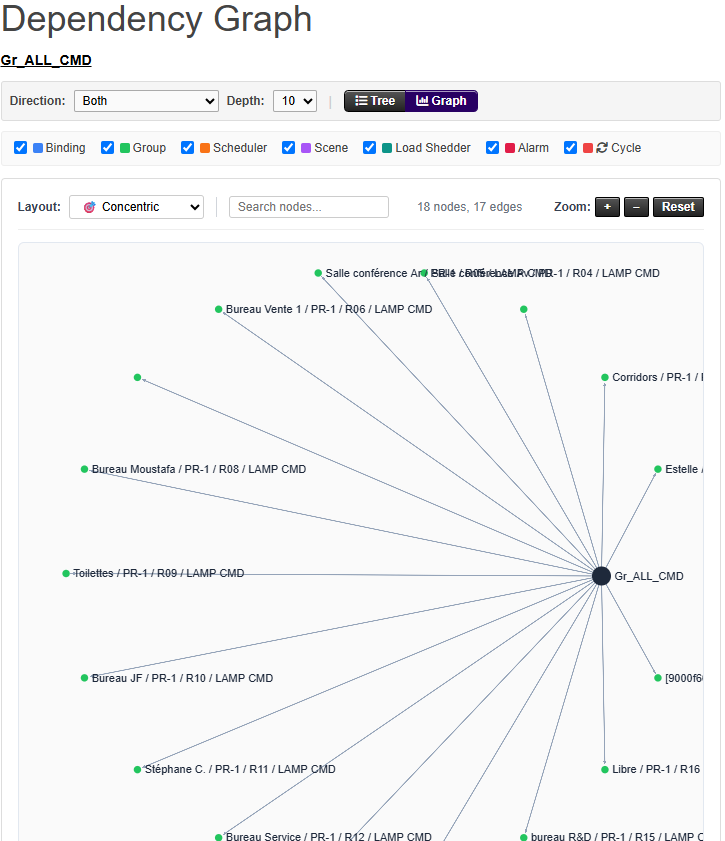
The graph is centered on the variable you selected and is organized into three parts:
- Upstream: the variables that feed into the selected variable.
- Downstream: the variables affected by the selected variable.
- Usage: the places where the variable is referenced in the configuration.
Use the Direction control to show both directions, only the upstream (origin), or only the downstream (impact). Use the Depth control to choose how many levels of dependencies to show. You can switch between the tree view and the graph view, search for a variable, and zoom.
Click a variable in the graph to center the graph on that variable. This lets you follow a chain of dependencies from one variable to the next.