Configuration
The wall switch can be configured using Cristal Controls "BACnet Browser" application software. This software allows reading and writing the wall switch setting over the BACnet network. The settings can also be saved and read from a file. Here are the different wall switch settings and their uses. This application software is free and is available from the Cristal Controls website.
The wall switch can also be used without this software if only basic functionality is needed.
Configuration buttons
| Button | Details |
|---|---|
| Load from file | Loads a binary configuration file from the computer into the BACnet Browser. |
| Save to file | Saves the configuration from the BACnet Browser to a binary file on the computer. |
| Read config | Reads the configuration from the wall switch to the computer. |
| Write config | Writes the configuration from the computer to the wall switch. |
| Factory Default | Restores the wall switch configuration to its factory defaults. |
The configuration version is shown at the bottom of the window.
Status
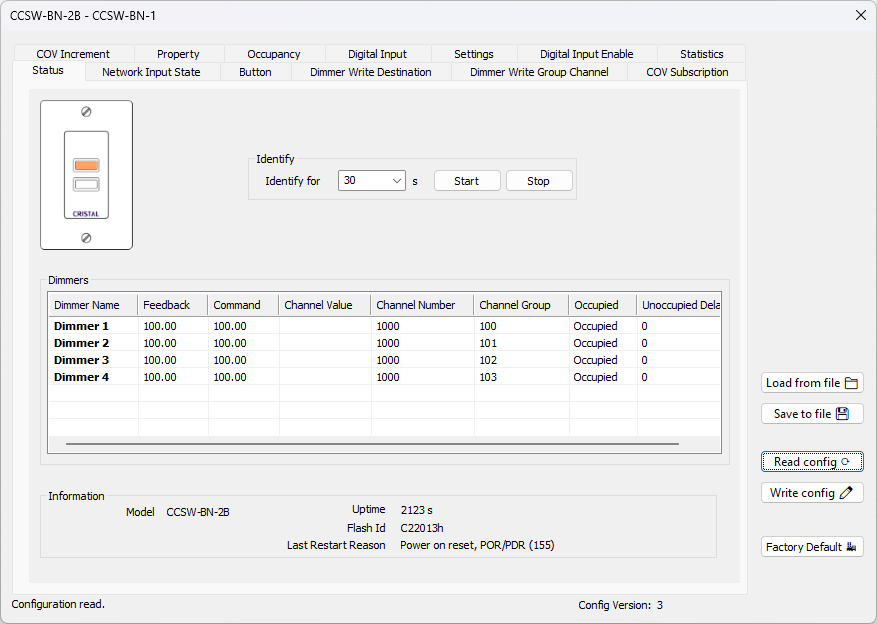
This window provides access to the status of the wall switch.
| Item | Explanation |
|---|---|
| Buttons | Graphic of the wall switch. A button turns orange when the corresponding physical button is pressed. |
| Identify | Allows the LED to blink to identify the wall switch. |
| Dimmer 1 | States of the dimmer 1. |
| Dimmer 2 | States of the dimmer 2. |
| Dimmer 3 | States of the dimmer 3. |
| Dimmer 4 | States of the dimmer 4. |
| Dimmer X - Feedback | States in percentage of the dimmer X. |
| Dimmer X - Command | Current command as a percentage of the dimmer X. |
| Dimmer X - Channel Value | Present Value of the Channel object associated with the dimmer X. |
| Dimmer X - Channel Number | Channel number of the Channel object associated with the dimmer X. |
| Dimmer X - Channel Group | Control Groups of the Channel object associated with the dimmer X. |
| Dimmer X - Occupied | Indicates whether the dimmer is in occupied or unoccupied mode. |
| Dimmer X - Unoccupied Delay | Delay in seconds before the Occupied Mode takes into account the changes to the input. Example, this value may adjust the time of a motion sensor. It must then be set to minimum as sensor delay is added to this delay. |
| Information | Displays some general information about the wall switch. |
Network Input State
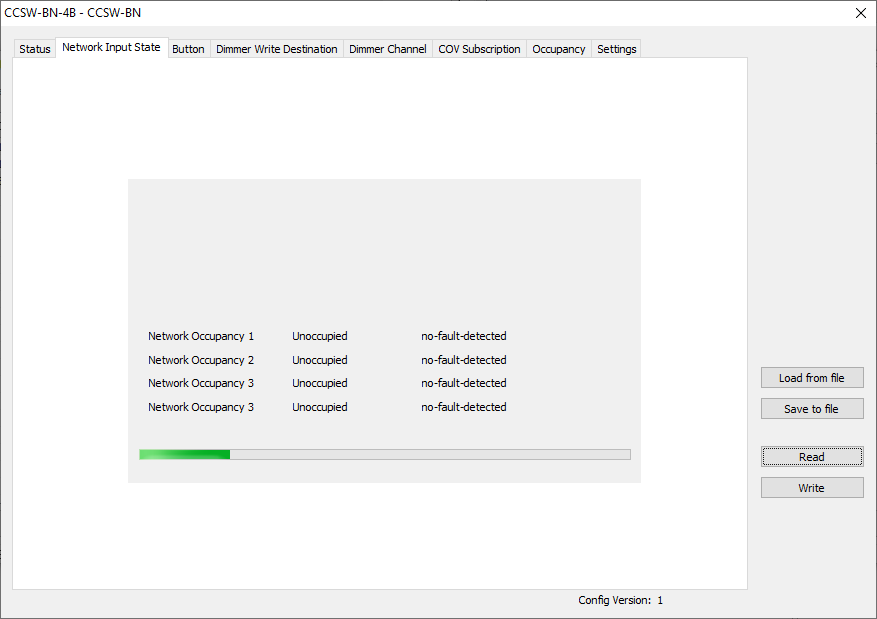
This window displays the current states of the network inputs as read by the wall switch. This information is useful when the wall switch reads the BACnet objects from other controllers by itself.
Button
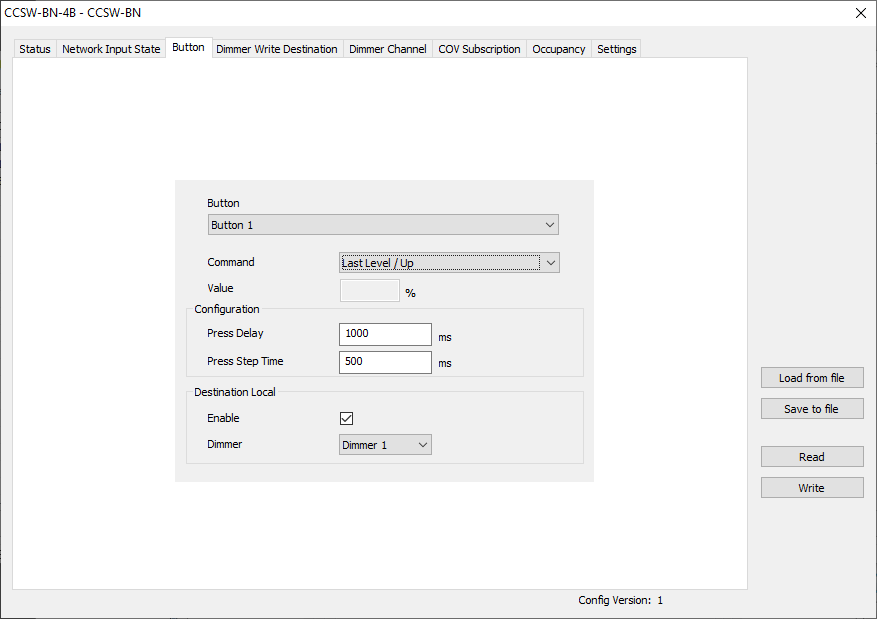
This window is to set the actions of the physical buttons.
Button
Select the button being configured.
Configuration
How to set the selected button.
| Item | Explanation |
|---|---|
| Command | Command for the button. See table below. |
| Value | Percentage or numeric value. |
| Press Delay | Debounce of the input. |
| Press Step Time | Time between the resend of the long press command. |
Command List for buttons
| Command | Button function |
|---|---|
| Undefined | No command / inactive |
| Direct Value | Pressed = "Value" % |
| Max Level / Up | Pressed = Max Level Long Press = Up (repeated) |
| Last Level / Up | Pressed = Last Level Long Press = Up (repeated) |
| Off / Down | Pressed = Off Long Press = Down (repeated) |
| Recall Max Level | Pressed = Recall Max Level |
| Recall Min Level | Pressed = Recall Min Level |
| Off | Pressed = Off |
Destination Local
| Item | Explanation |
|---|---|
| Enable | Indicates if the button affects a dimmer. |
| Dimmer | Indicates the dimmer affected by the button. |
Dimmer Write Destination
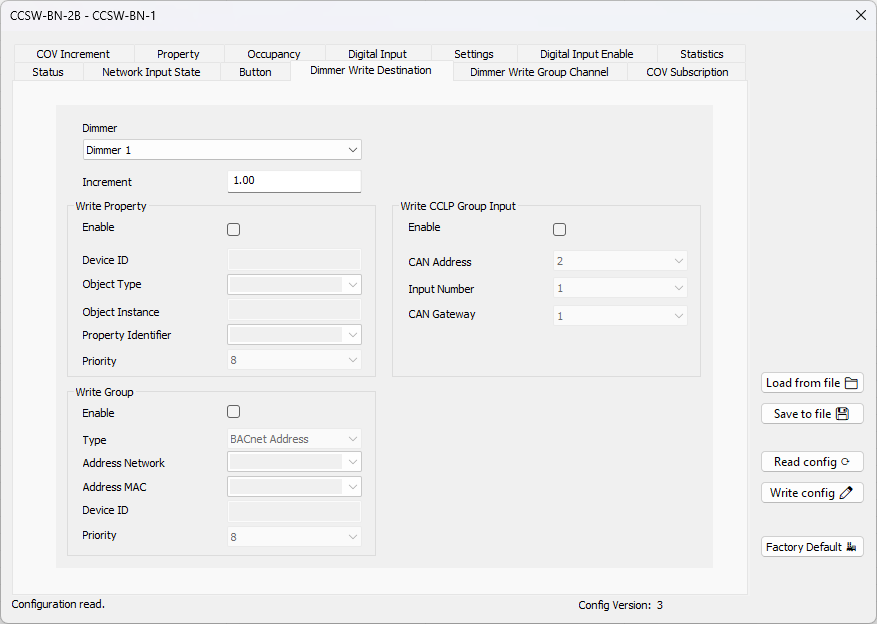
This window allows configuring the writes of the dimmers.
Dimmer
Choice of dimmer to configure.
Increment
The increment of the current value of the dimmer between each write.
Write Property
Configures the destination object for Write Property.
| Item | Explanation |
|---|---|
| Enable | Enable Write Property for the selected dimmer. |
| Device ID | The Device ID of the destination device. |
| Object Type | Object type to write. Choose between the predefined object type or enter the object type number directly. |
| Object Instance | Instance number of the object. |
| Property Identifier | Property identifier to write. Choose between the predefined property identifier or enter the property identifier number directly. |
| Priority | Priority used by the write. |
Write Group
Configures the Write Group destination.
| Item | Explanation |
|---|---|
| Enable | Enable Write Group for the selected dimmer. |
| Type | The destination type. |
| Address Network | The network number. |
| Address MAC | The destination MAC address. |
| Device ID | The destination device ID. |
| Priority | Priority used by the write. |
Write CCLP Group Input
Configures the CCLP Group Input destination to be sent to Cristal Controls CCLP lighting relay panels.
| Item | Explanation |
|---|---|
| Enable | Enable CCLP Group Input write for the selected dimmer. |
| CAN Address | The CAN address of the destination CCLS. |
| Input Number | The Group Input number to write. |
| CAN Gateway | The CAN gateway number used to reach the destination. |
Dimmer Write Group Channel
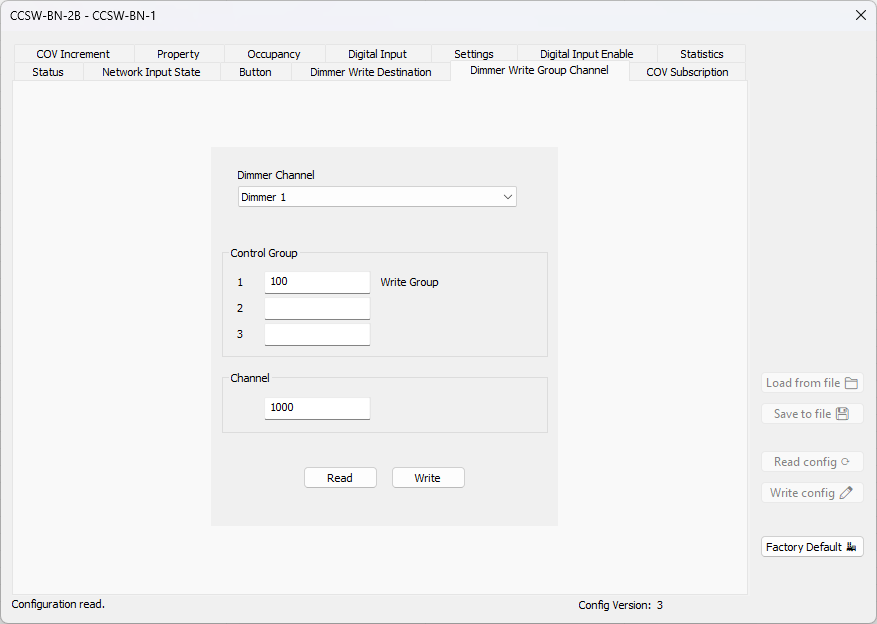
Configures the Channel objects.
Dimmer Channel
Choice of dimmer to configure.
Control Group
Configures the control groups numbers.
| Item | Explanation |
|---|---|
| 1 | Control Group 1. Also used with Write Group. |
| 2 | Control Group 2. |
| 3 | Control Group 3. |
Channel
Configures the channel number.
COV Subscription
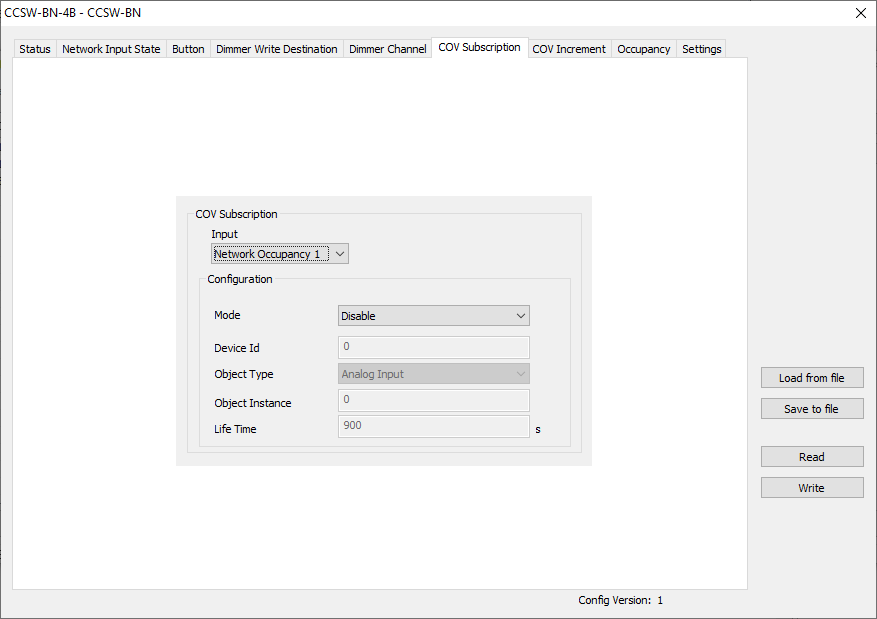
This window is used to define the readings of the network.
| Item | Explanation |
|---|---|
| Input | A choice between Network Occupancy 1, Network Occupancy 2, Network Occupancy 3 and Network Occupancy 4. |
| Mode | A choice between Disable, Subscribe COV, Subscribe Unconfirmed COV, Polling / COV without a subscription. This is the BACnet service for network updates. |
| Device Id | Instance number of the BACnet device source. |
| Object Type | A choice between Analog Input, Analog Output, Analog Value, Binary Input, Binary Output, Binary Value, Multi-state Input, Multi-state Output, Multi-state Value. |
| Object Instance | Instance number of the BACnet object. |
| Life Time | Time in seconds between COV subscriptions. |
| Interval | Time in seconds between polling. |
COV Increment
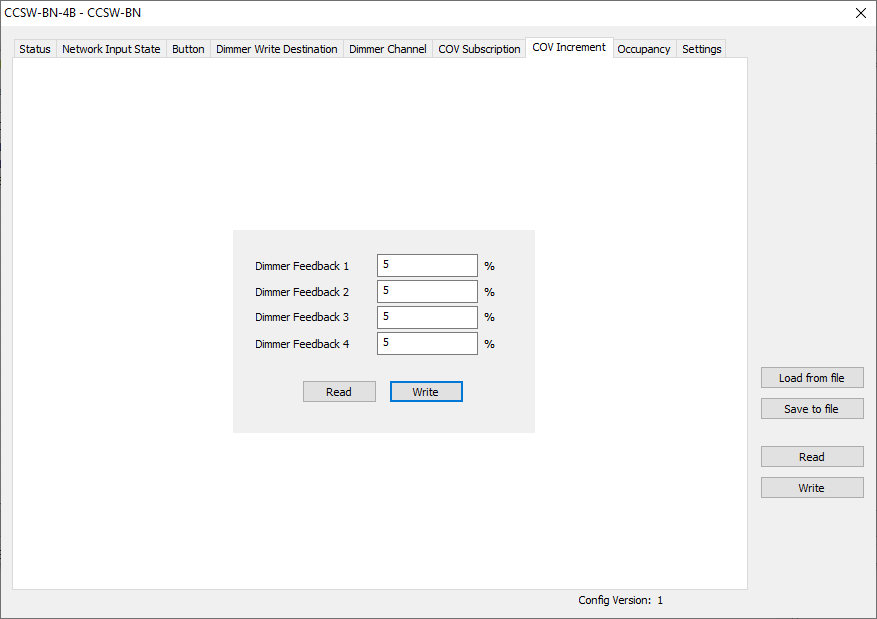
This window is to set the COV Increment of objects that can be subscribed by another BACnet device. These settings are the differences used to make new transmissions on status changes. These adjustments have an impact on network bandwidth. For example, if a dimmer is oscillating frequently by 1%, set its COV Increment to 5% to get only significant changes and avoid continuous transmissions.
Property
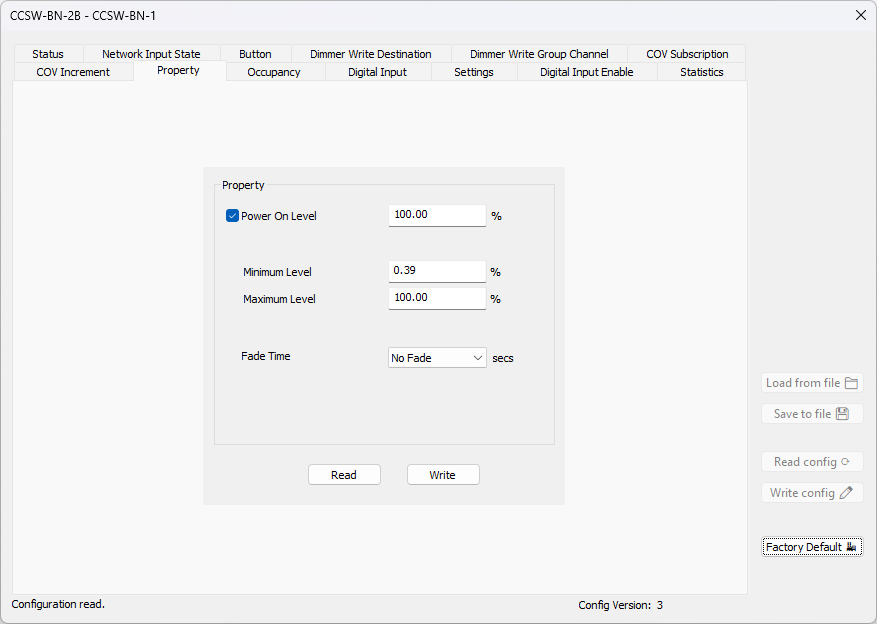
This window is to set the dimmer level limits and behavior.
| Item | Explanation |
|---|---|
| Power On Level | Dimmer level applied at power on. When disabled, the dimmer keeps its last level. |
| Minimum Level | The minimum level the dimmer can reach. |
| Maximum Level | The maximum level the dimmer can reach. |
| Fade Time | Time taken by the dimmer to fade from one level to another. |
Occupancy
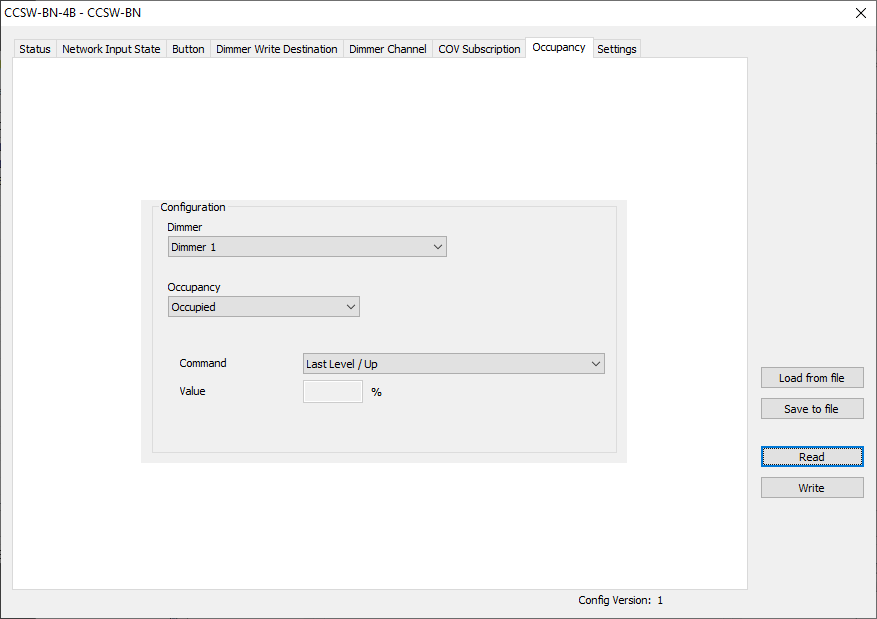
This window is to set the actions of the occupied mode.
Dimmer Channel
Choice of dimmer to configure.
Occupancy
| Item | Explanation |
|---|---|
| Occupied | Set the actions for the occupied mode. |
| Unoccupied | Set the actions for the unoccupied mode. |
Digital Input
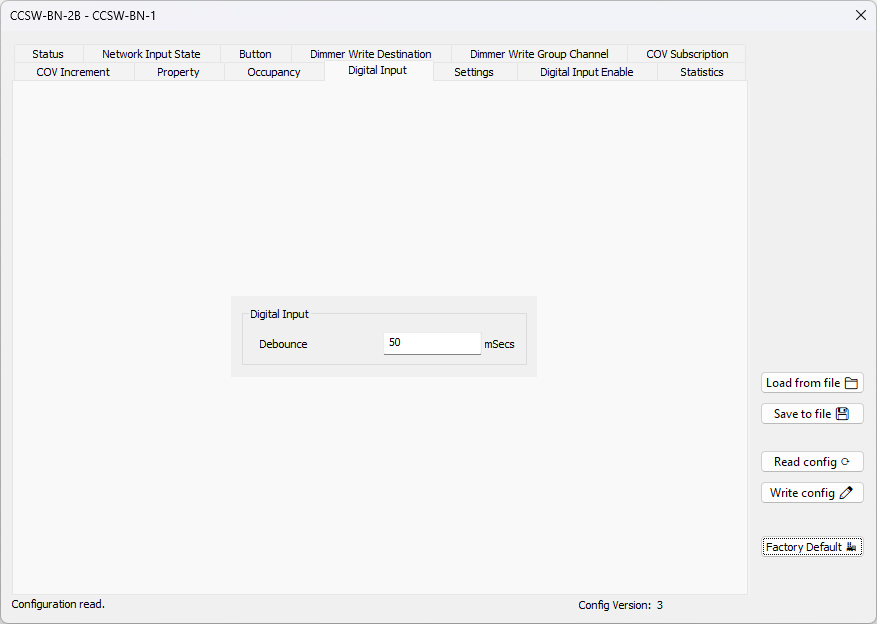
This window is to set the digital input parameters.
| Item | Explanation |
|---|---|
| Debounce | Debounce time in milliseconds applied to the buttons. |
Settings
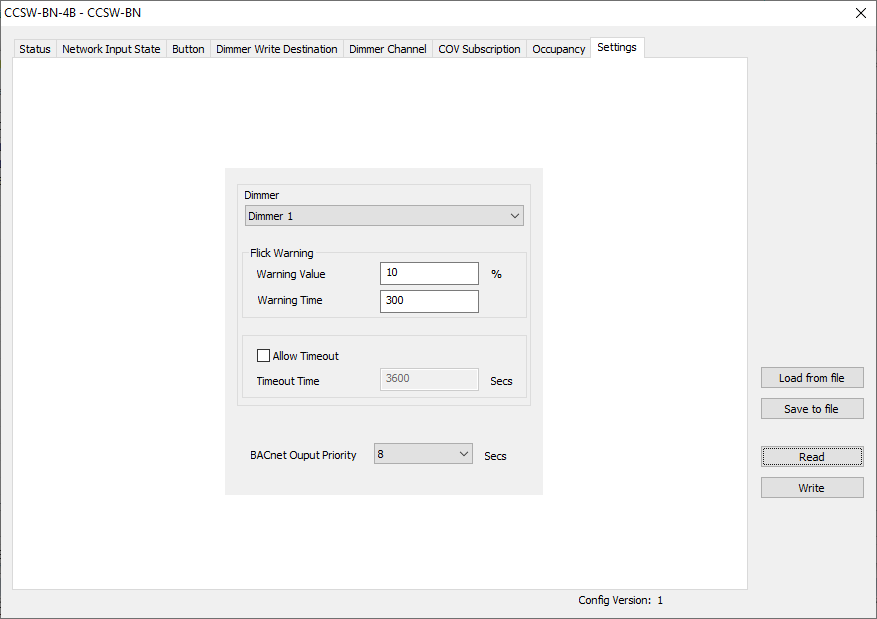
This window is for the wall switch settings.
Dimmer
Choice of dimmer to configure.
Flick Warning
| Item | Explanation |
|---|---|
| Warning Value | Dimmer percentage at which the warning is shown before reaching the unoccupied mode (the dimmer value before OFF). |
| Warning Time | Output remaining warning time before it reaches unoccupied mode. |
Timeout
| Item | Explanation |
|---|---|
| Allow Timeout | Allows buttons to suspend the unoccupied mode. |
| Timeout Time | Override period in seconds for the unoccupied mode. |
BACnet Output Priority
BACnet priority internally used by the wall switch.
Digital Input Enable
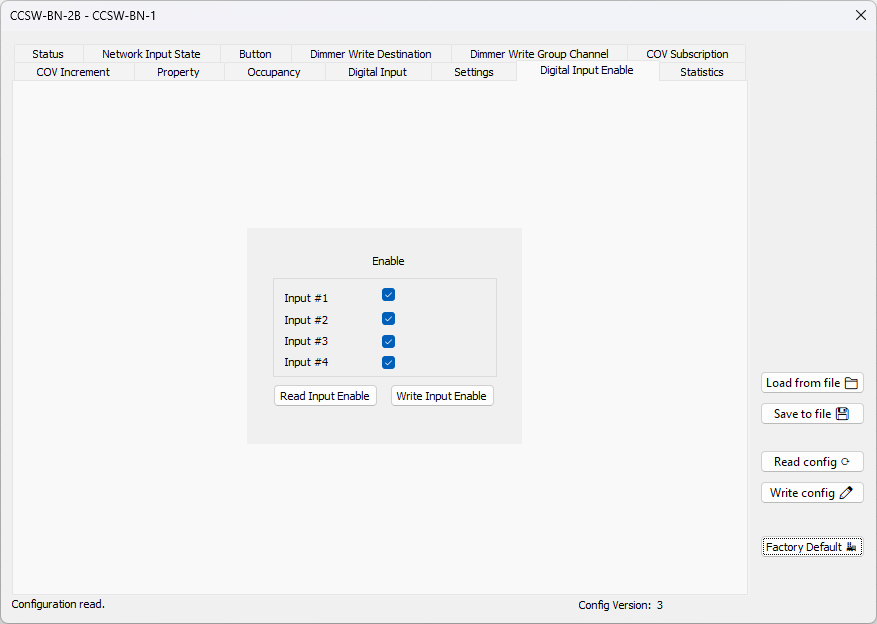
This window enables or disables each physical button input.
| Item | Explanation |
|---|---|
| Input #1 | Enable or disable the input of button 1. |
| Input #2 | Enable or disable the input of button 2. |
| Input #3 | Enable or disable the input of button 3. |
| Input #4 | Enable or disable the input of button 4. |
Statistics
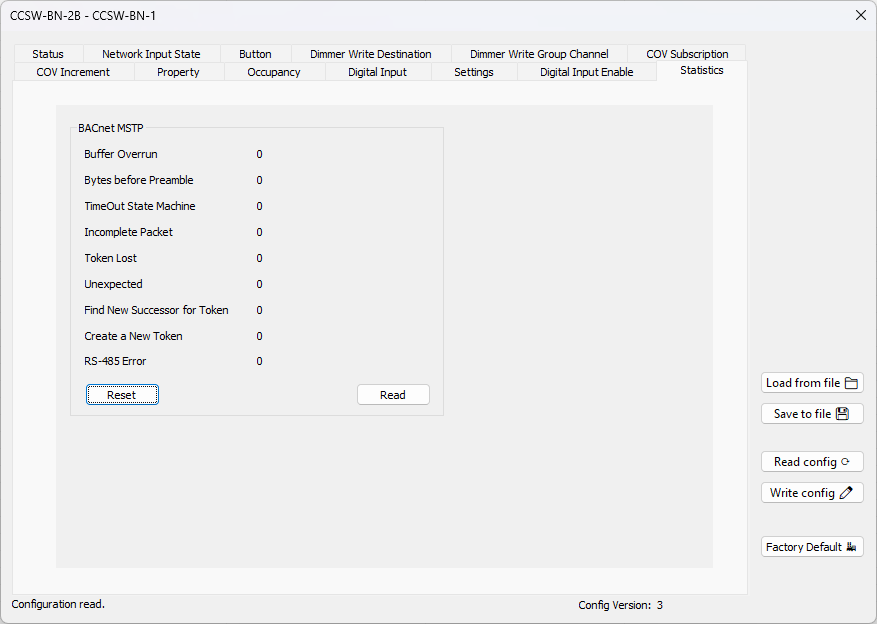
This window displays the BACnet MS/TP communication diagnostic counters. Use the Read button to refresh the values and the Reset button to clear them.
BACnet MSTP
| Item | Explanation |
|---|---|
| Buffer Overrun | Number of times the receive buffer overflowed. |
| Bytes before Preamble | Number of bytes received before a valid preamble. |
| TimeOut State Machine | Number of timeouts in the MS/TP state machine. |
| Incomplete Packet | Number of incomplete packets received. |
| Token Lost | Number of times the token was lost. |
| Unexpected | Number of unexpected frames received. |
| Find New Successor for Token | Number of times a new successor was searched for the token. |
| Create a New Token | Number of times a new token was created. |
| RS-485 Error | Number of RS-485 communication errors. |
Firmware Upgrade
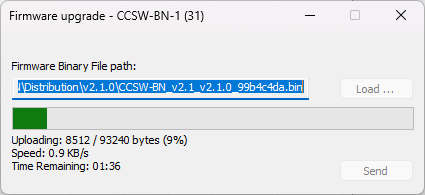
The wall switch firmware can be updated over the BACnet network using the BACnet Browser. In the device list, select the wall switch, then open the Device > Firmware Upgrade menu. You can also right-click the wall switch in the device list and choose Firmware Upgrade from the context menu.
Contact Cristal Controls before upgrading, as some firmware versions may not be compatible and could result in the BACnet MS/TP and other configuration being lost.
| Step | Action |
|---|---|
| 1 | Select the wall switch in the device list and open Device > Firmware Upgrade (or right-click the wall switch and choose Firmware Upgrade). |
| 2 | Click Load ... and select the firmware binary file provided by Cristal Controls. |
| 3 | Click Send to start the transfer. The progress bar shows the upload progress. |
| 4 | Wait for the Firmware upgrade completed message. The wall switch reboots automatically. |
Do not power off the wall switch or close the window during the transfer. Once the upgrade is complete, read the configuration back to confirm the device is operating normally.